Introduction
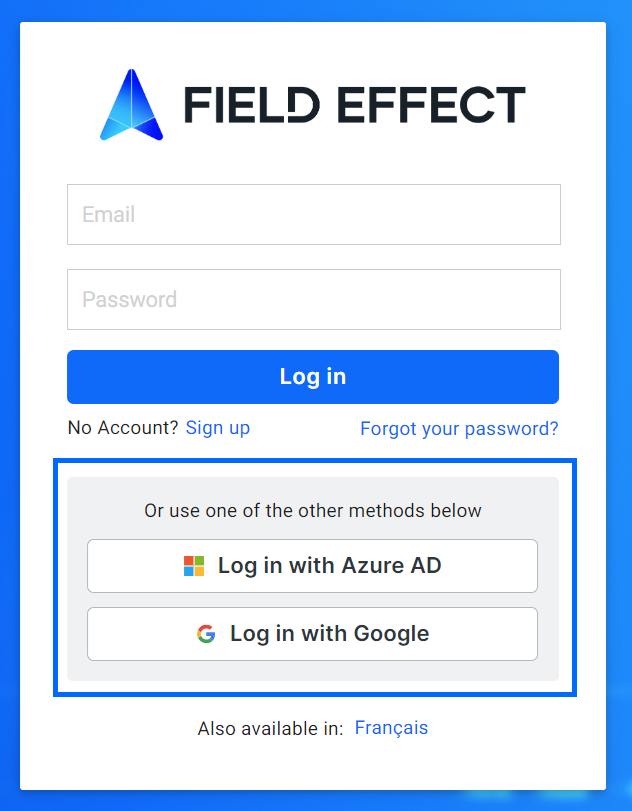
The Field Effect MDR Portal allows users to sign into the system using Single Sign-On (SSO) via a Google Workspace or Microsoft Azure account. To enable this feature, you must link an SSO account to an existing account, so you will need to be invited to an organization and create an MDR Portal account before using SSO.
This article walks through the process of linking and unlinking SSO to your MDR Portal account. After successfully linking accounts, you’ll be able to log into the MDR Portal via SSO on the login page.
Linking an SSO Account
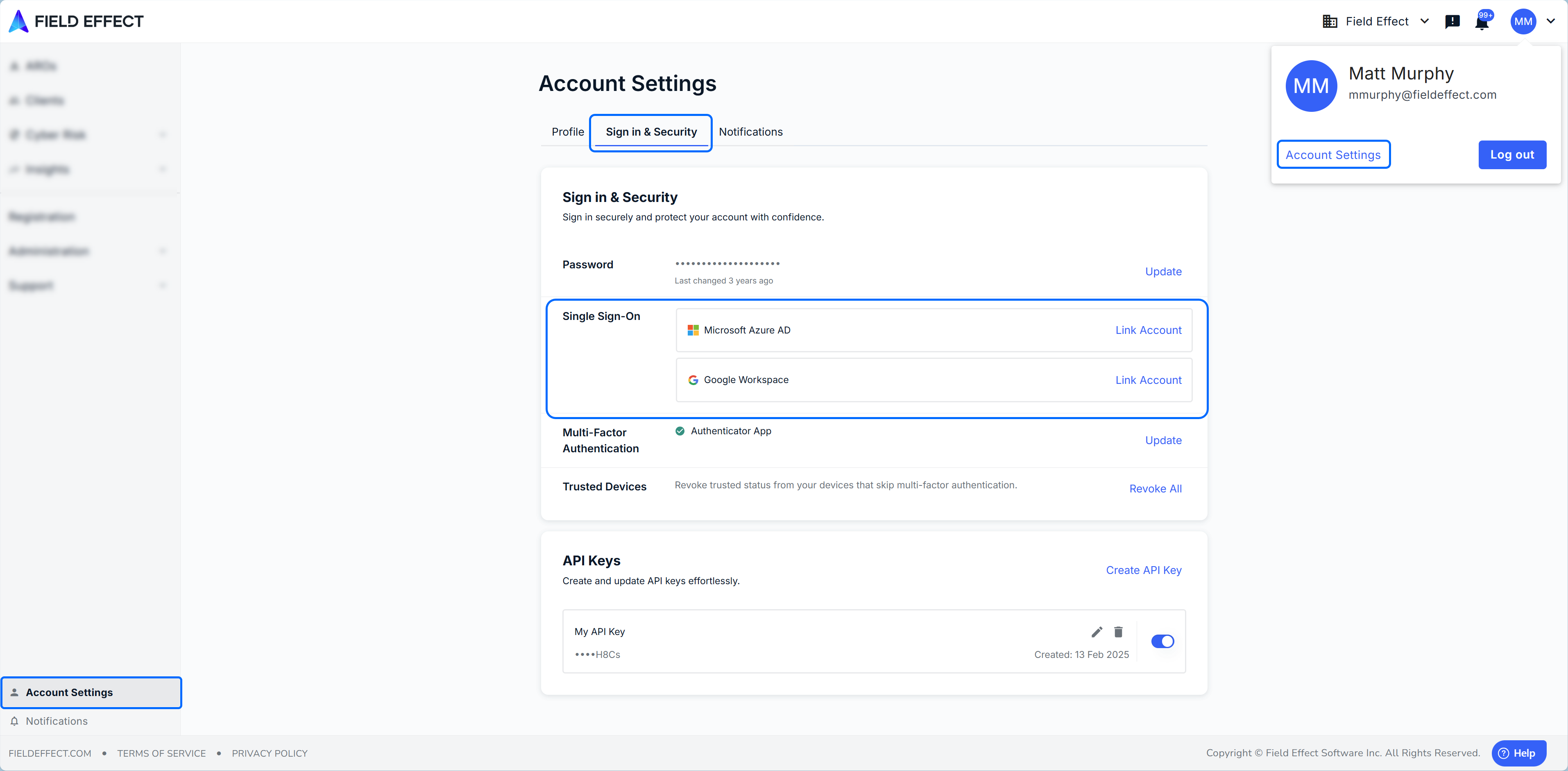
Log into the MDR Portal and navigate to the Account Settings page's Sign in & Security tab. In the Single Sign-On section, click Link account for the SSO account you want to link (Microsoft Azure AD or Google Workspace).
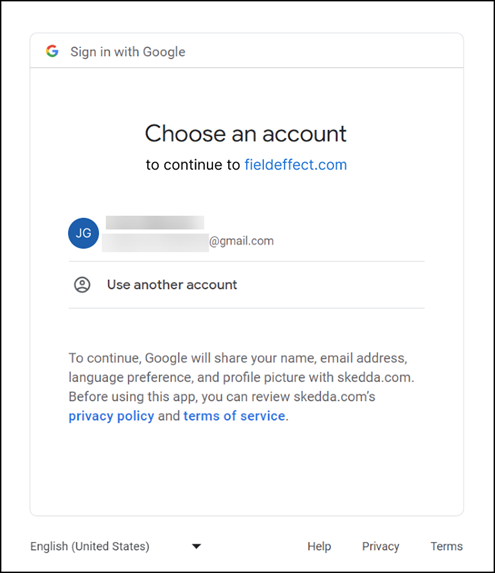
After clicking link account, you will be taken to account selection page for that account. The example below shows the account selection page for Google Workspace. From the list of accounts, select the account you want to link to your MDR Portal account for SSO.
Note: if your SSO account has Multi-Factor Authentication (MFA) enabled, you may be asked to provide your MFA code for that account.
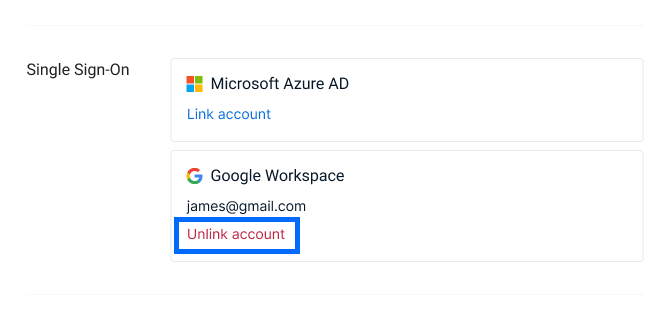
You’ll be taken back to the MDR Portal’s Profile page, and you can unlink your SSO account from this section, should you want to update SSO accounts.
Was this article helpful?
That’s Great!
Thank you for your feedback
Sorry! We couldn't be helpful
Thank you for your feedback
Feedback sent
We appreciate your effort and will try to fix the article