Introduction
This article walks through the process of granting Field Effect additional permission to access these new logs from your Microsoft 365 tenant (portal.azure.com).
Locating Applications
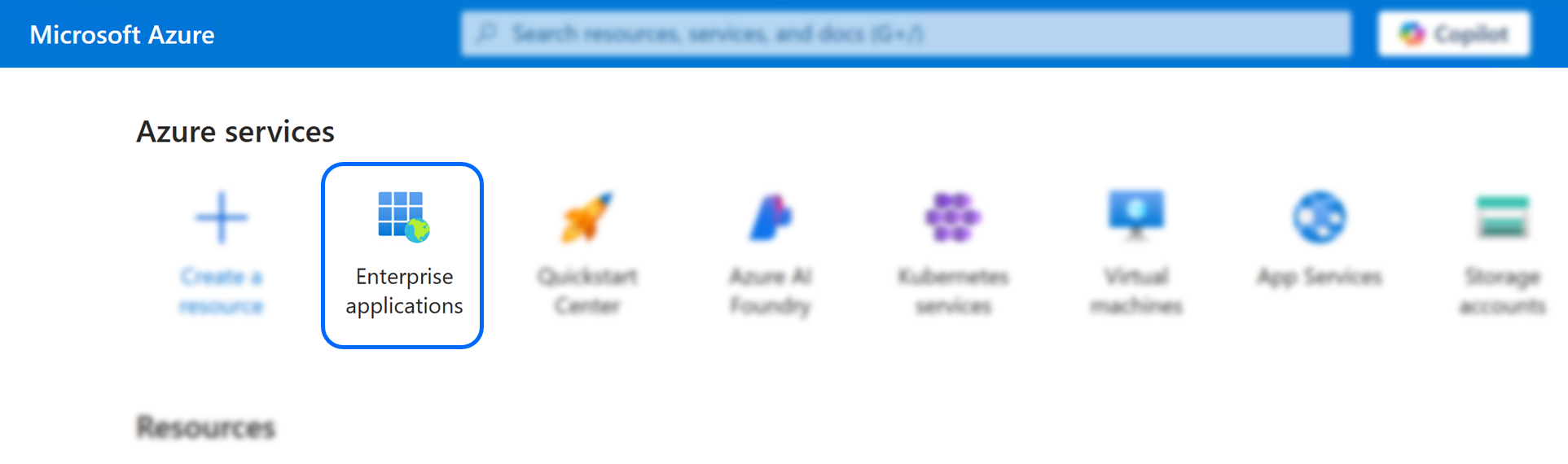
Begin by navigating to your Microsoft 365 Tenant (portal.azure.com) and from the Services Page, select Enterprise Applications.
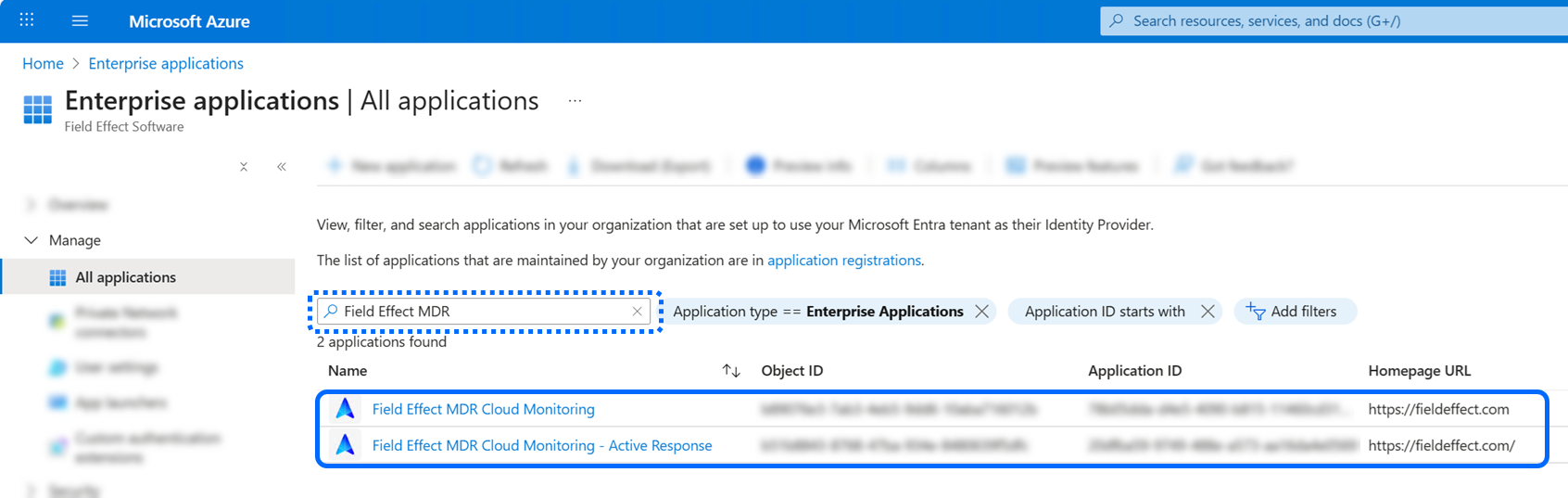
Search for and select the following Field Effect MDR Cloud Monitoring – Active Response.
If you are a long-standing client, you may see other applications listed (example: “Field Effect Cloud Monitoring - Active Response”, "Covalence Portal"). If this is the case, please perform the following sub-procedure (“Granting Admin Consent for Field Effect MDR Cloud Monitoring Applications”) to each Field Effect and Covalence application listed.
Granting Admin Consent for Field Effect MDR Cloud Monitoring Applications
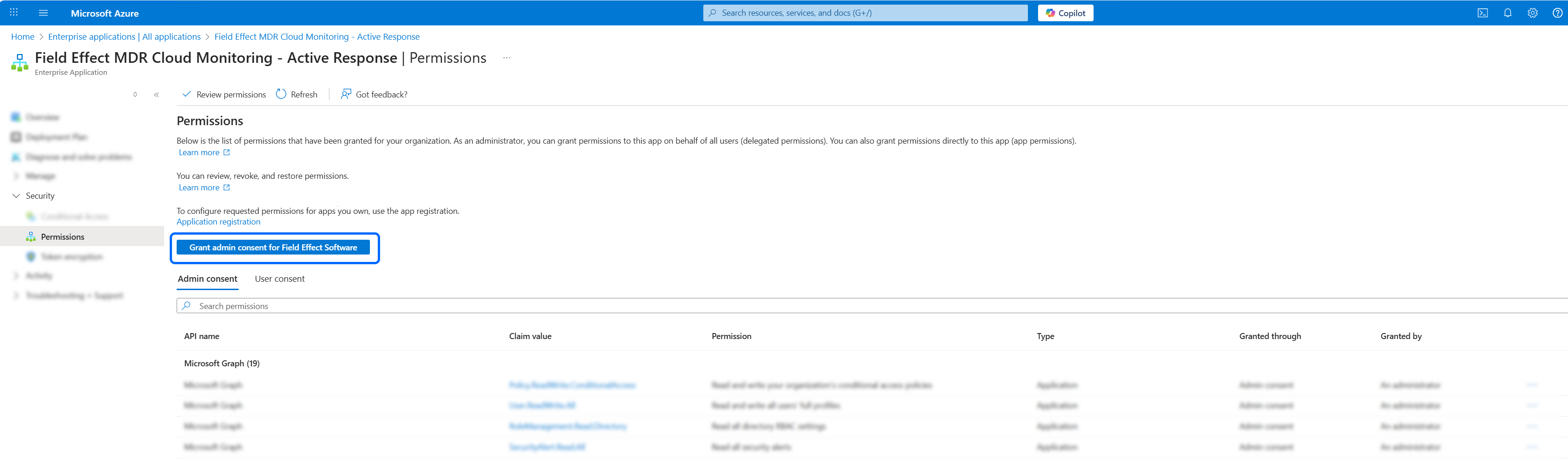
Under Security, select Permissions and click Grant admin consent for Field Effect Software.
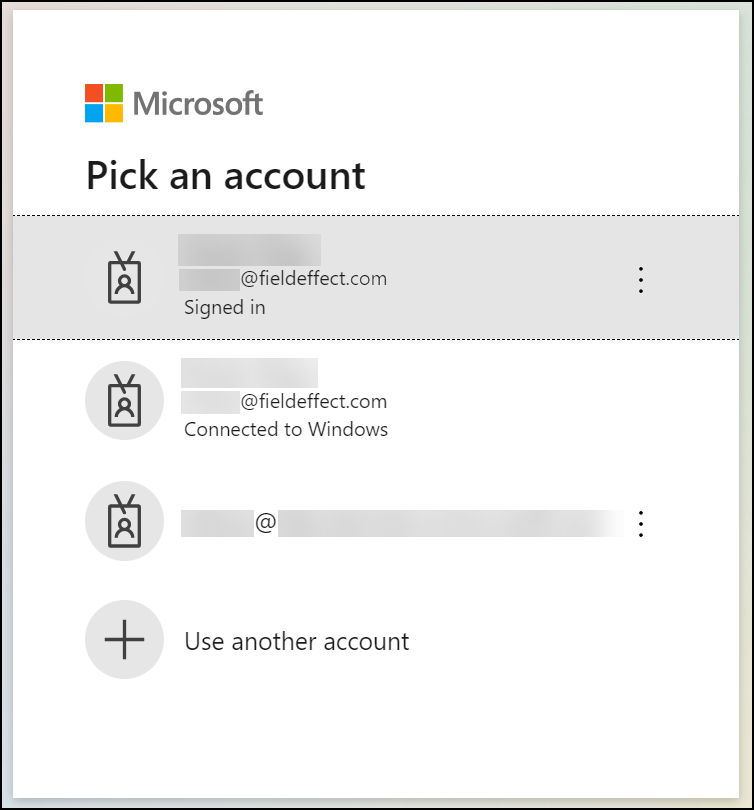
A new window opens and prompts you to sign in to your Microsoft 365 account.
After you log in, Microsoft asks you to grant Field Effect MDR permission to access the metrics listed in the image below. If you approve of this, click Accept.
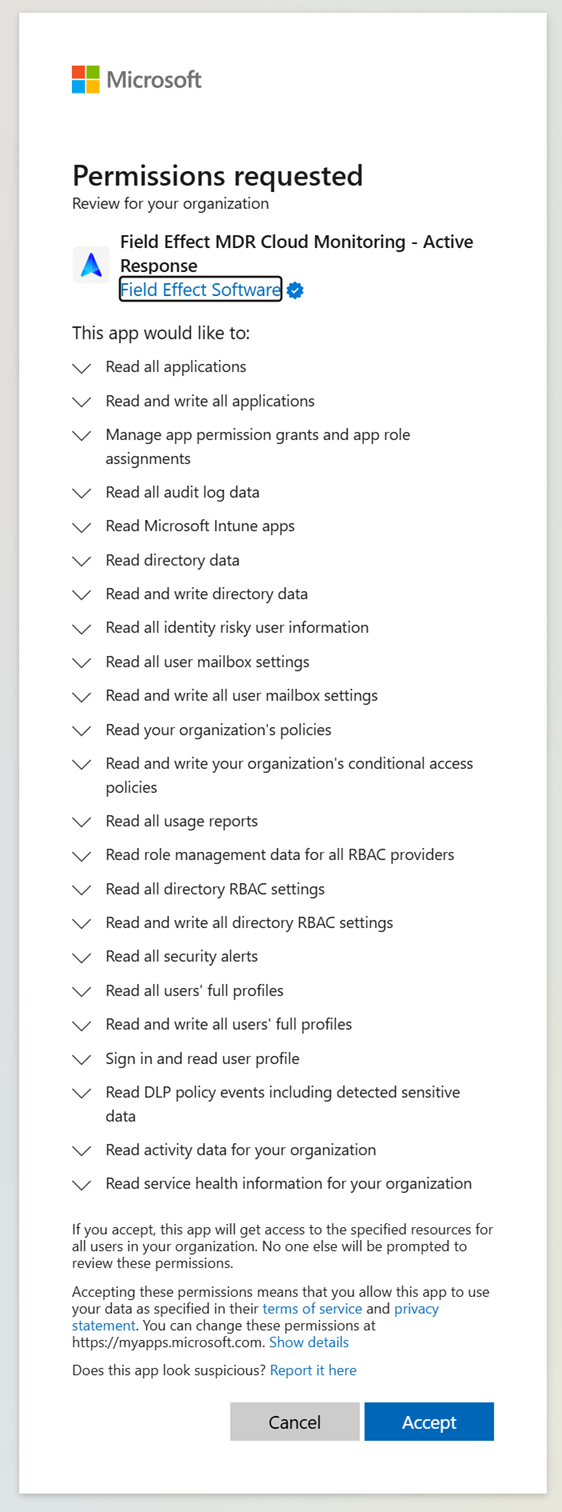
The example above shows the permissions required for the Standard integration. If you are selecting the Limited integration, you will see fewer permissions listed.
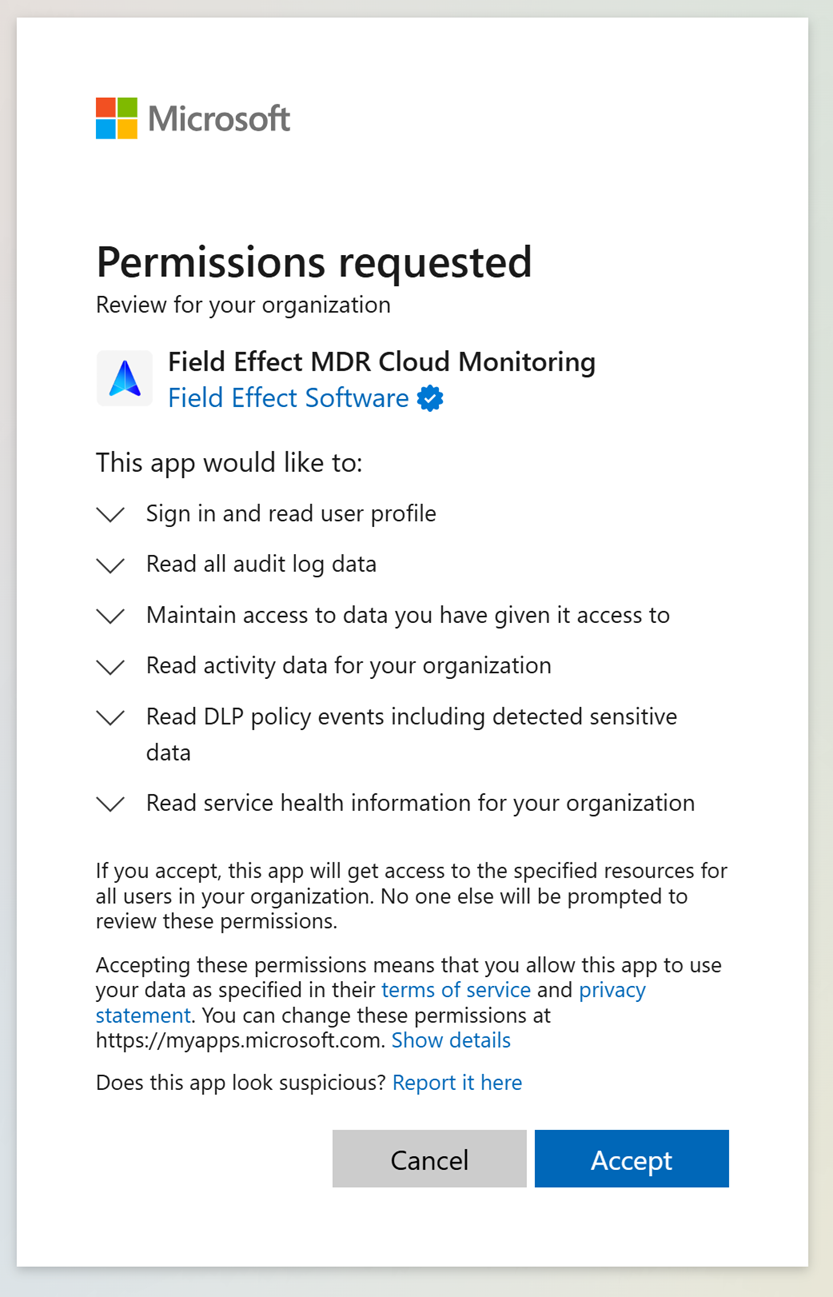
The open window closes, and Microsoft applies the permissions required for extended log protection.
Was this article helpful?
That’s Great!
Thank you for your feedback
Sorry! We couldn't be helpful
Thank you for your feedback
Feedback sent
We appreciate your effort and will try to fix the article