Introduction
NOTE: If you would like to send this information to end client employees, and other users without a Field Effect MDR Portal and/or Help Center account, simply download the PDF attached to this article (bottom) and you can distribute that.
This article outlines the workflow for end users submitting emails to the Suspicious Email Analysis Service (SEAS), which is available for Gmail and Outlook. To learn more about how SEAS functions and ranks emails, visit our knowledge base (http://support.fieldeffect.com).
Your organization’s (or MSP) administrator must configure SEAS before users can submit emails to SEAS. Configuration instructions for SEAS are available in our knowledge base.
When Should You Submit an Email to SEAS?
Whenever you receive an email that seems suspicious, it would be worth submitting the email to SEAS for analysis. Example of emails that could be candidates for SEAS include:
- Emails claiming to be from within your organization that have the incorrect domain name.
- Example: “fieldefect.com” instead of “fieldeffect.com”
- Emails claiming to be from within your organization that ask you to transfer funds.
- Example: CEO asking you purchase gift cards or send money to a non-organizational email.
- Emails claiming to be from a well-known company asking you to move money, click a link, or take a survey.
If you find any email suspicious in any way, send it to SEAS.
Submitting an Email to SEAS
Step 1 - The SEAS plugin
When receiving an email that seems suspicious, you can send it to SEAS by clicking the SEAS icon within your email client.
The SEAS icon within Outlook is located in the top ribbon’s Home tab.

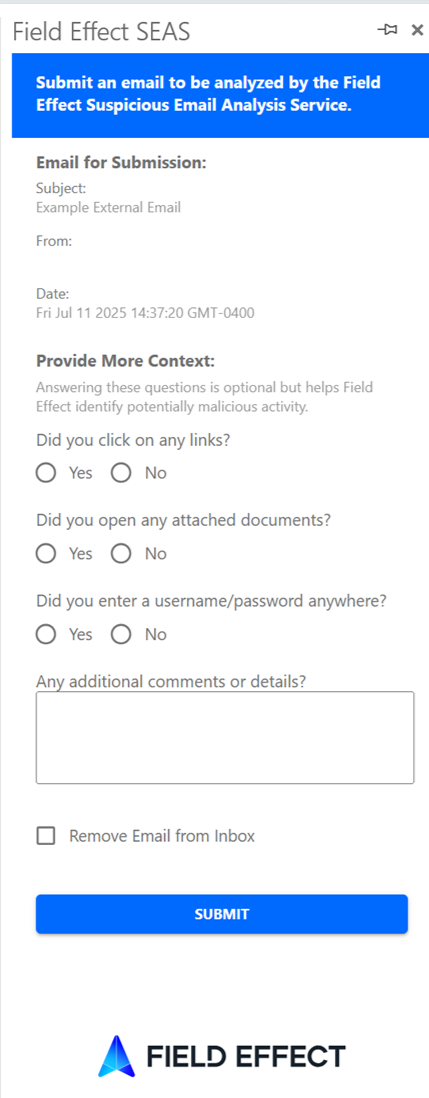
Step 2 - The SEAS questionnaire
The SEAS questionnaire will open on your screen. Fill out the questionnaire to give our analysts as much context as possible to help with their analysis. After filling out the questionnaire, click Submit.
Step 3 - Your results
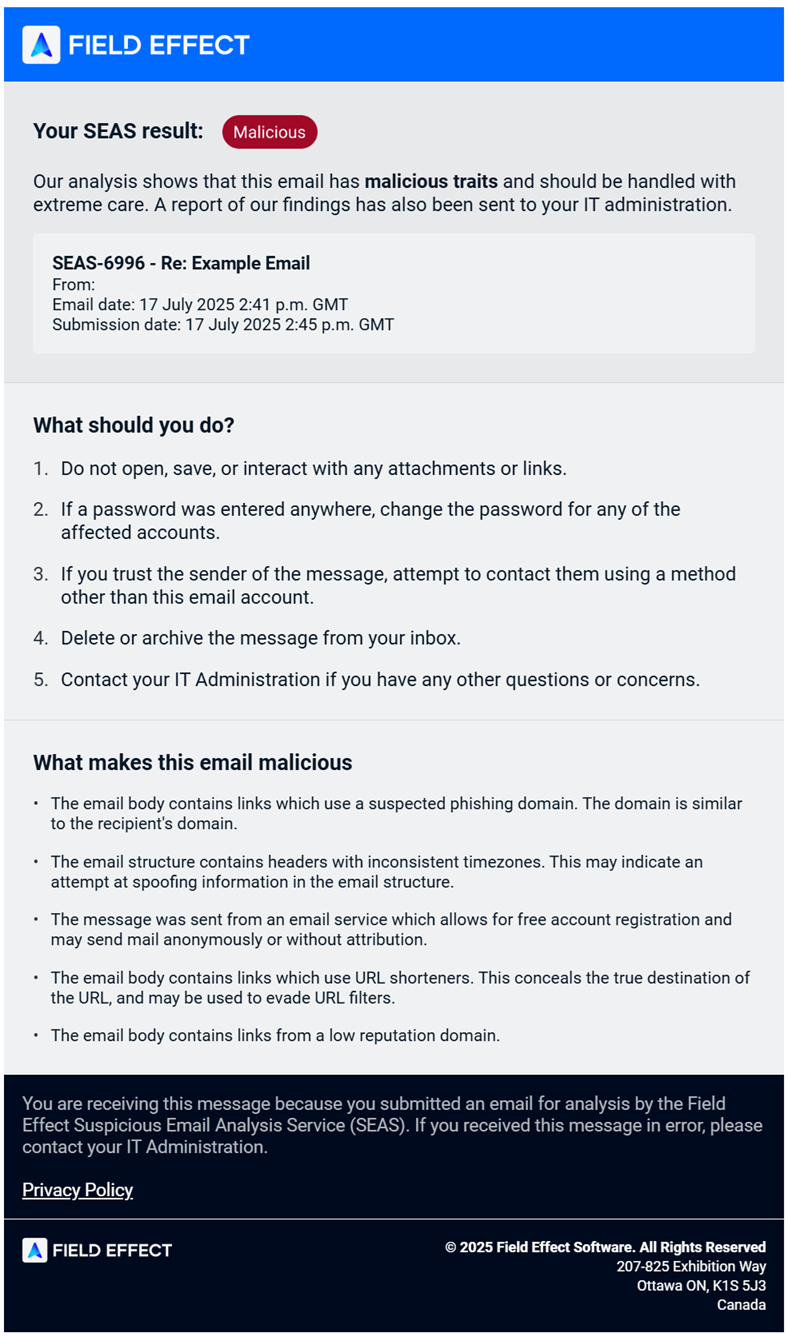
Once SEAS analyzes the email, you'll receive an email notification with all the information about your submission and next steps.
TThe example below shows an email notification for a SEAS submission that SEAS rated "malicious". This notification includes a synopsis of how the SEAS investigation concluded and why SEAS gave the email its status.
Was this article helpful?
That’s Great!
Thank you for your feedback
Sorry! We couldn't be helpful
Thank you for your feedback
Feedback sent
We appreciate your effort and will try to fix the article