Introduction
Users can not create an account until they have been invited to an organization in the Field Effect MDR Portal. To learn more, see Inviting User
The Field Effect MDR Portal is at the center of your deployment, as it is where you will interact and configure your service. And this article walks through the process of creating an account for the MDR Portal.
This article outlines the steps required to create a Field Effect MDR Portal account:
- Create Your Account
- Set Up Multi-Factor Authentication
- Verifying Your Account via Email
- Accessing Your Organization
Note on Deployments and Administrators
If you are an expected MDR Portal Administrator and setting up the service for the first time, your email address already has access to create an account following the steps below.
Once your account is created, you can invite other users to create MDR Portal accounts, where they can access AROs, view configurations, and more (depending on their permission level).
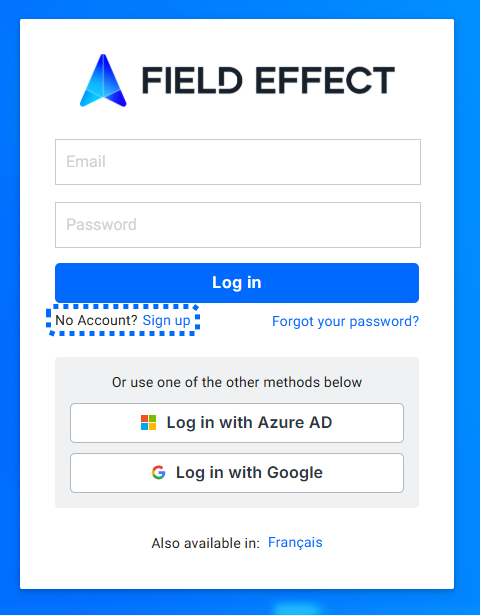
Logging in via Single Sign-On (SSO)
The MDR Portal supports SSO for Google Workspace and Microsoft 365. To use this feature, you must create your account (shown below) and link an SSO account to your existing account. To learn how to link an SSO account, see Single Sign-On: Overview.
Video Overview
Create Your Account
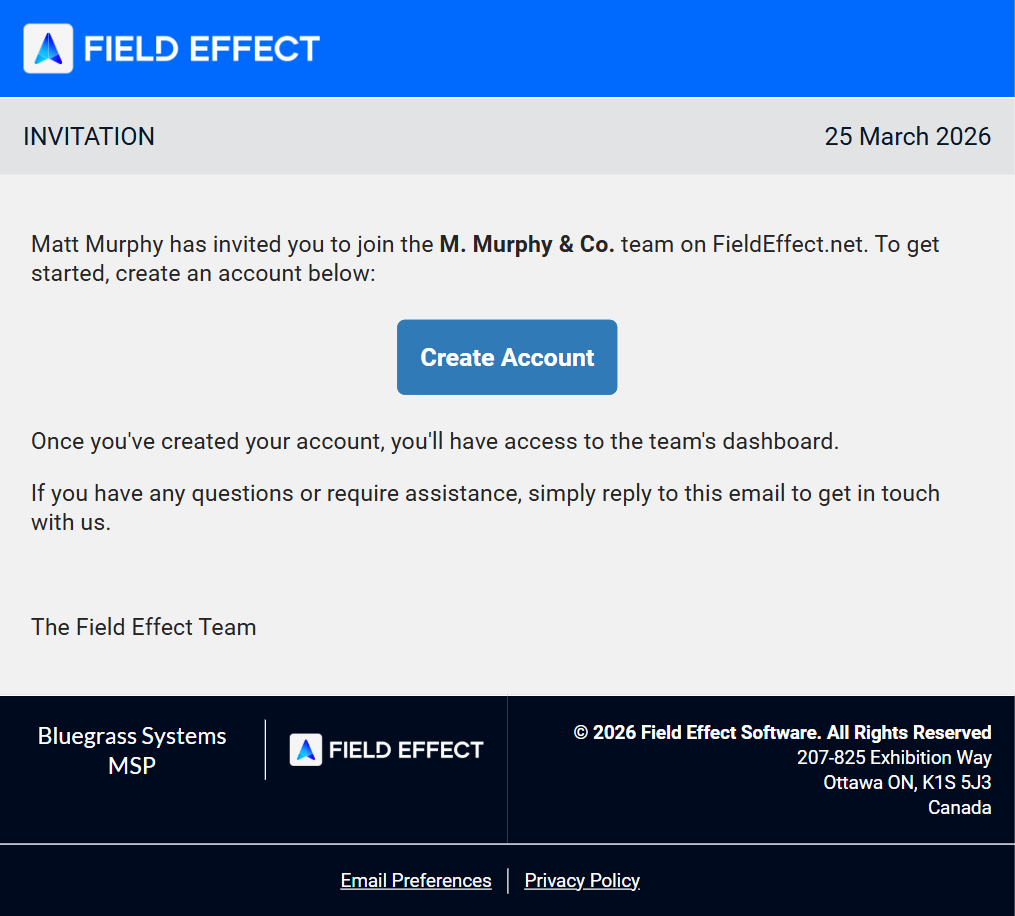
Once you have been invited into an organization within the MDR Portal, you will receive an email to create your MDR Portal account. Click the Create Account button to get started.
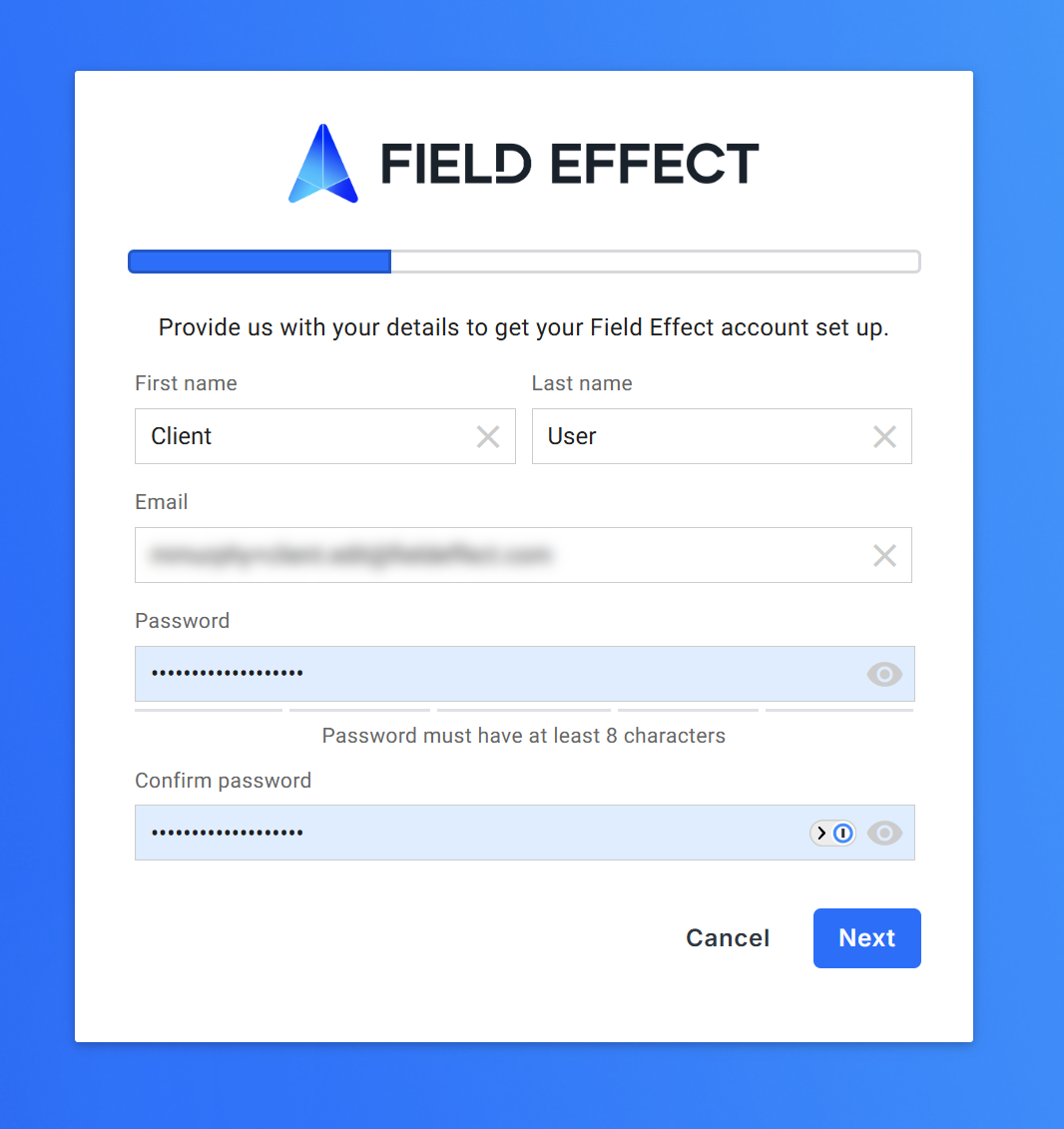
You will be taken to the MDR Portal's account creation form. Provide your personal information and create a password for your MDR Portal Account. When ready, click Next.
Password Requirements:
- Between 8 and 256 characters
- One digit (1-9)
- At least one lower case character
- At least one upper case character
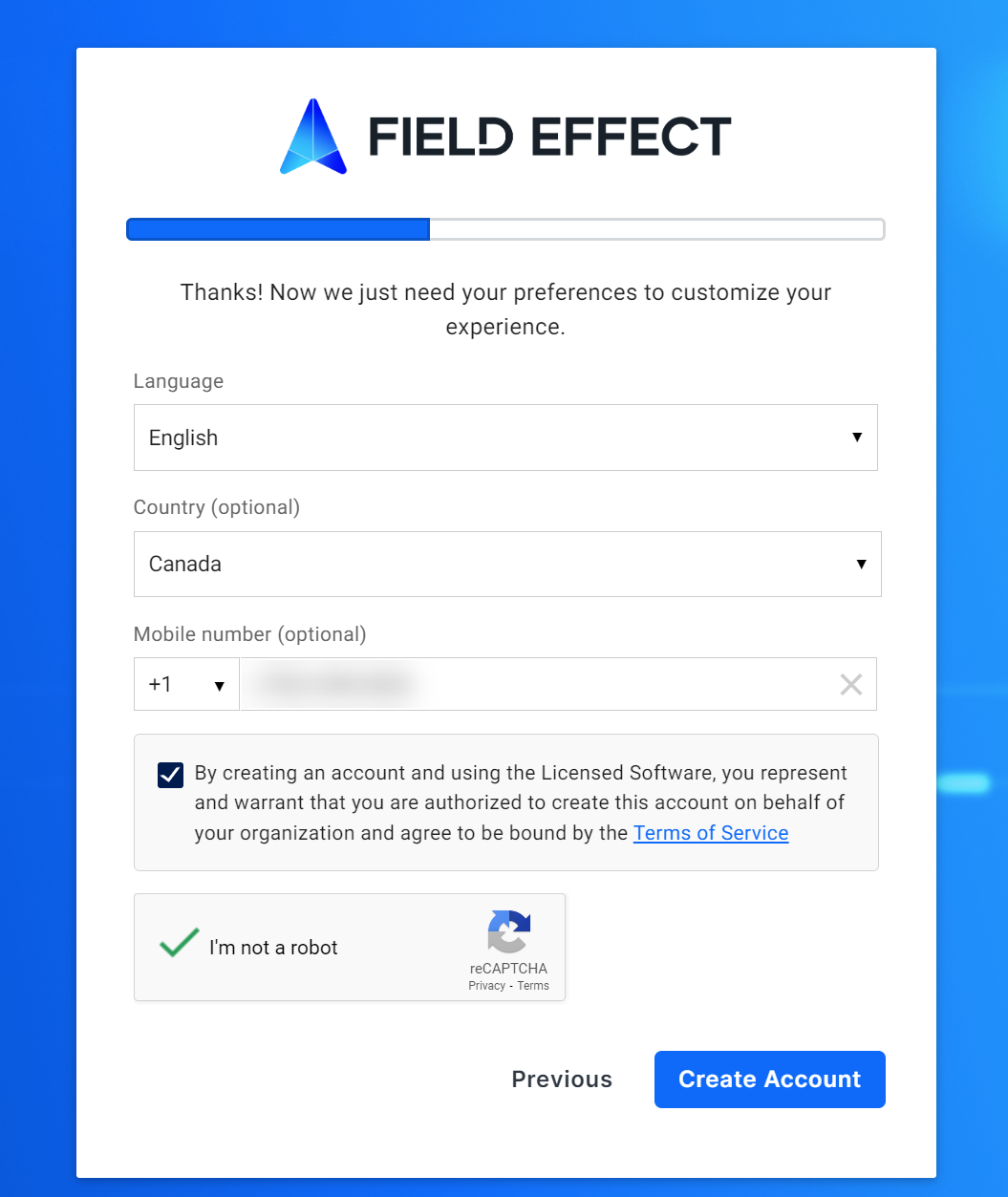
On the second page, select your language and region, provide a phone number (required for SMS notifications and Multi-Factor Authentication). After agreeing to our terms and checking the I’m not a robot verification checkbox, click Create Account.
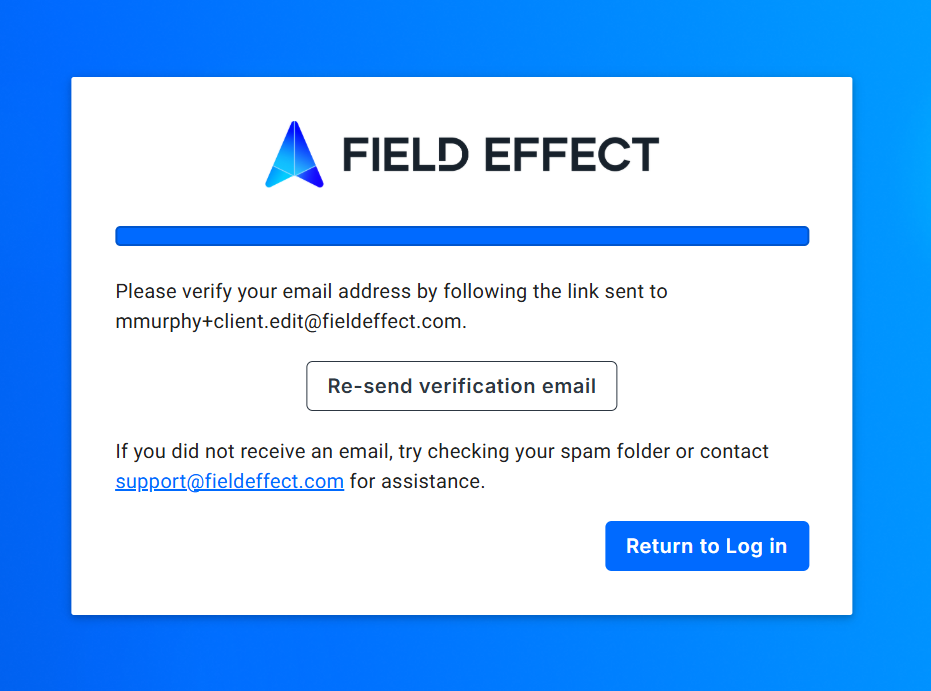
You'll be taken to a confirmation screen for account verification. You will be sent a verification email automatically, but you can have if re-sent from this page if required.
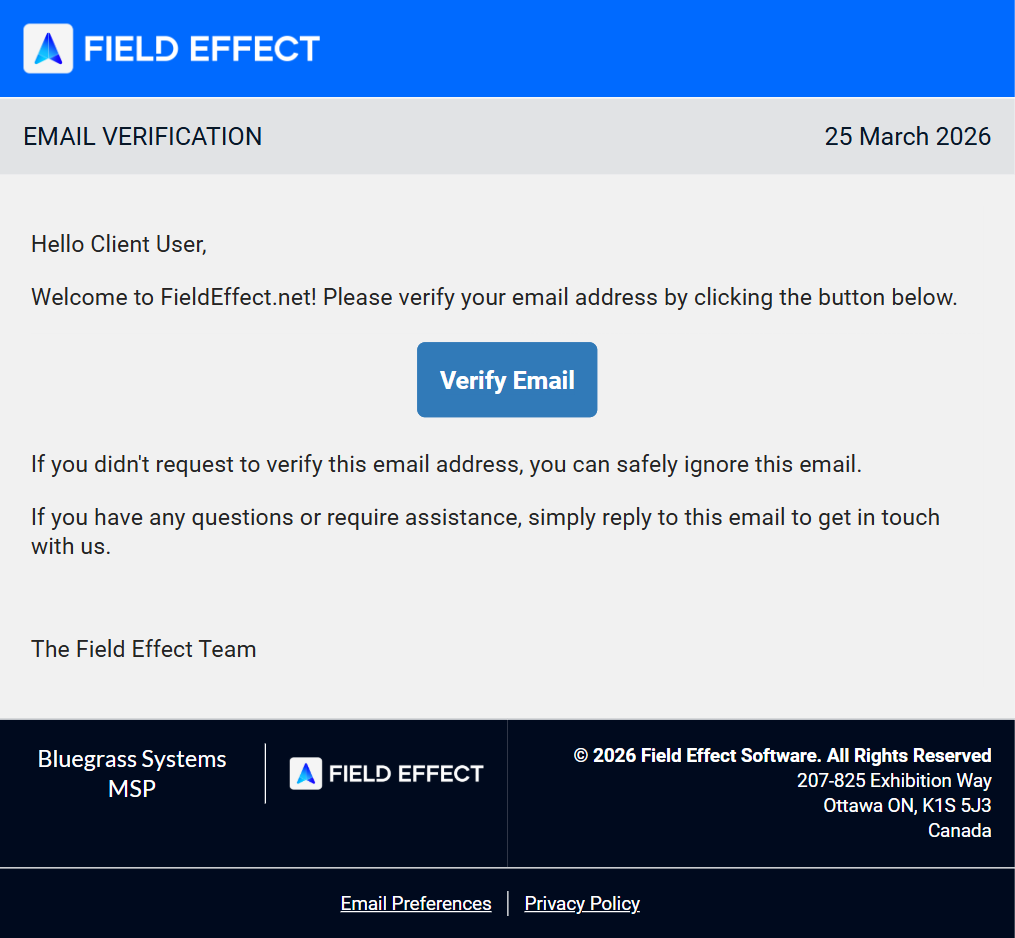
Check your inbox for the verification email and click the Verify Email button.
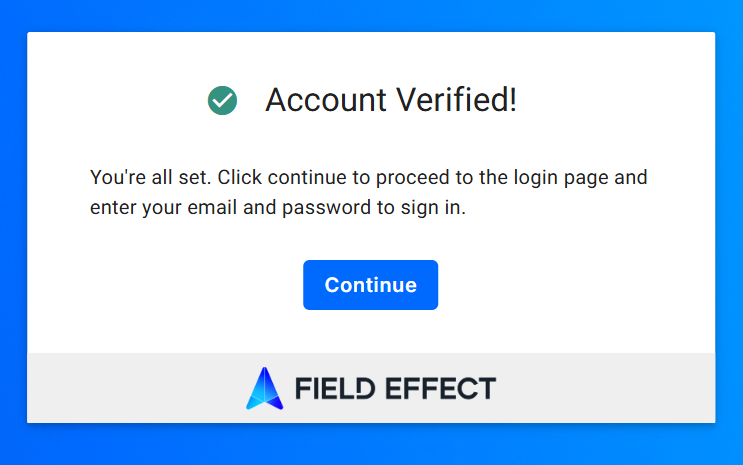
Clicking this button will verify your account and take you confirmation page that your account has been verified. Click Continue to be taken back to the login page, where you can log in using your new MDR portal account.
Set Up Multi-Factor Authentication
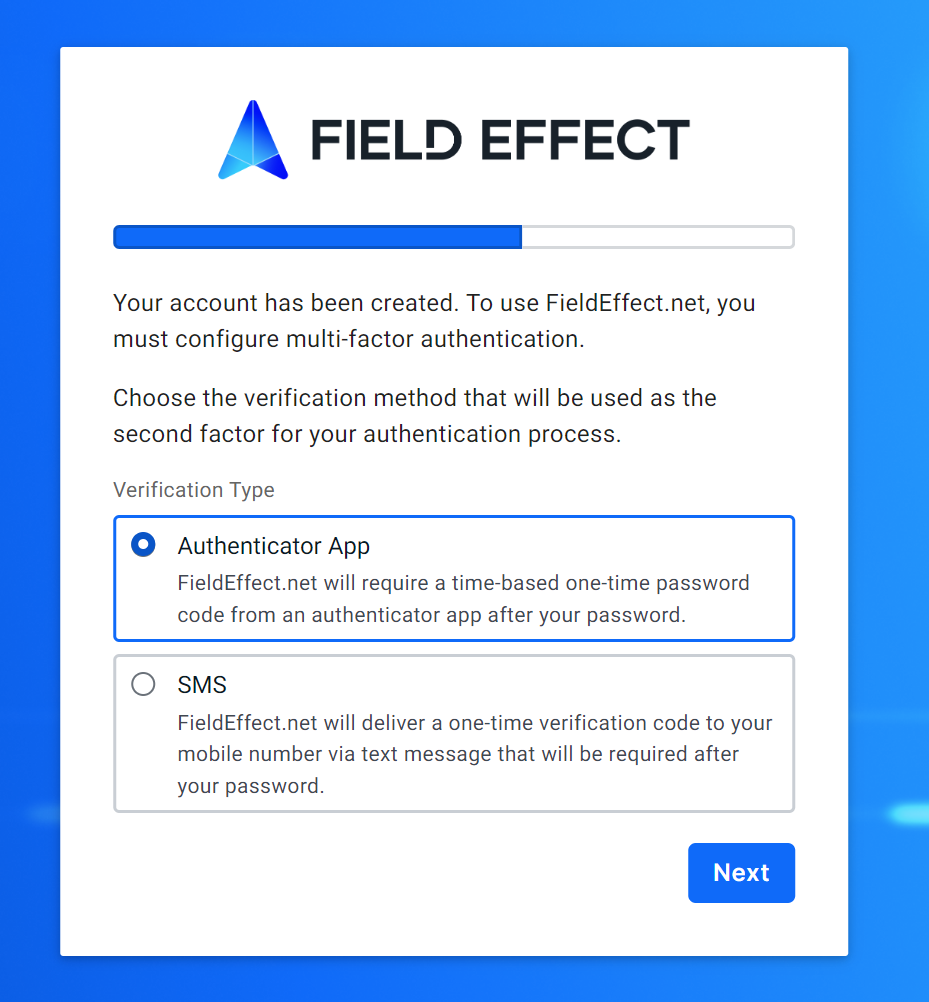
Multi-Factor Authentication (MFA) is required for MDR Portal accounts. So when logging in for the first time, you will be prompted to set up Multi-Factor Authentication using either your preferred authenticator app or mobile number.
Using the Authenticator App for MFA
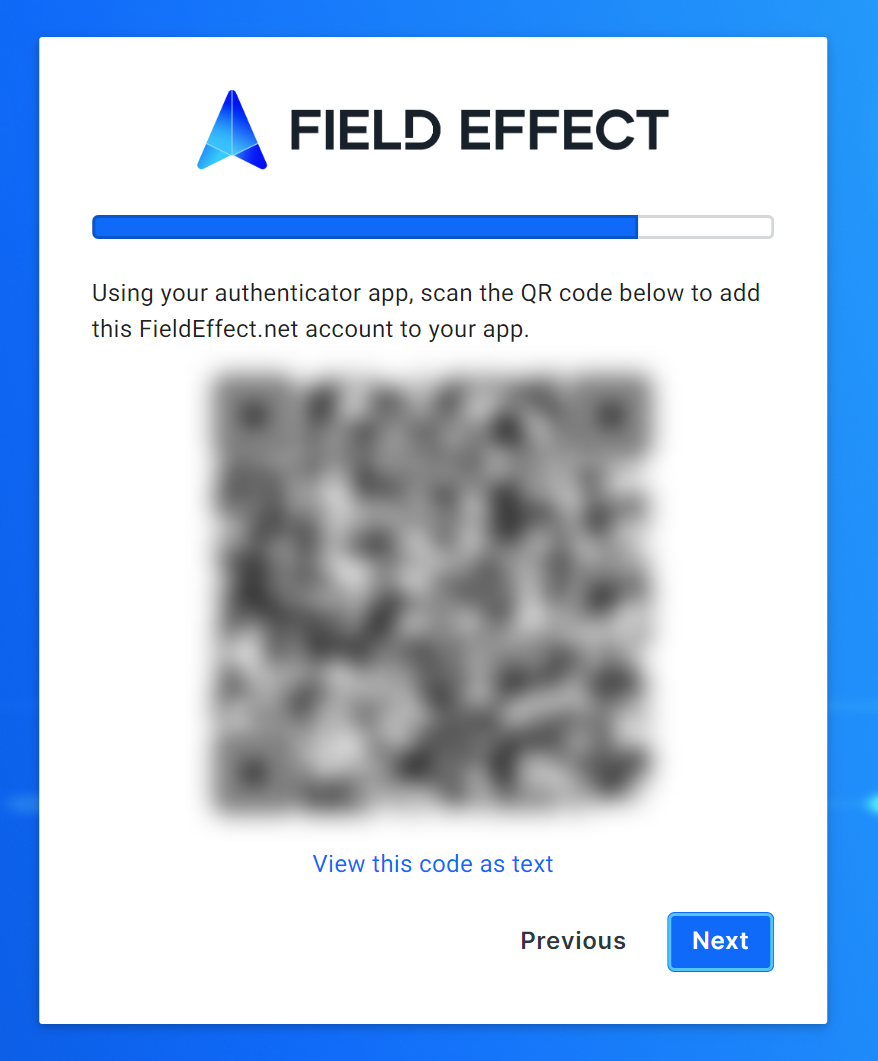
If you want to authenticate using an authenticator app, select Authenticator App and click Next.
A QR code will appear in the form. Using your preferred authenticator app, scan the QR code. You can also view the code as text and add it to the authenticator app manually. Once you see the authenticator app begin creating one-time passwords for your MDR Portal account, Click Next.
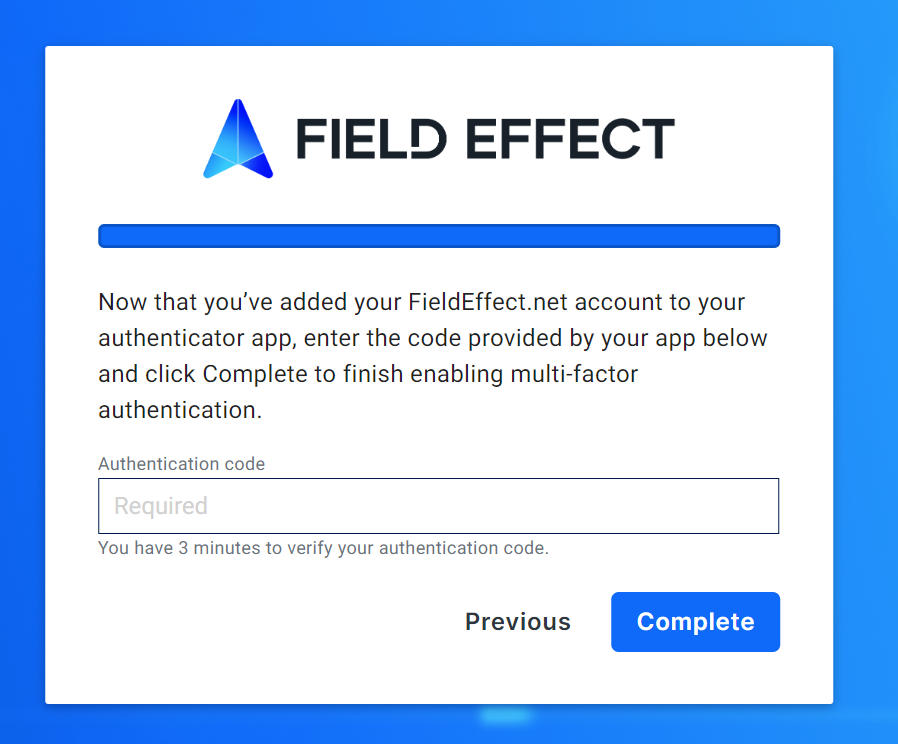
You’ll be taken to the final step, requiring you to provide the code generated by your authenticator app. Authenticator apps continuously create codes that expire every 30 seconds. Add the generated code before it expires and click Complete (If the initial code expires, simply repeat the process with a newly generated code).
Using SMS for MFA
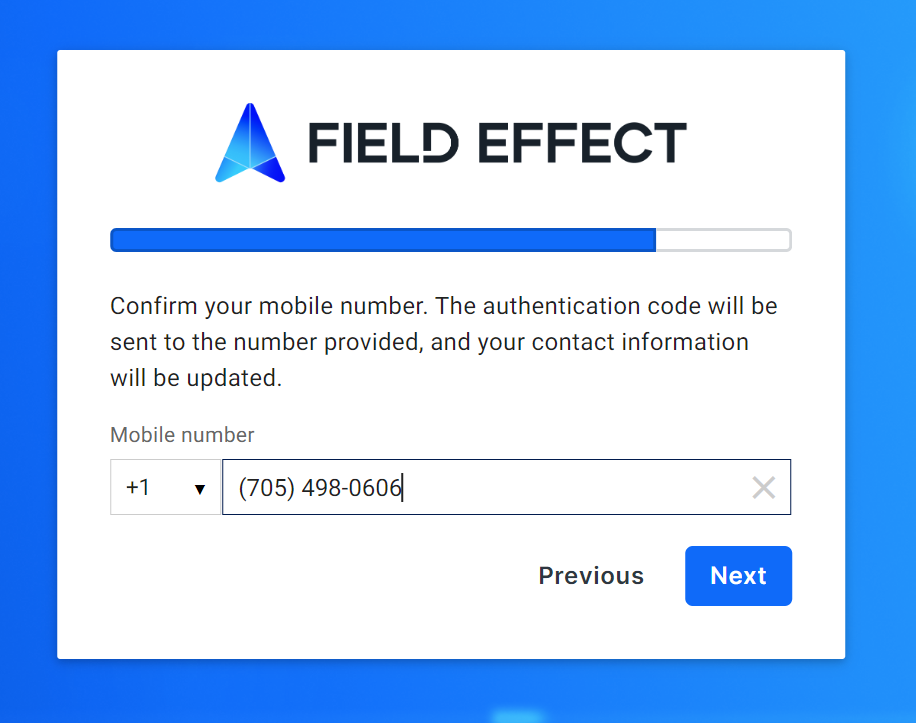
If you want to authenticate via SMS message when authenticating during future logins, select SMS and click Next. You’ll be asked to provide your mobile number (if not provided earlier in this procedure).
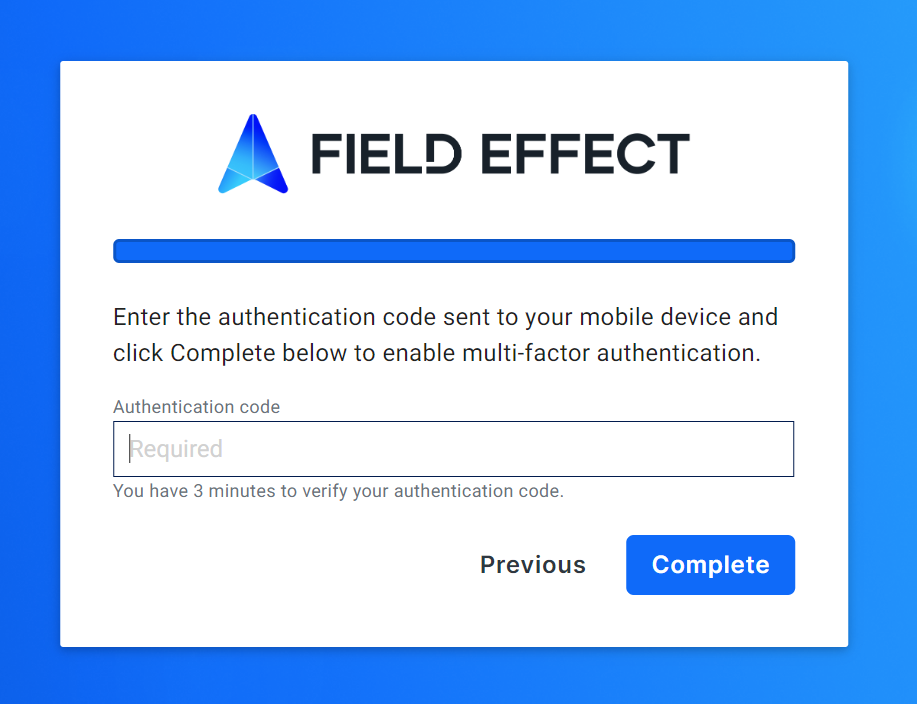
A verification code will be sent to the mobile device associated with your profile. To use this method, you must have already added a mobile number to your account. After receiving the SMS message containing the authentication code, provide it in the form and click Complete.
Was this article helpful?
That’s Great!
Thank you for your feedback
Sorry! We couldn't be helpful
Thank you for your feedback
Feedback sent
We appreciate your effort and will try to fix the article