Introduction
This article shows you how to locate, search, sort, and filter AROs so you can quickly find the information you need and take action.
This article covers the following topics:
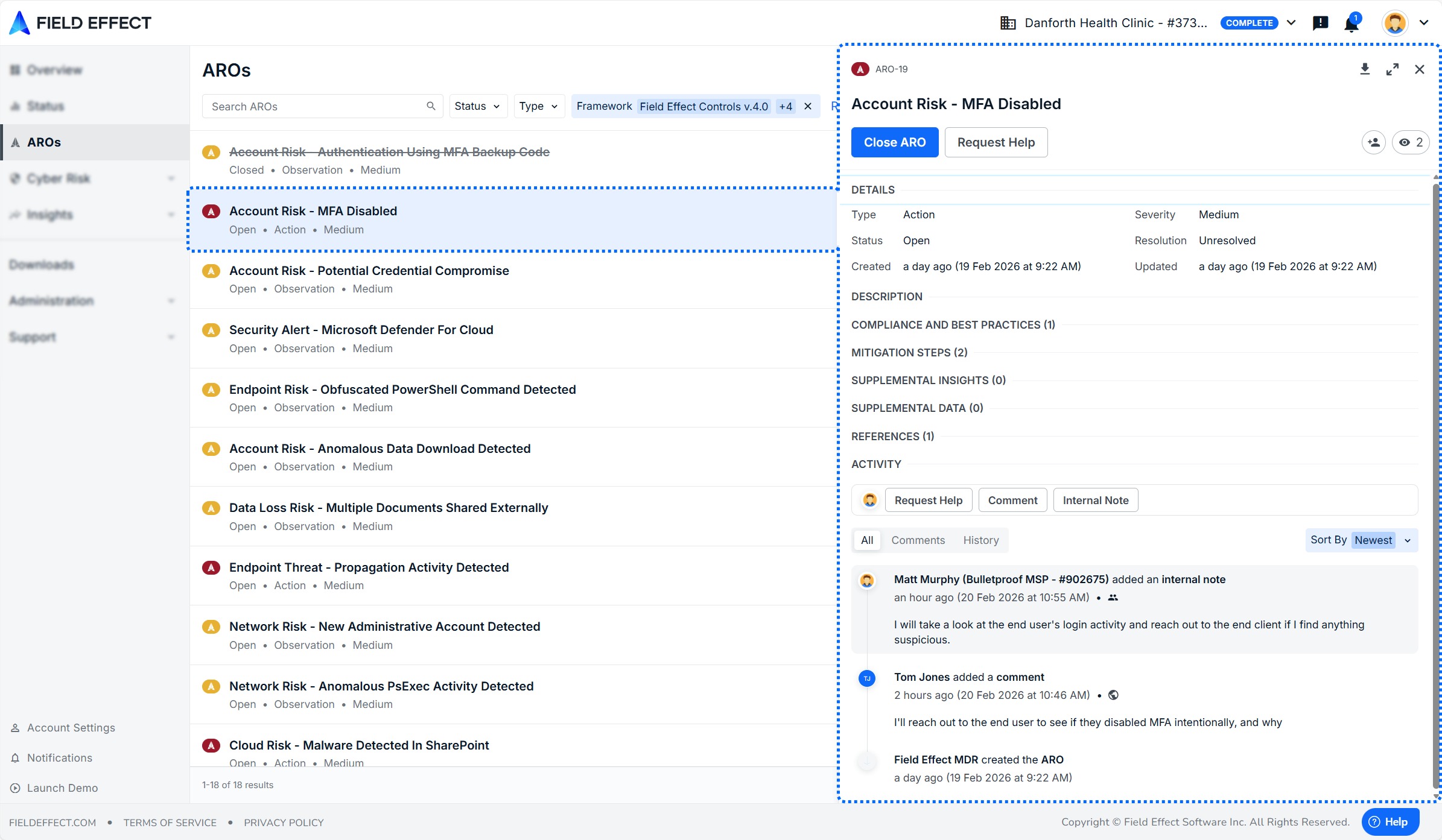
Access the Page and View an ARO
- In the sidebar, select AROs
- The AROs list appears, showing all AROs for your organization
- Select any ARO to open its details in the right-hand pane
Common Tasks
Use the following workflows to quickly accomplish common goals:
- Find open AROs assigned to you:
- Filter by Status: Open
- Set Assignee to your name
- Review recently updated AROs:
- Apply a Last Updated Date filter
- Sort by most recent activity
- Focus on actionable work:
- Filter by Type: Action
- Combine with Status: Open
Search for AROs
Use the search bar to quickly find specific AROs.
- Enter keywords such as:
- ARO name or title
- Related activity or entity
- Results update automatically as you type

Sort AROs
To organize the ARO list:
- Close the ARO details pane (if open)
- Use the Sort control on the right side of the page
- Select your preferred sorting option

Filter AROs
Use filters to narrow down the ARO list based on specific criteria.
Available Filters
| Filter | What it does | Options |
|---|---|---|
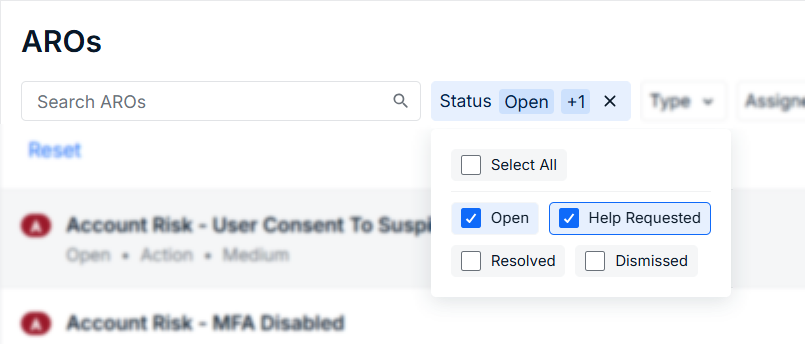
| Status | Shows AROs by current status | Open, Help Requested, Dismissed, Resolved |
| Type | Filters by ARO category | Action, Recommendation, Observation |
| Assignee | Filters by assigned user | Search by username |
| Watched by Me | Shows AROs you are watching | Checkbox |
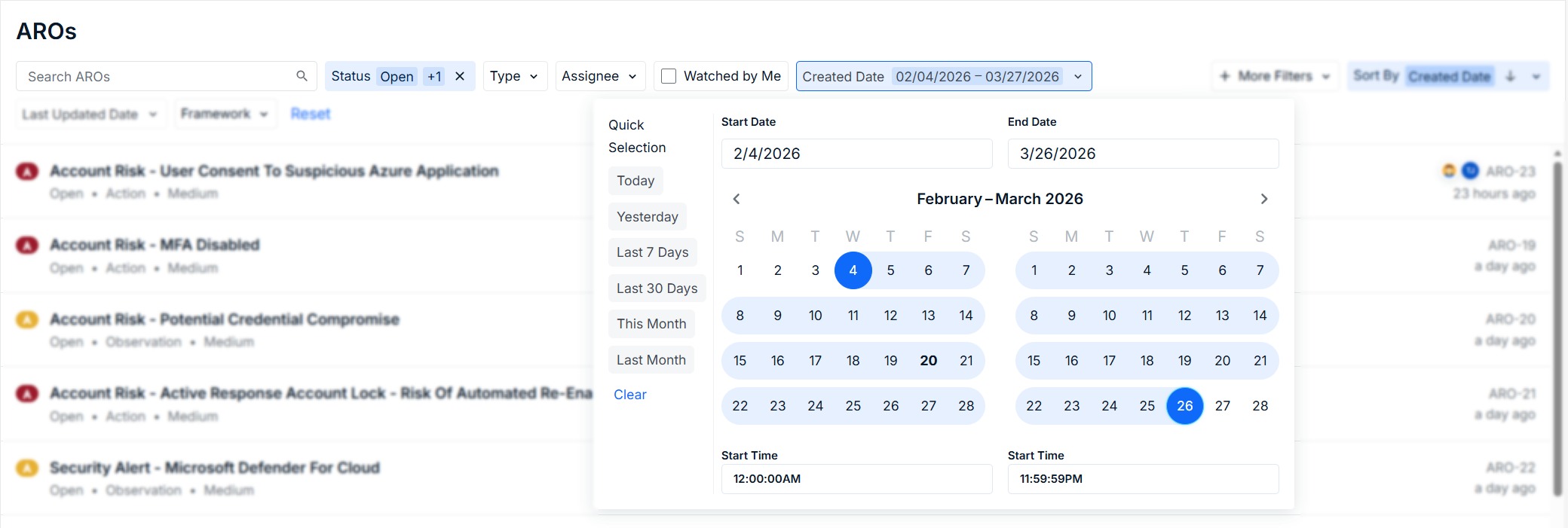
| Created Date | Filters by creation date | Date selector |
| Last Updated Date | Filters by last activity | Date selector |
Tips for using filters:
- Combine multiple filters to narrow results quickly
- Use Status + Assignee to find actionable work
- Apply date filters to focus on recent activity
Use checkbox filters to narrow results by status, type, or assignment.
Use date filters to focus on AROs within a specific timeframe.
Show or Hide Filters
To customize which filters are visible:
- Close the ARO details pane (if open)
- Select More Filters
- Choose which filters to display

Was this article helpful?
That’s Great!
Thank you for your feedback
Sorry! We couldn't be helpful
Thank you for your feedback
Feedback sent
We appreciate your effort and will try to fix the article