Introduction
When you dismiss an ARO, you can choose to suppress future AROs that match the same criteria. That way you stop getting AROs for activity you've already reviewed and accepted, like an approved application or a known user. Before, changing or removing a suppression meant contacting Field Effect Support.
The ARO Suppressions page in the MDR Portal lets you see and manage all your organization's suppressions in one place. From here, you can:
- View every suppression available to you and check how many AROs each one has suppressed.
- Review the criteria a suppression uses, along with the ARO that created it and any AROs it has suppressed.
- Edit, clone, enable, disable, or delete suppressions without help from Support.
Accessing ARO Suppressions
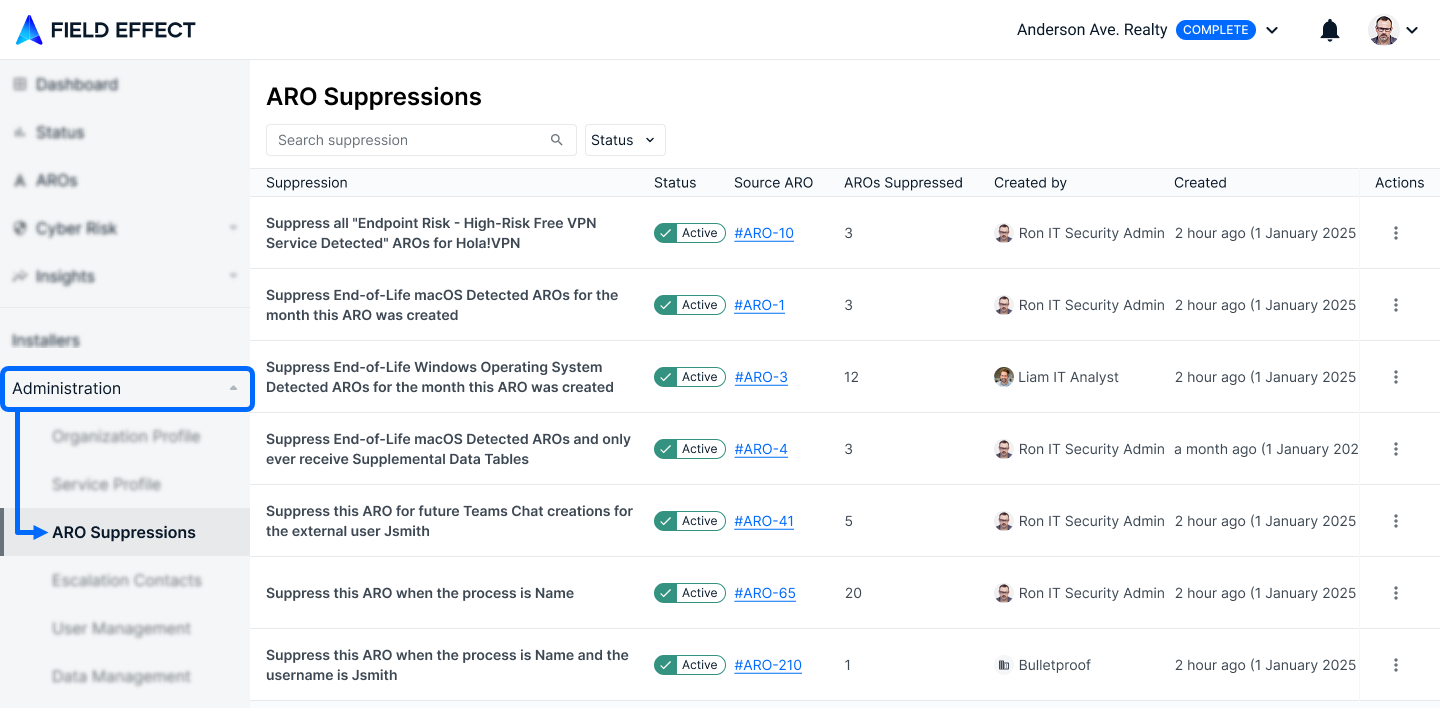
To open the ARO Suppressions page, go to Administration > ARO Suppressions in the Field Effect Portal.
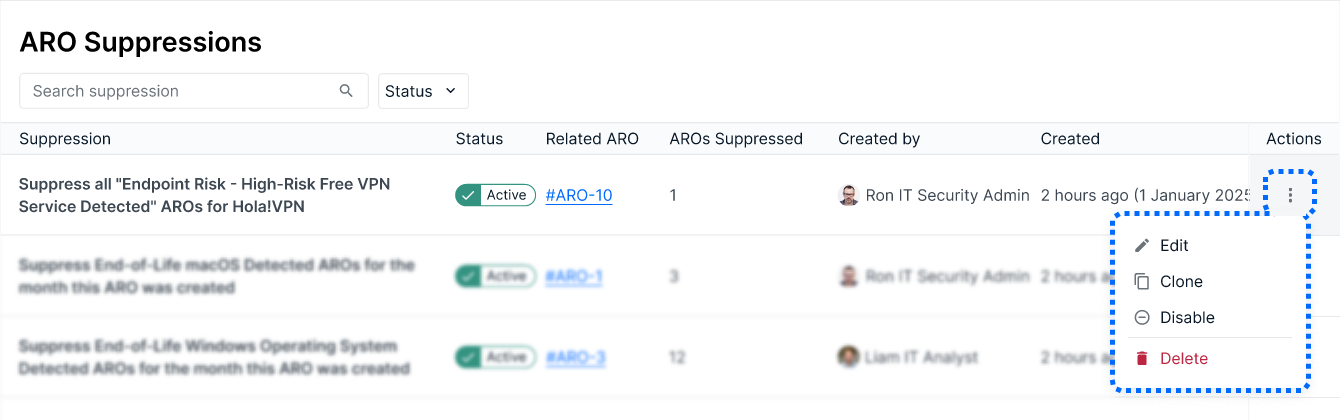
The ARO Suppressions list
The list shows every suppression available to you. Use the Search suppression field to find a suppression by name, or use the Status filter to show only active or disabled suppressions.
Each suppression in the list shows these details:
| Column | Description |
|---|---|
| Suppression | A description of what the suppression does, e.g. Suppress all "Endpoint Risk - High-Risk Free VPN Service Detected" AROs for Hola!VPN. |
| Status | Whether the suppression is Active or disabled. |
| Source ARO | The ARO that was dismissed to create the suppression. Click the ARO number to open it. |
| AROs Suppressed | The number of AROs the suppression has suppressed so far. |
| Created by | The user who created the suppression. |
| Created | When the suppression was created. |
| Actions | Opens a menu of actions you can take on the suppression (⋮). |
Suppression details
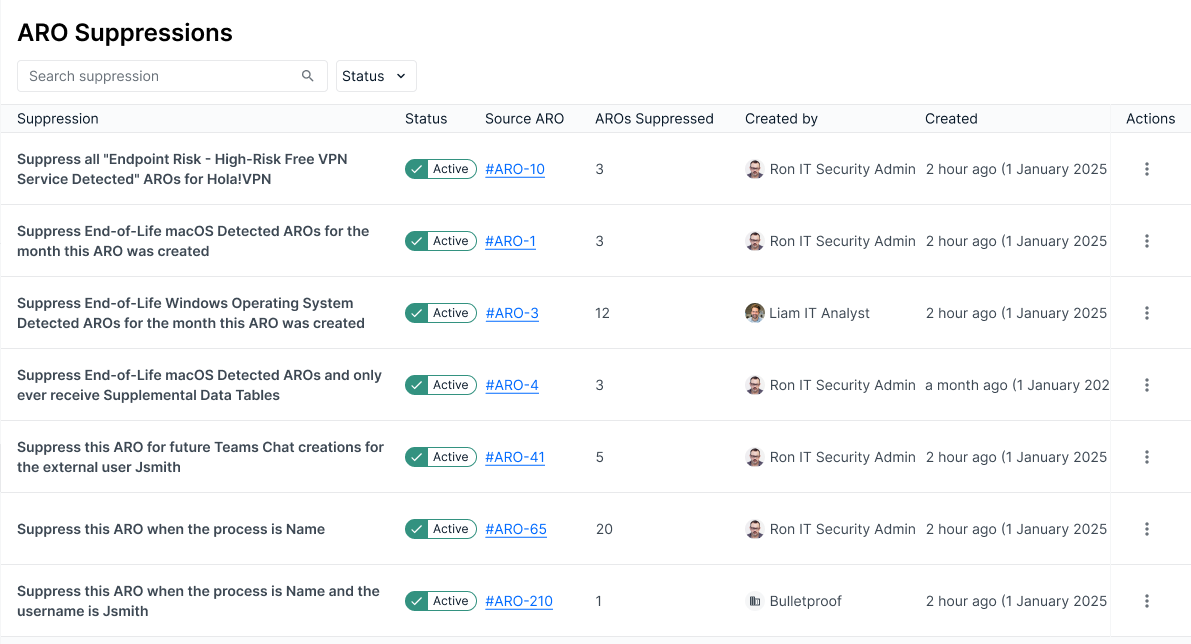
Click a suppression in the list to open its details panel. The panel includes:
- Summary: The number of AROs suppressed, the current status, who created and last updated the suppression, and when.
- Matching criteria: All the criteria an ARO must match to be suppressed, like an integration ID, username, IP address, or application.
- Source ARO: The ARO used to create the suppression, if there is one. Cloned suppressions don't have a source ARO.
- Related AROs: Any dismissed AROs that match the suppression's criteria.
Suppressions on AROs
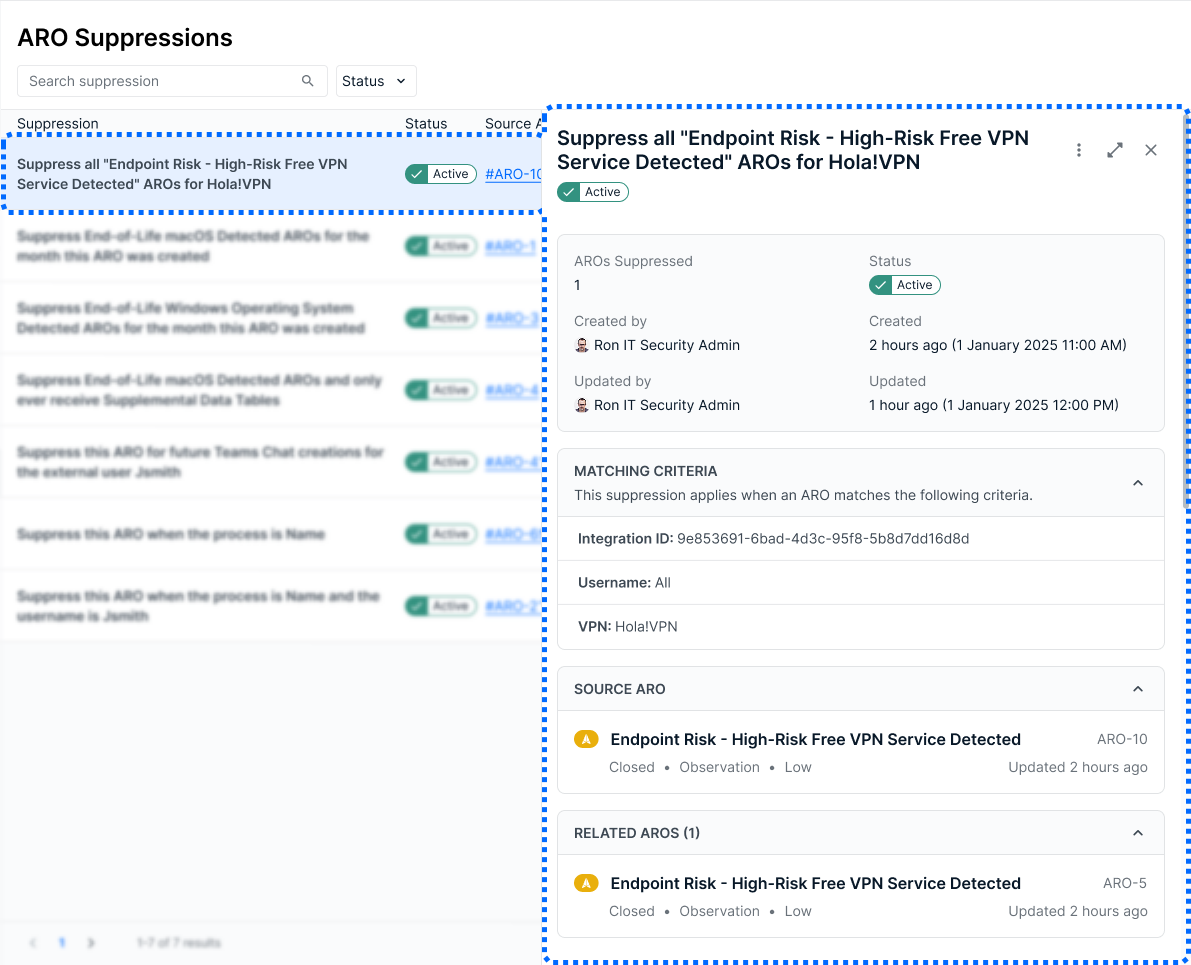
When you dismiss an ARO and create a suppression, the ARO shows the suppression in two places:
- Under the resolution banner: A section that says This ARO matches a suppression displays the suppression's current status, along with a link to the suppression on the ARO Suppressions page.
- In the Activity section: An entry records that a related suppression was added.
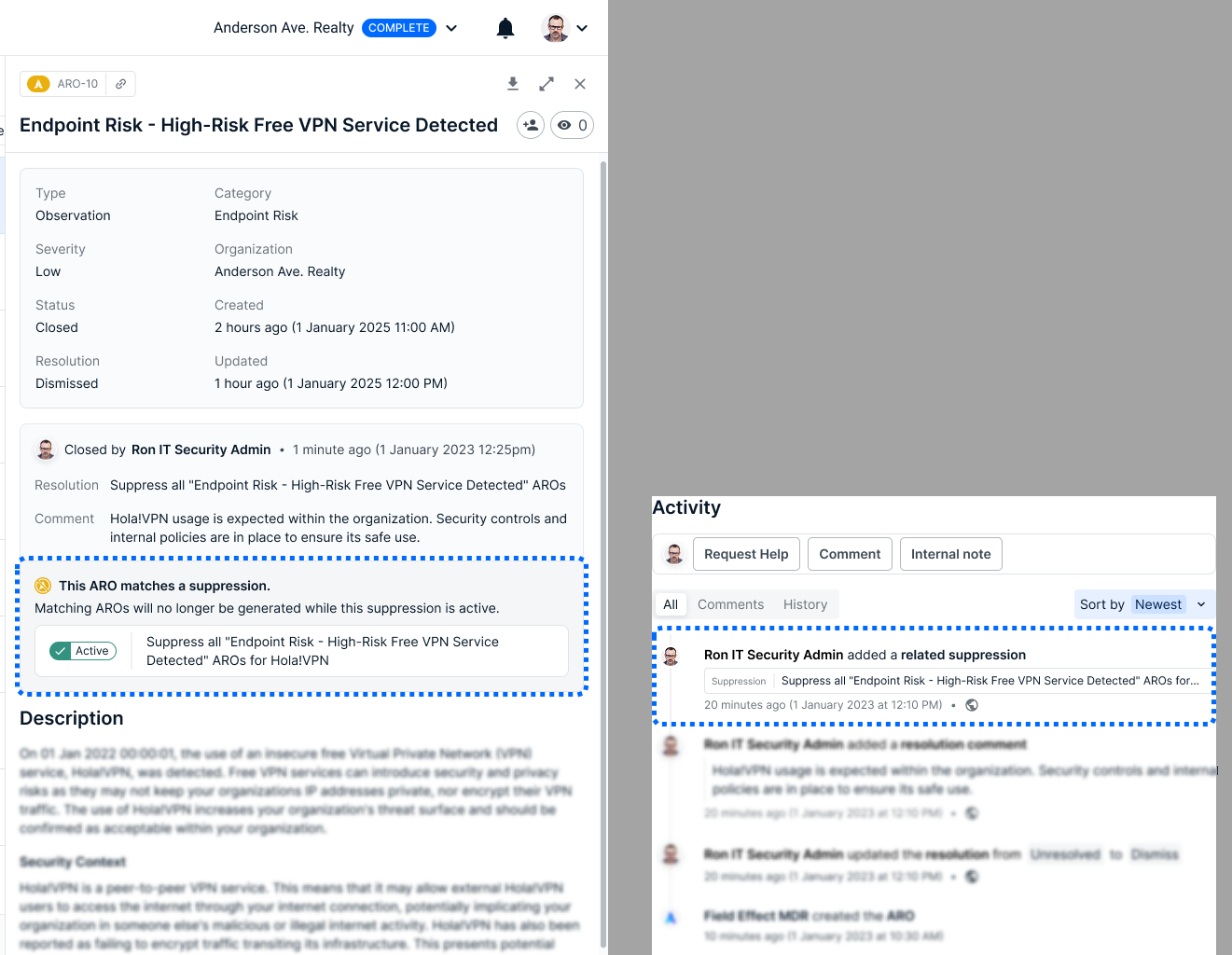
Whenever a suppression is enabled, disabled, or deleted, the source ARO and any related AROs are updated to match, and the change is recorded in their Activity section.
Managing suppressions
To manage a suppression, click Actions (⋮) next to it in the list, or click ⋮ in its details panel.
Edit a suppression
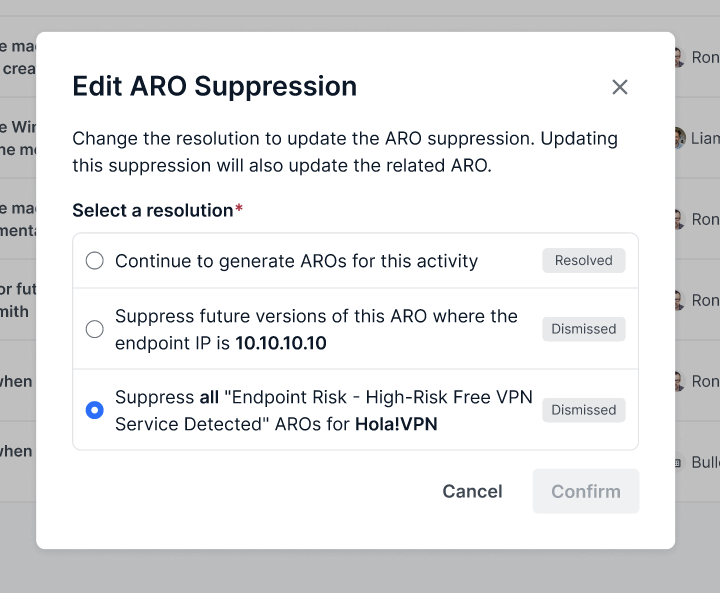
You can change a suppression's resolution option. All available resolve and dismiss options appear when you edit.
- If you pick a new dismiss option, the AROs Suppressed count goes back to 0.
- If you pick a resolve option, you'll be asked to confirm after you click Confirm. This change affects the source ARO and all related AROs, so make sure it's what you want before you continue.
Clone a suppression
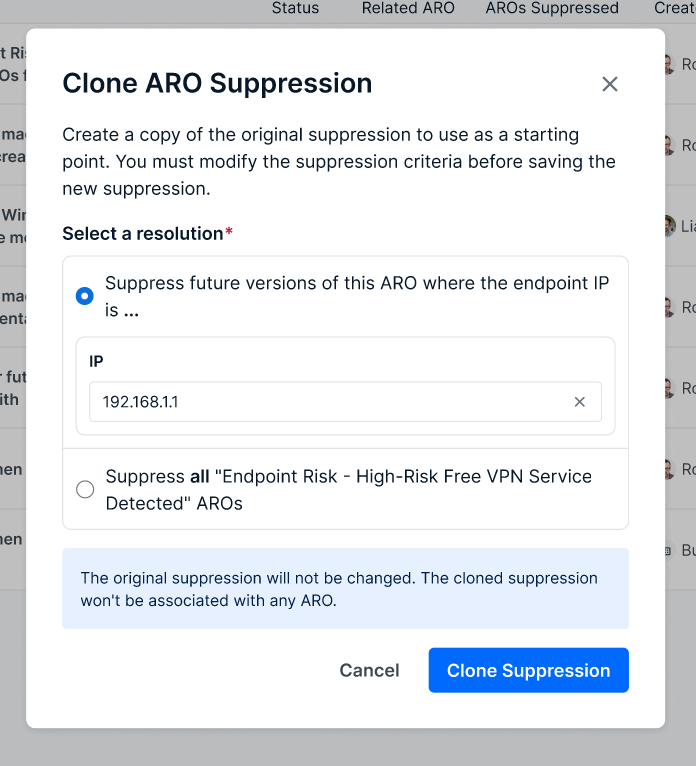
Cloning creates a new suppression that starts from an existing one. It's useful when you need a similar suppression with slightly different criteria, like the same ARO type for a different IP address.
- Click Actions (⋮) > Clone.
- Select a resolution and change the criteria values as needed. You must change the suppression criteria before you can save the new suppression.
- Click Clone Suppression.
The original suppression isn't changed. The cloned suppression is a separate suppression and isn't associated with any ARO.
Enable or disable a suppression
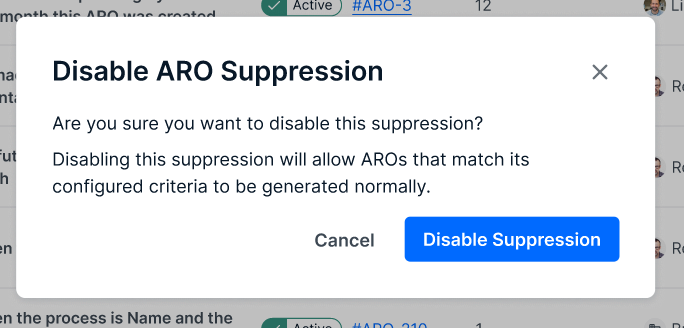
You can turn a suppression off temporarily without deleting it.
- While a suppression is disabled, AROs that match its criteria are generated normally, and its AROs Suppressed count stops going up.
- When you enable it again, matching AROs are suppressed again, and the count picks up from where it left off.
Each time you enable or disable a suppression, an entry is added to the Activity section of the source ARO and related AROs, and the suppression section on those AROs shows the new status.
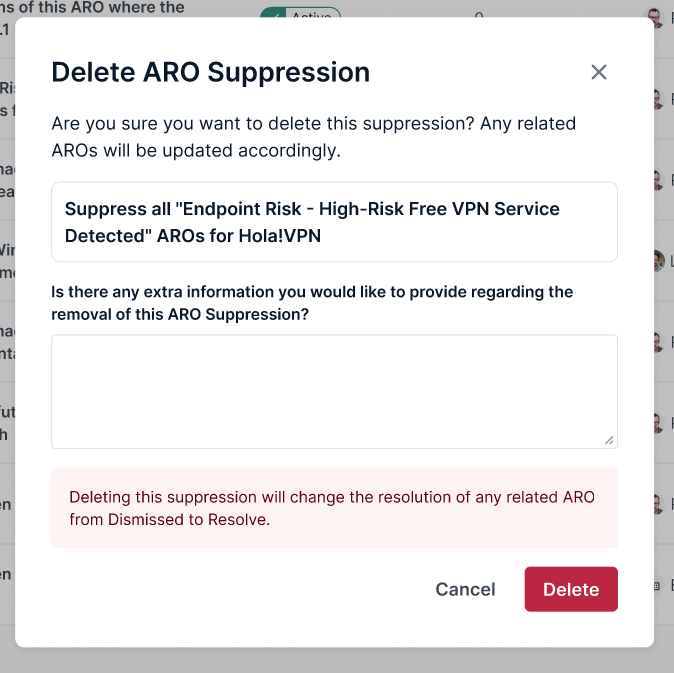
Delete a suppression
- Click Actions (⋮) > Delete.
- Optional: Add a comment explaining why you're removing the suppression, e.g. Hola!VPN is no longer an approved application.
- Click Delete.
When you delete a suppression, its source ARO and related AROs keep their resolution, but they're no longer associated with the suppression. An entry is added to each ARO's Activity section to show that the suppression was removed, along with your comment if you added one. Future AROs that match the criteria will be generated normally.
Was this article helpful?
That’s Great!
Thank you for your feedback
Sorry! We couldn't be helpful
Thank you for your feedback
Feedback sent
We appreciate your effort and will try to fix the article