Introduction
This page is only visible when the organization selector is set to your partner view.
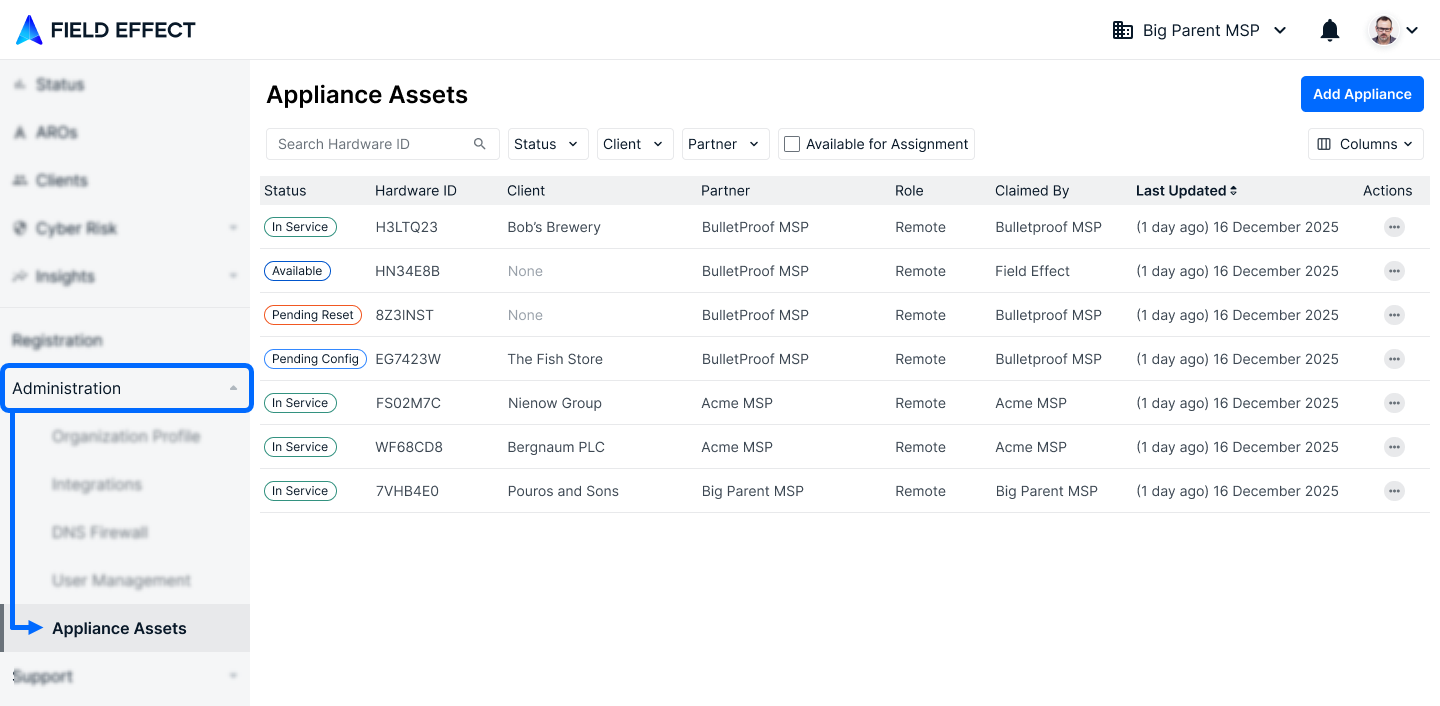
The Appliance Assets page for Field Effect Partner's is located in the MDR Portal's Administration section, and this is where you can add, deploy, or reassign your sensors to end clients.
This article describes the different workflows available on this page for appliance assets.
This article includes the following topics:
Before You Start
Note: The workflows described in this article can be done at any time in the MDR Portal, regardless of the device's current status. If the device is offline, it will synchronize and take necessary actions the next time it connects to Field Effect infrastructure.
Gather Your Hardware ID
For all remote sensors, the Hardware ID can be found on the device itself, or the packaging the device was shipped in. The image below shows an example of the Hardware ID on a Compact series sensor.
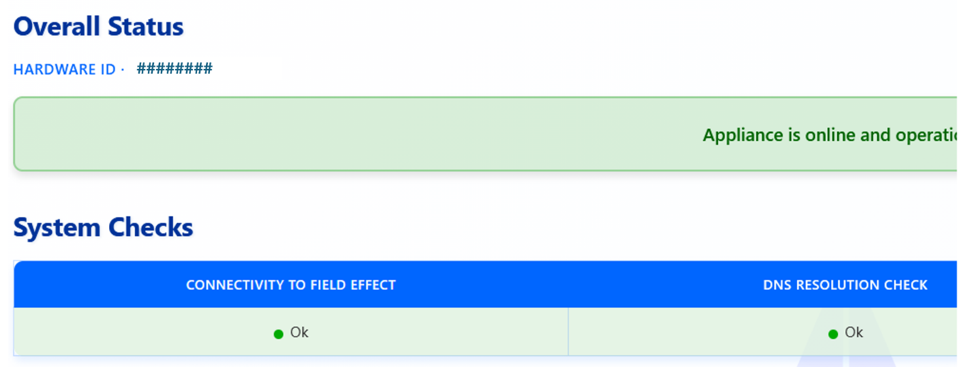
If you can physically connect the device to your network, you can navigate to its IP address to the status page. From here, you can also find the Hardware ID.
Validating Device Connectivity
If you are validating the device's status at the end client's location, use the status page to validate that it is working as expected. If the device can connect to Field Effect infrastructure and observing traffic, the status bar at the top of the page will be green. The device may not be fully provisioned yet, but the technician should feel free to leave the site if required.
If the status is not green, an indication what the problem is will be shown.
Visit our Help Center article on the Status Page for more on this.
Add the Appliance
Click Add Appliance above at the top of the page to get started.

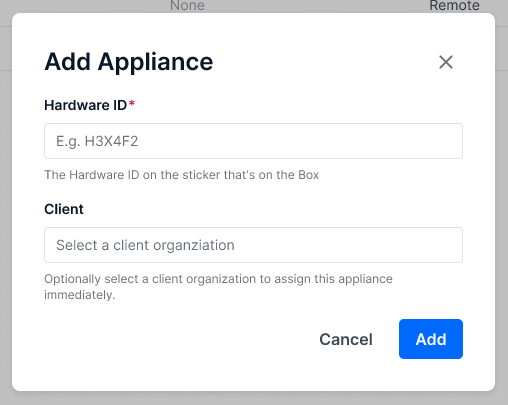
The Add Appliance pane will open. Add the Hardware ID found provided on the bottom of the device. If you already have a client for this appliance, select them in the client field to immediately assign this appliance to them. If this field is left blank, the appliance will be added to your partner organization with an "available" status.
If your Hardware ID has dashes, do not include them in the text field.
Appliance Statuses
As you add, assign, and reassign appliances, they will be given on of the following statuses, depending on their current state:
| Status | Description |
|---|---|
| Pending Reset | This device has been unassigned from a client, and is pending a reset before it can be reused. |
| Pending Config | The device has been reset but still needs to be configured before it can be deployed to a new client. |
| Available | The appliance asset is available for a deployment to a new client. |
| In Service | The appliance asset is currently deployed and being used by a client. |
Assigning Appliances
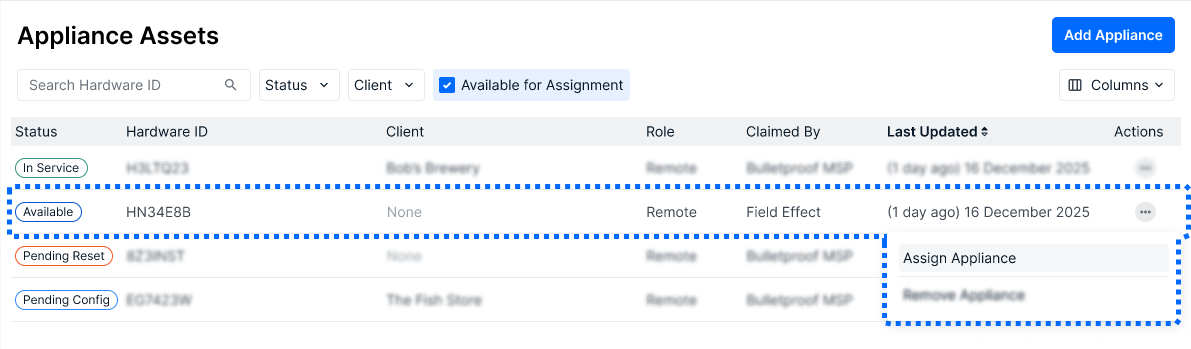
Appliances with an "available" status can be assigned to end clients. To assign an appliance, locate it in the table and click the ellipses for that asset. From the dropdown menu, select Assign Appliance. Note that you can use the Available for Assignment filter to see only available appliances in the table.
The Assign Appliance window will open. Select the client account you want to assign this appliance asset to and click Assign.
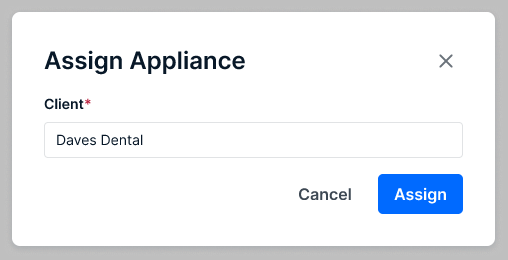
You will be taken back to the table and the appliance asset will be given the pending config status while Field Effect internally configures the appliance for the new client. Once complete, the appliance asset will take on the In service appliance.

Unassigning Appliances
If a client has decided to offboard from the Field Effect MDR service, you can unassign the appliance from the current client, making it available for future clients. To unassign an appliance, locate the asset in the table and click the ellipses for it. From the dropdown menu, select Unassign Appliance. Note that if the unassign option is not available in the dropdown menu, the appliance is currently not assigned to any client.
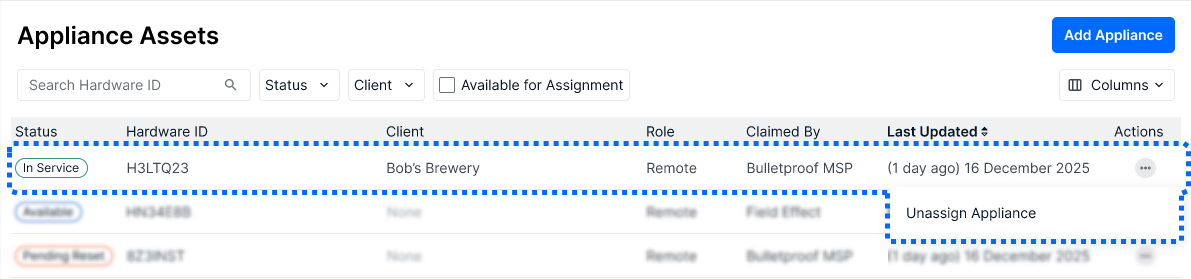
The Unassign Appliance window will open. Click Unassign to confirm that you would like to remove the current client from the appliance.
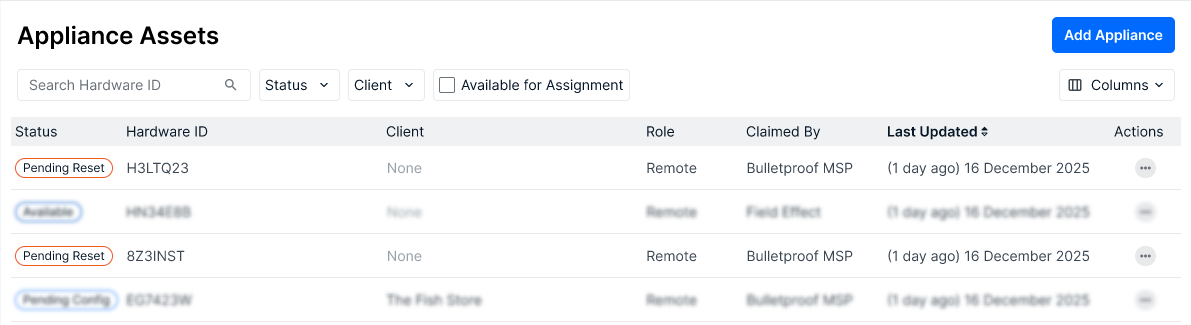
You will be taken back to the table, and the appliance asset will be given the Pending Reset while Field Effect performs the reset internally. Once complete, the appliance asset will take on the Available status.
Remove an Appliance
Appliances with the following statuses can be removed:
- Pending Reset
- Available
- In Service
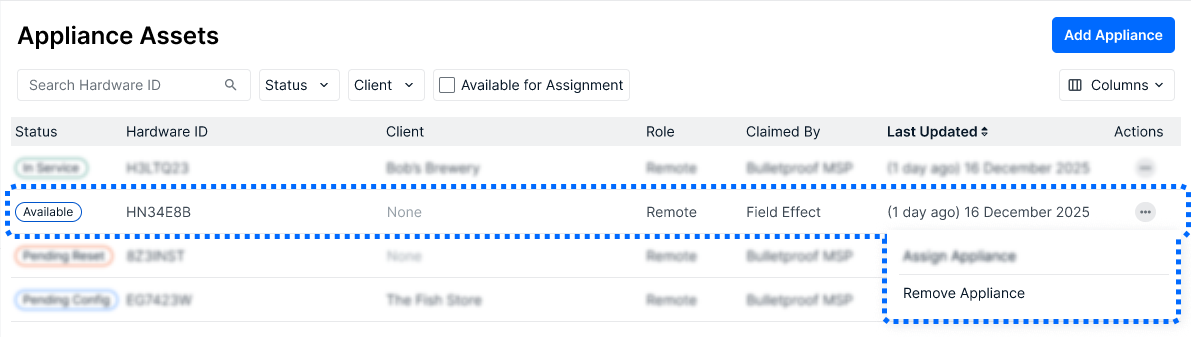
Locate the asset in the table, click the ellipses for it, and select Remove Appliance. If the appliance is currently in service, this option will be named Reset & Remove Appliance.
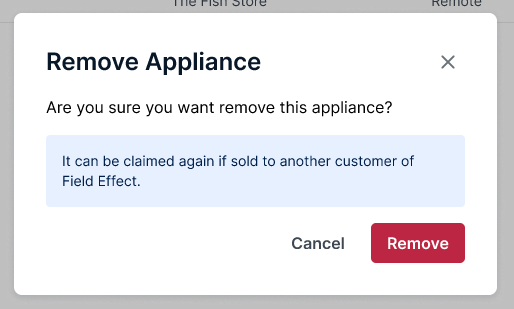
The Remove Appliance window will open. Click Remove to confirm that you would like to remove the appliance from your organization.
Was this article helpful?
That’s Great!
Thank you for your feedback
Sorry! We couldn't be helpful
Thank you for your feedback
Feedback sent
We appreciate your effort and will try to fix the article