Introduction
When submitting an email to SEAS, you have the option to select whether or not SEAS should remove the article from your inbox. If this setting is selected, the email will be automatically removed. If you need to access this email and its content for investigation, it can be recovered.
This article covers the following topics:
Outlook: Recovering an Email Removed by SEAS
In the New Outlook app, navigate to the Deleted Items folder and click the "Recover items deleted from this folder" banner.
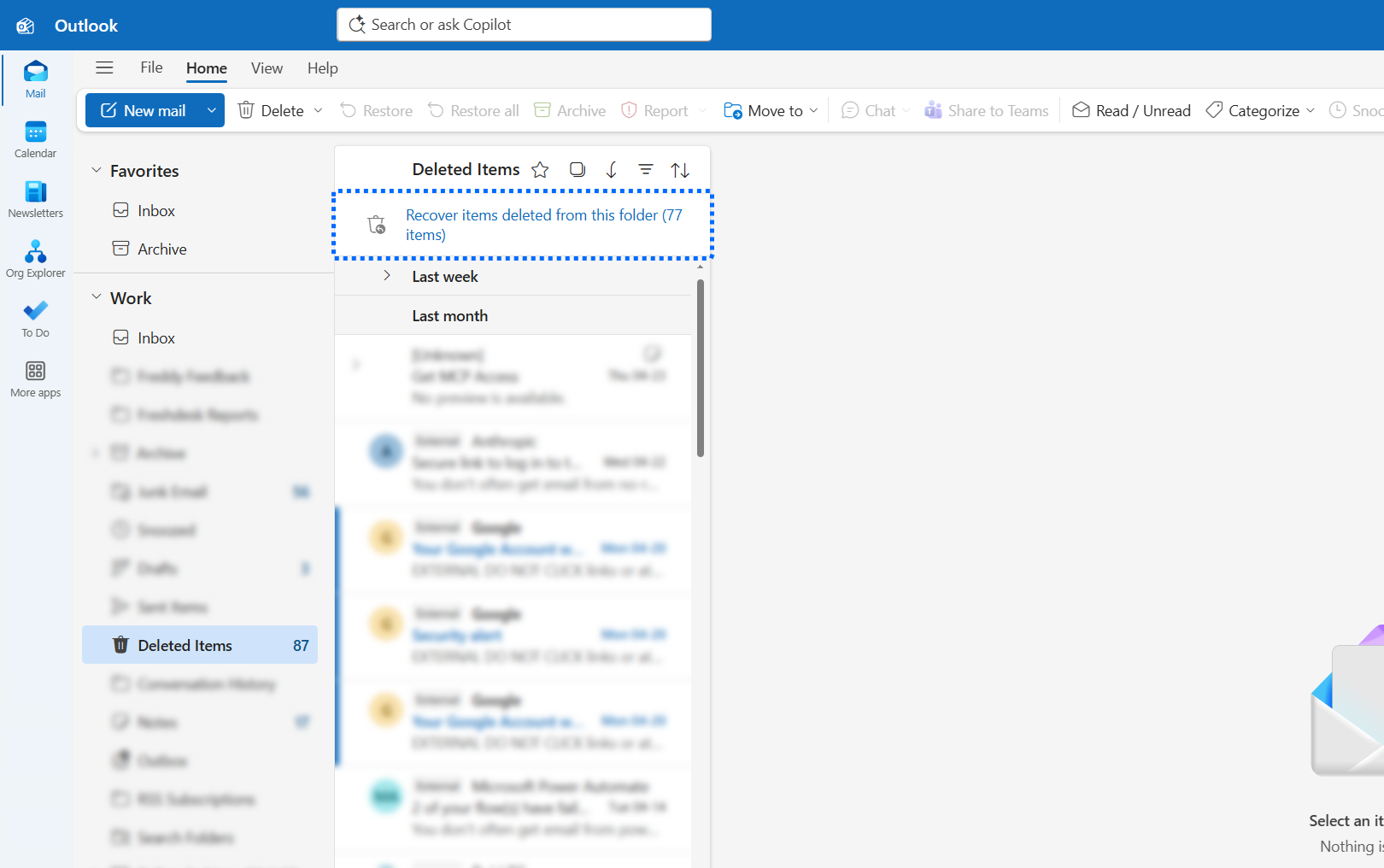
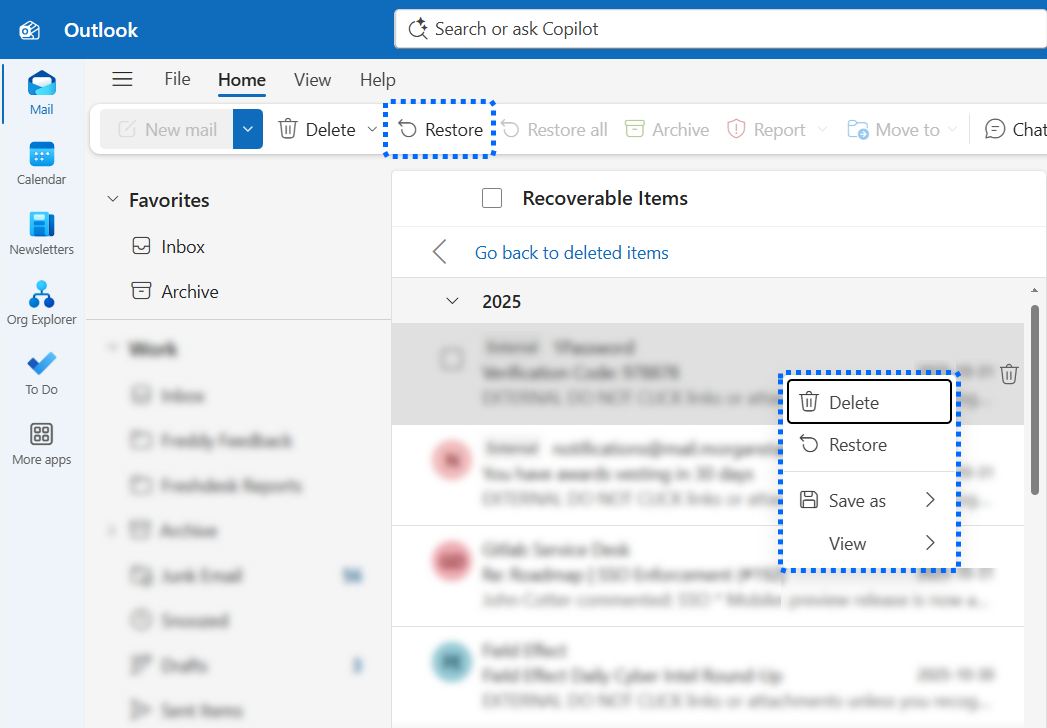
A list will appear showing items that have been removed from the Deleted Items folder, but still recoverable. Find the email
you would like to recover and click the Recover item or right-click menu item.
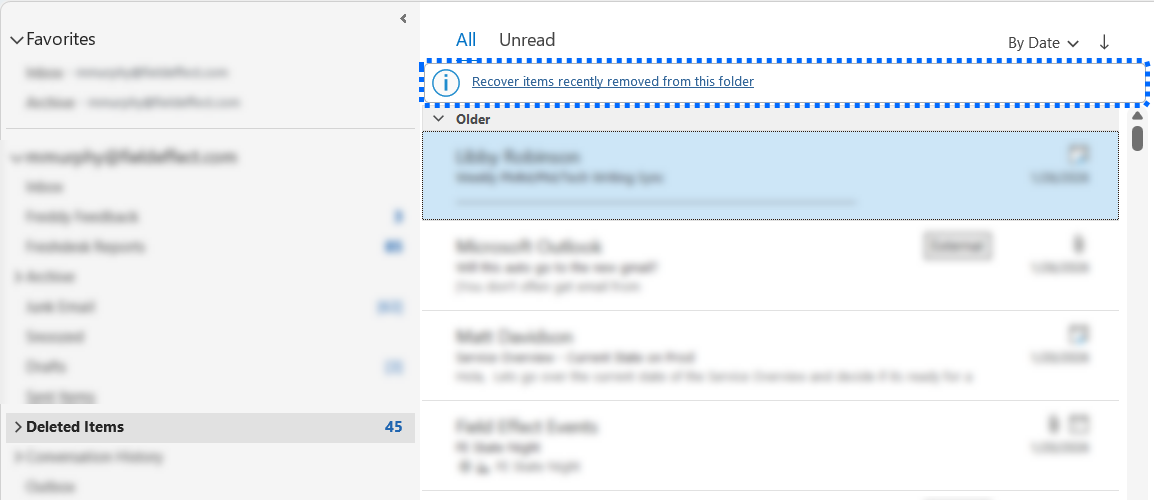
This process is the same for Outlook Classic, and the example below shows the "Recover items deleted from this folder" banner in the classic Outlook interface.
Google Workspace: Recovering an Email Removed by SEAS
If you are an admin for your organization's Google Workspace tenant, and you can access the Admin console, you have 30 days to recover an email that has been deleted.
See Google's documentation to learn more.
Was this article helpful?
That’s Great!
Thank you for your feedback
Sorry! We couldn't be helpful
Thank you for your feedback
Feedback sent
We appreciate your effort and will try to fix the article