Introduction
If a customer is ending their Field Effect MDR service, license administrators can submit an offboarding request through the License Management Portal (LMP).
This article explains how to submit an offboarding request for a customer account, and includes the following topics:
Before you Begin
Make sure you have:
- Access to the license page where the customer is allocated.
- The customer's termination date.
- A client contact who can answer questions related to the offboarding process.
Submit The Offboarding Request
- Log into the LMP, navigate to the license page where the customer is assigned.
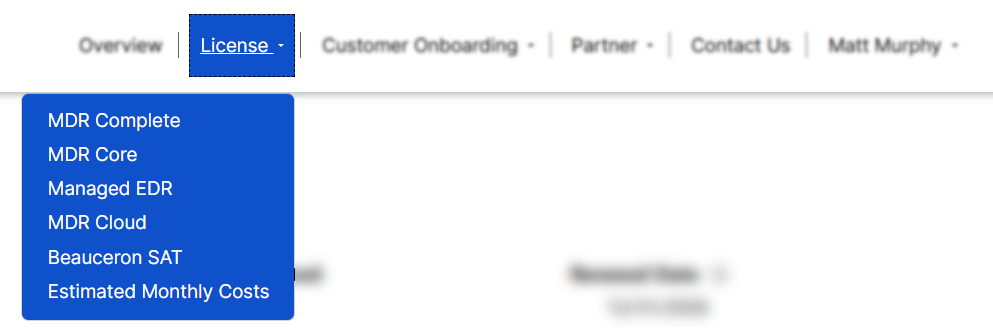
- In the Customers table, locate the customer you want to offboard. Open the customer's action menu and select Offboard Customer.

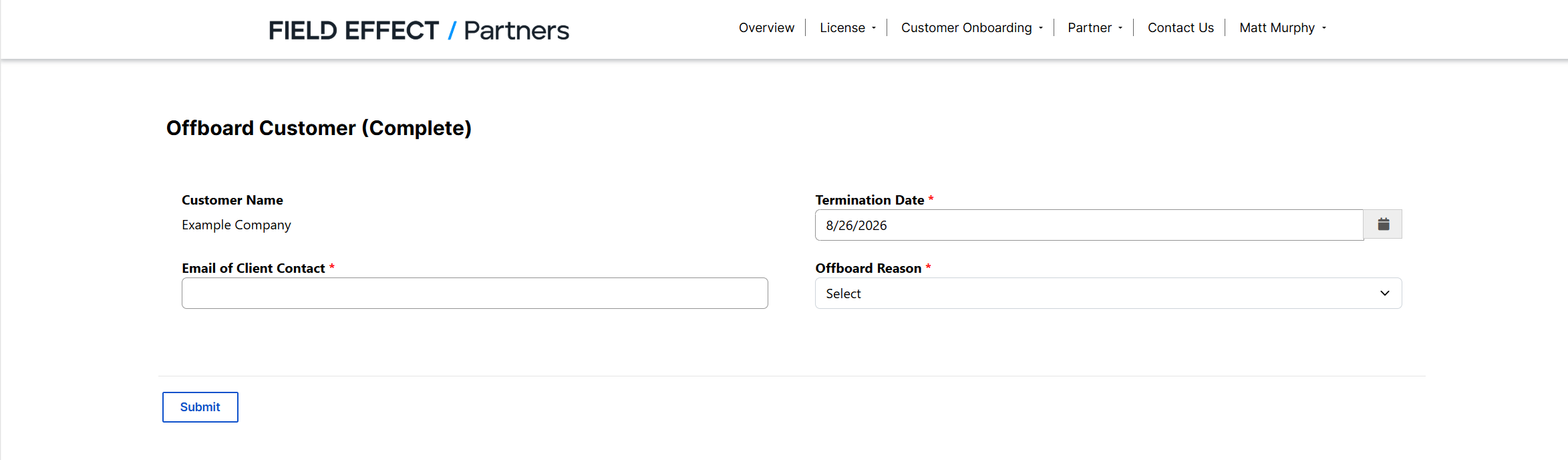
On the Offboard Customer page, complete the required fields:
| Field | Description |
|---|---|
| Email of Client Contact | Enter the email address of the customer contact who can answer questions regarding billing, shipping, or other offboarding activities. |
| Termination Date | Enter the date the customer will stop using the MDR service. |
| Offboard Reason | Select or enter the reason the customer is ending the service. |
Verify the information you provided is accurate and click Submit.
After the Request is Submitted
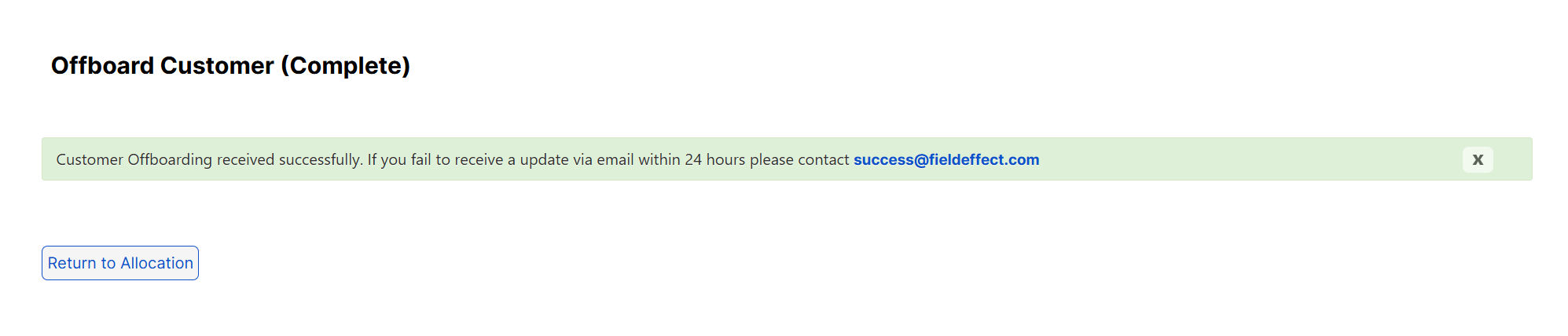
After the form is submitted, a confirmation page appears indicating that the offboarding request was successfully received.
If additional information is required to complete the offboarding process, the contact provided in the request may be contacted.
Was this article helpful?
That’s Great!
Thank you for your feedback
Sorry! We couldn't be helpful
Thank you for your feedback
Feedback sent
We appreciate your effort and will try to fix the article