Introduction
This article explains how to deploy the Field Effect MDR macOS agent using Microsoft Intune. You will create the required configuration profiles that provide licensing, system extension approval, and Full Disk Access permissions before deploying the Field Effect MDR application to managed macOS devices.
Before You Begin
Before starting, ensure that:
The target devices are enrolled in Microsoft Intune and managed as macOS devices.
You have administrative access to Microsoft Intune.
You have downloaded the latest macOS installer package from the Field Effect MDR Portal Downloads page.
You have access to the configuration files included with the installer package.
Required Configuration Profiles
The following profiles must be created and assigned before deploying the Field Effect MDR application. These profiles ensure the agent can install and function correctly.
Profile Name | Purpose |
|---|---|
Field Effect MDR License | Contains your organization's license information. |
Field Effect MDR System Extension | Approves the system extension required by the agent. |
Field Effect MDR Full Disk Access | Grants permissions required for monitoring and protection capabilities. |
Important: Assign all configuration profiles before deploying the application. This ensures required permissions are already present when the installer runs.
Create the Required Configuration Profiles
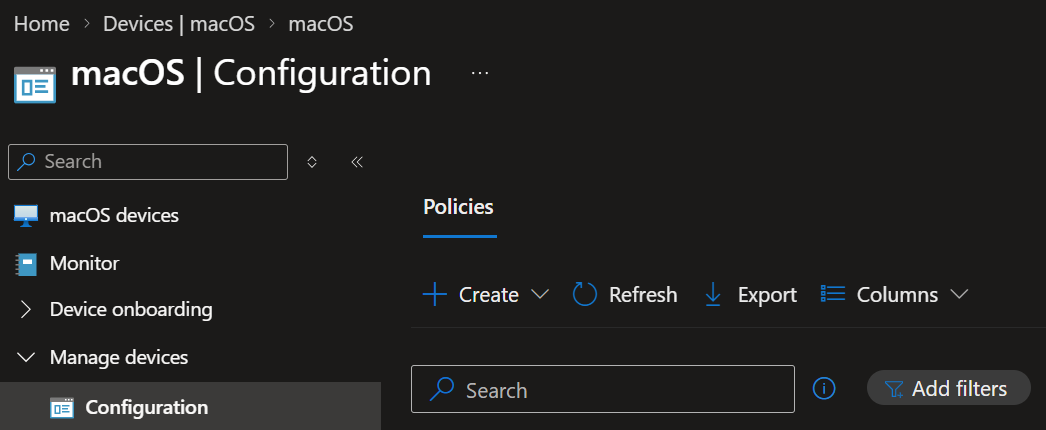
In Microsoft Intune, navigate to:
Devices > macOS > Configuration profiles
Create the Field Effect MDR License Profile
This profile deploys the organization's Field Effect MDR license file.
Create the Profile
In Microsoft Intune, select Devices.
Select macOS.
Select Configuration profiles.
Click Create profile.
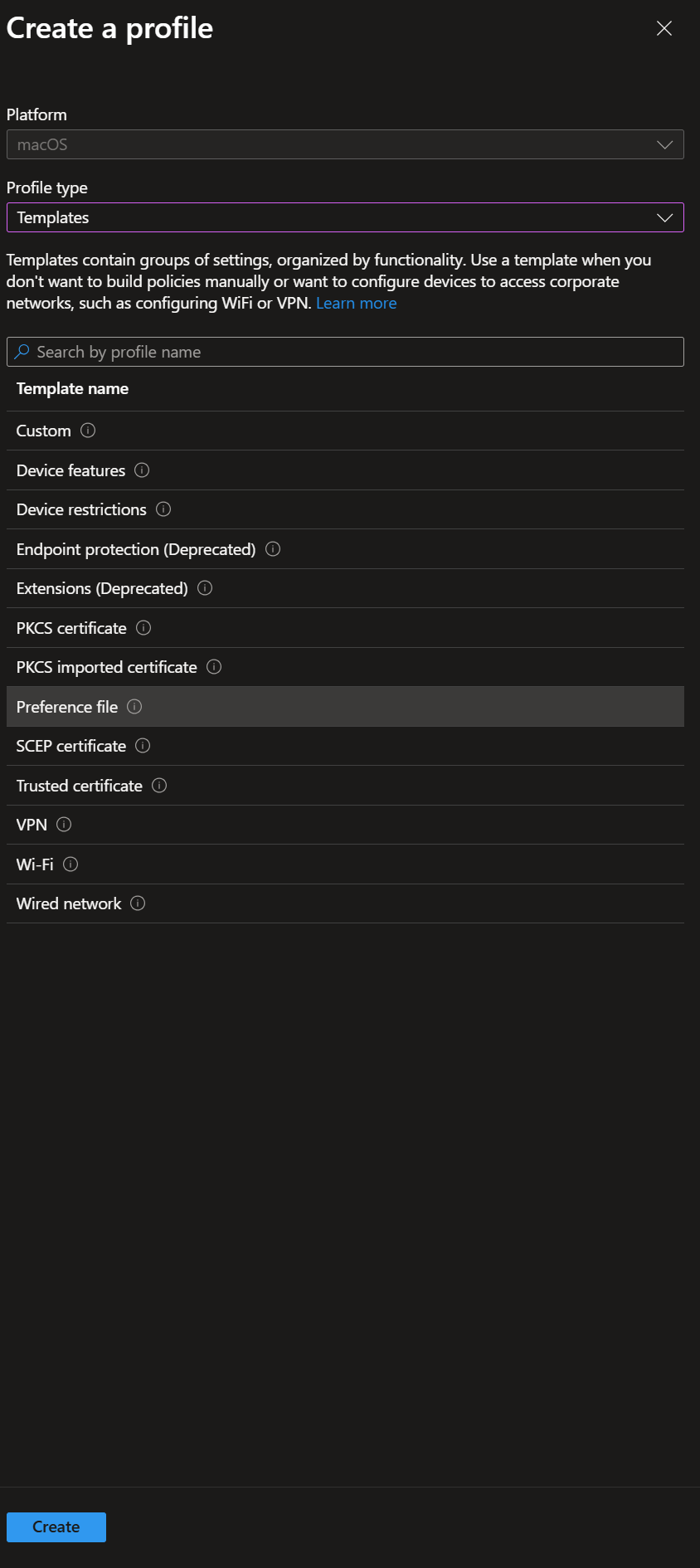
Configure the profile with the following values:
Setting | Value |
|---|---|
Platform | macOS |
Profile Type | Templates |
Template Name | Preference File |
Click Create.
Configure the Profile
On the Basics page:
Enter a profile name such as Field Effect MDR License.
Optionally provide a description.
Click Next.
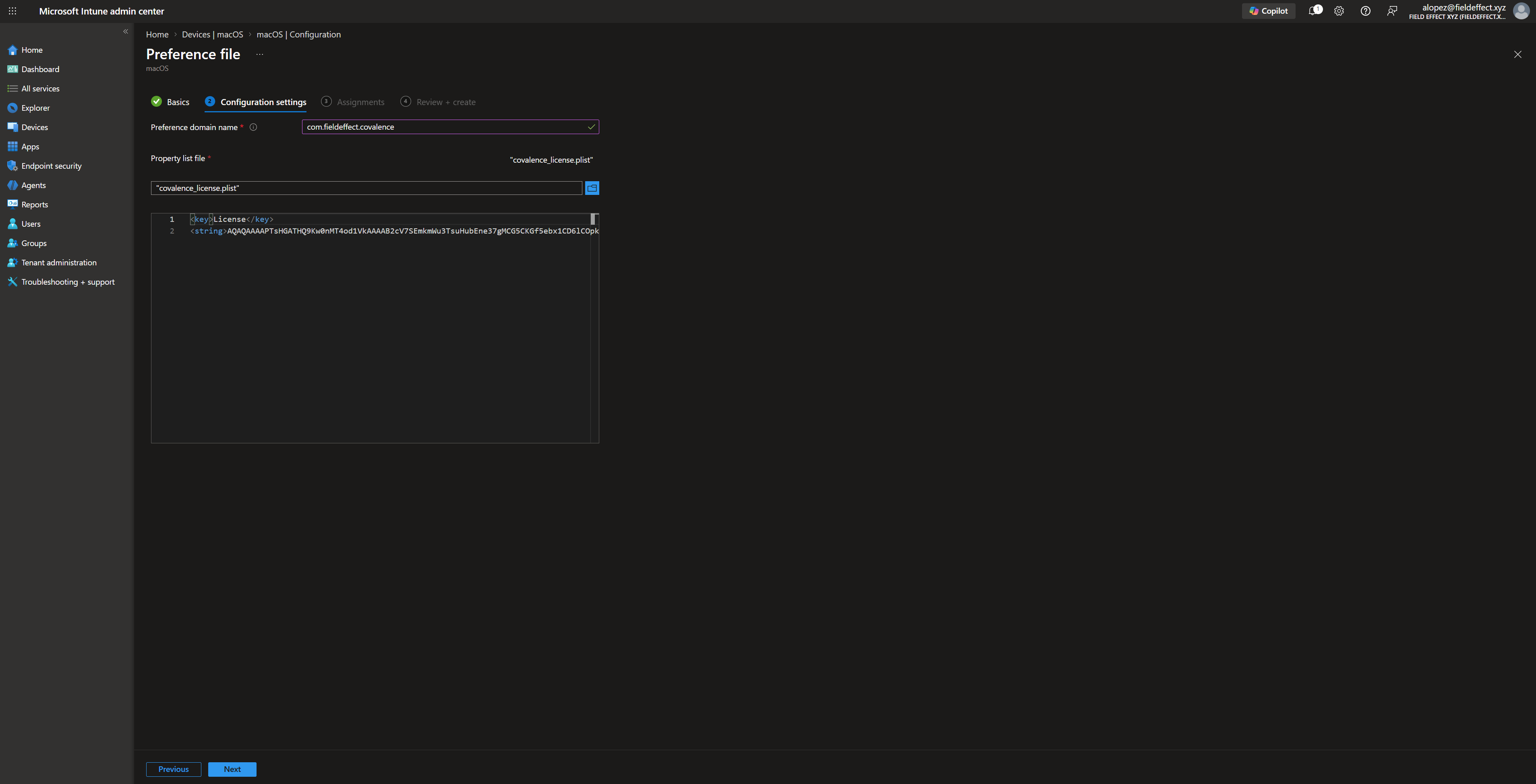
On the Configuration Settings page:
Set the deployment channel to Device Channel.
Enter the bundle identifier:
com.fieldeffect.covalence
Upload the following file from the installer package:
macos/intune/covalence_license.plist
Click Next.
Assign the Profile
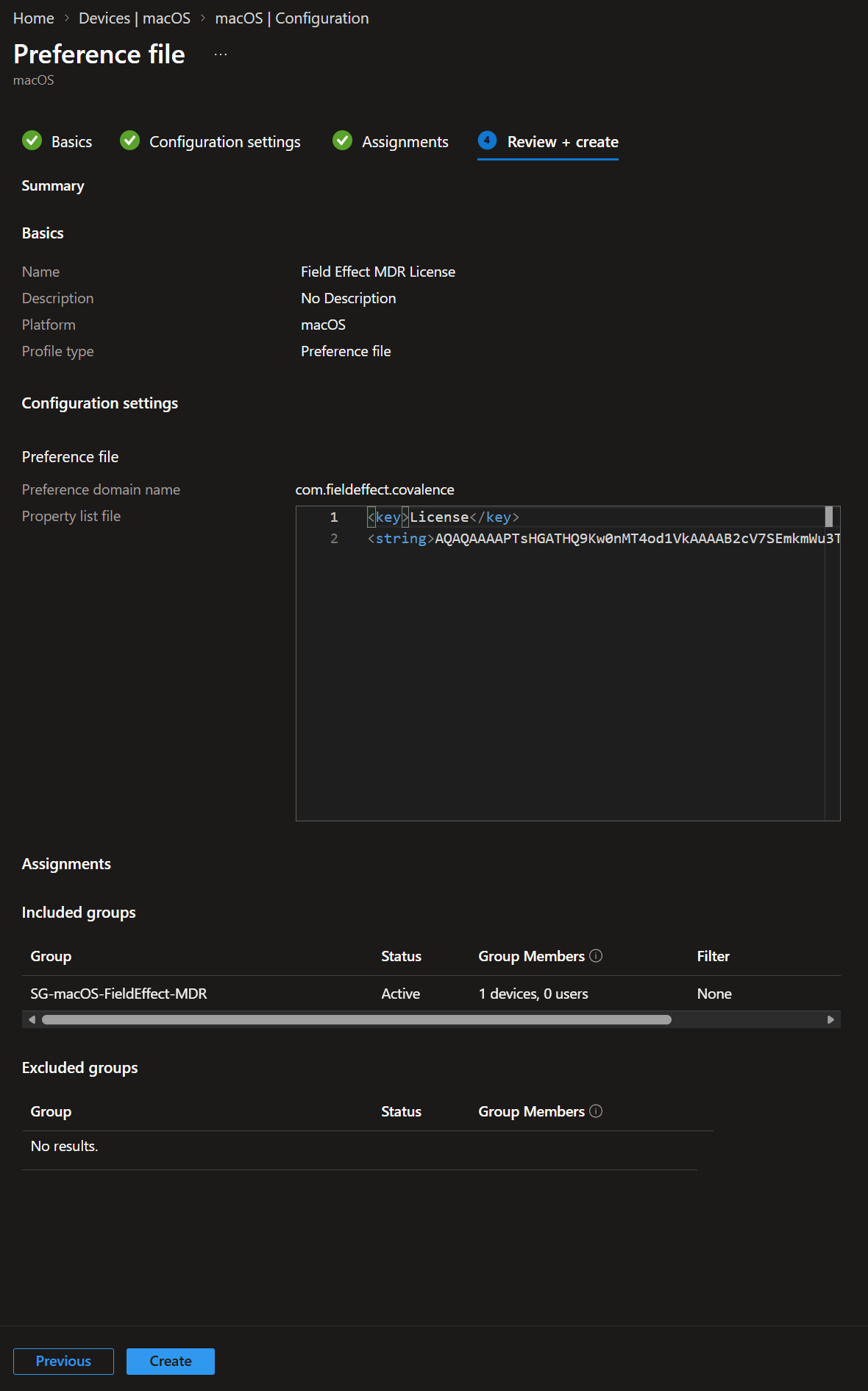
Assign the profile to the appropriate macOS device group.
Review the configuration.
Click Create.
Create the Field Effect MDR System Extension Profile
This profile authorizes the Field Effect MDR system extension.
Create the Profile
Select Create profile.
Configure the profile with the following values:
Setting | Value |
|---|---|
Platform | macOS |
Profile Type | Settings catalog |
Click Create.
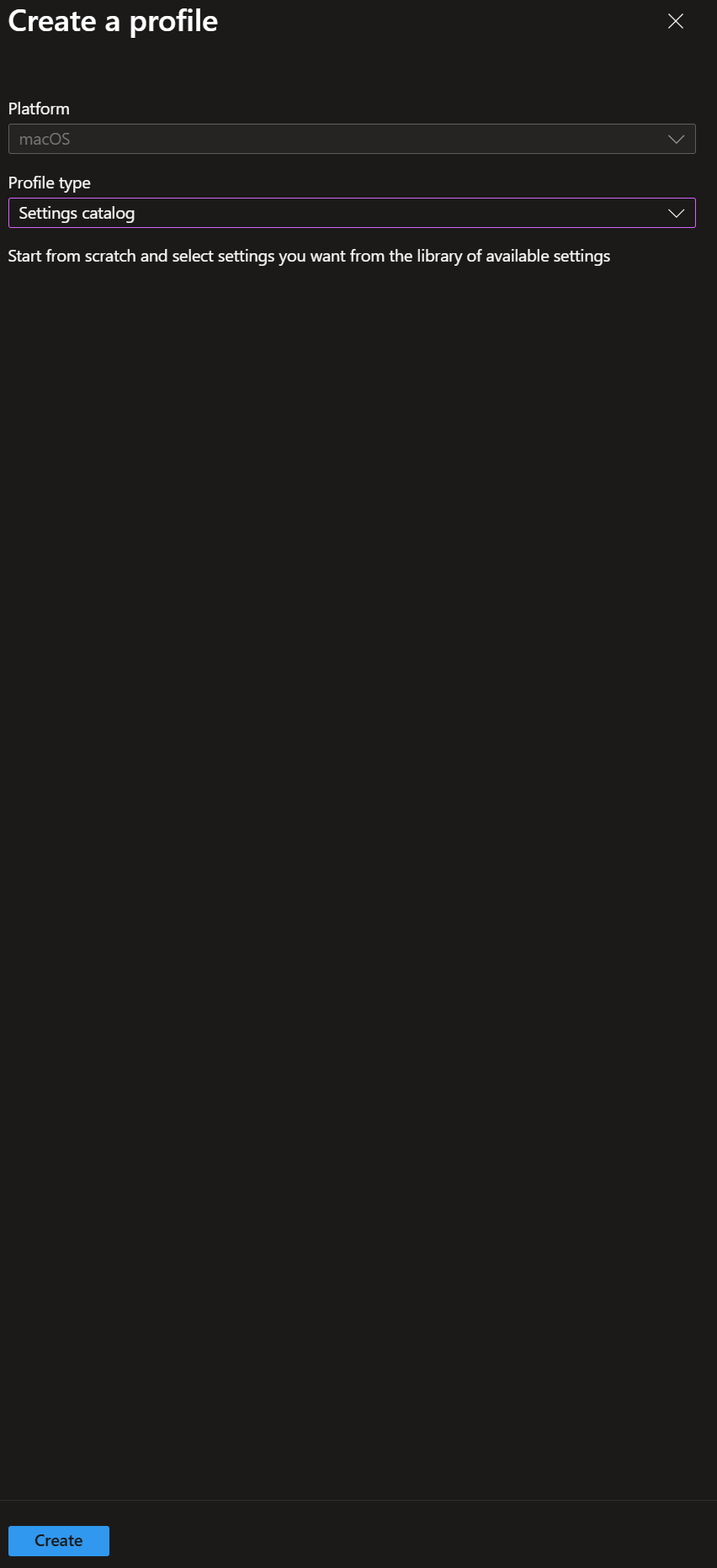
Configure the Profile
On the Basics page:
Enter a profile name such as Field Effect MDR System Extension.
Click Next.
On the Configuration Settings page:
Select Add settings.
Search for:
Allowed System Extensions
Select the setting under:
System Configuration > System Extensions
Close the Settings Picker.
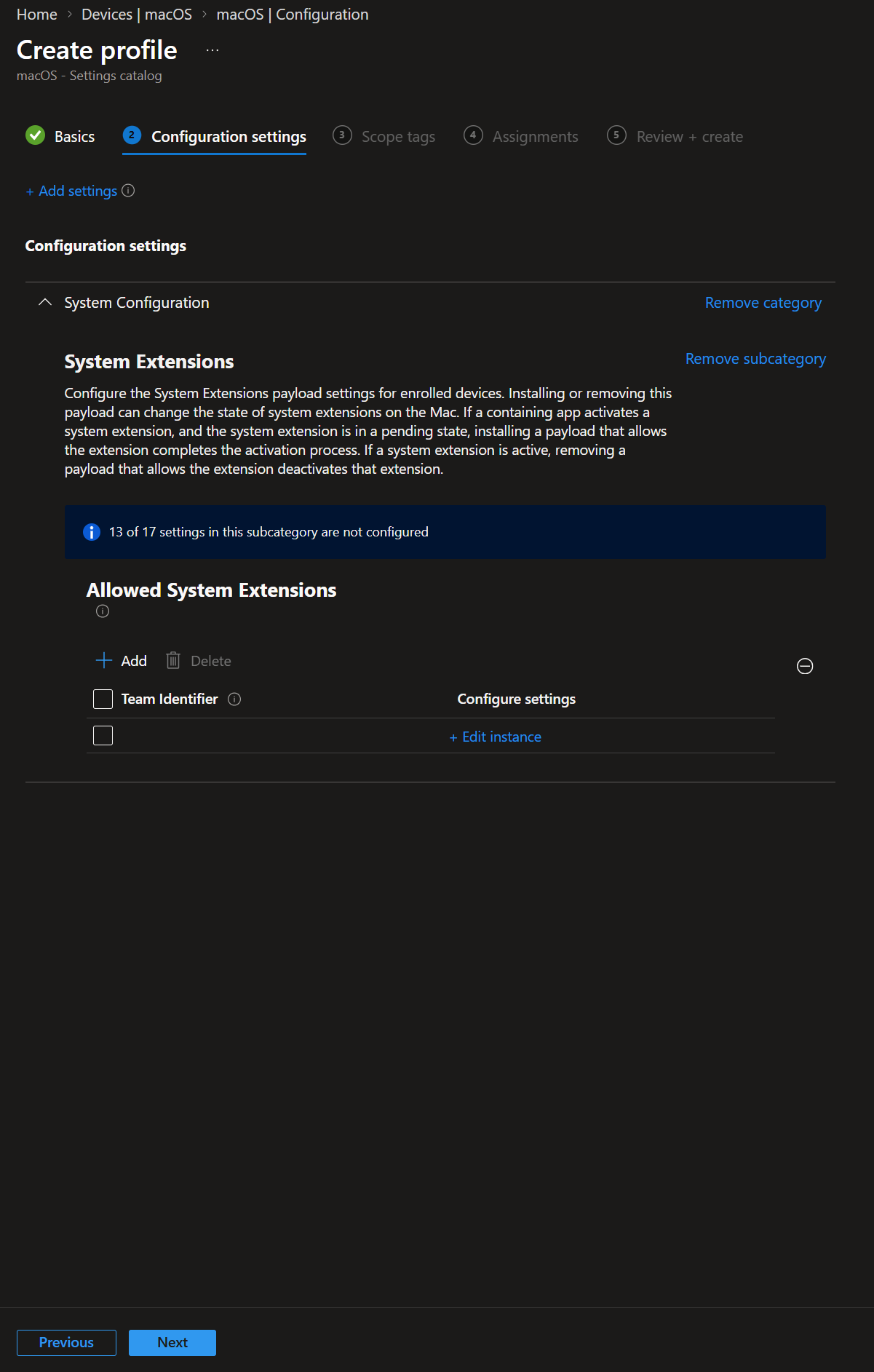
Configure the Allowed Extension
Add the following values:
Team Identifier
KSBE8M6M6F
Allowed System Extension
com.fieldeffect.covalence.esext
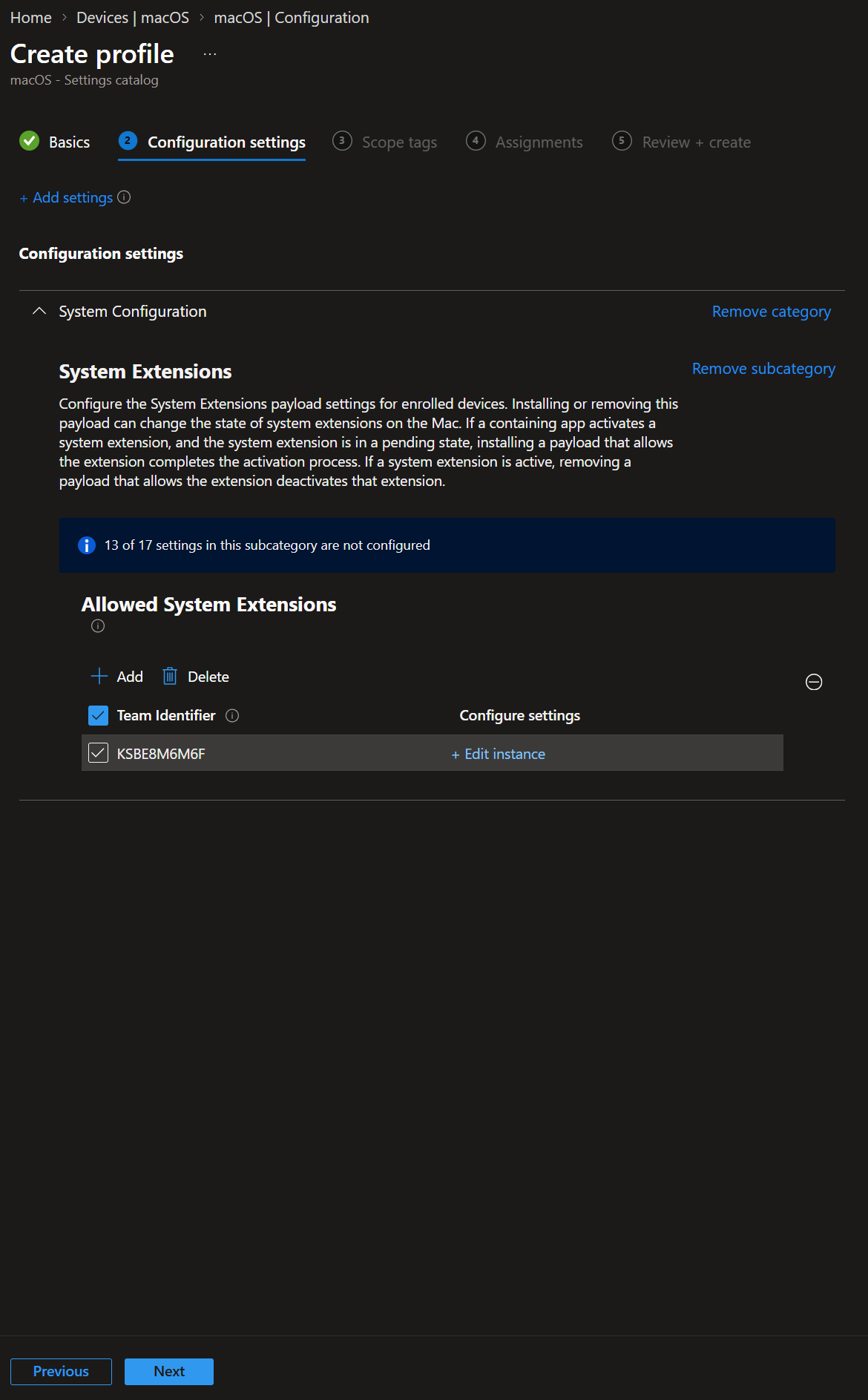
Select Next when finished.
Assign the Profile
Assign the profile to the appropriate macOS device group.
Review the configuration.
Click Create.
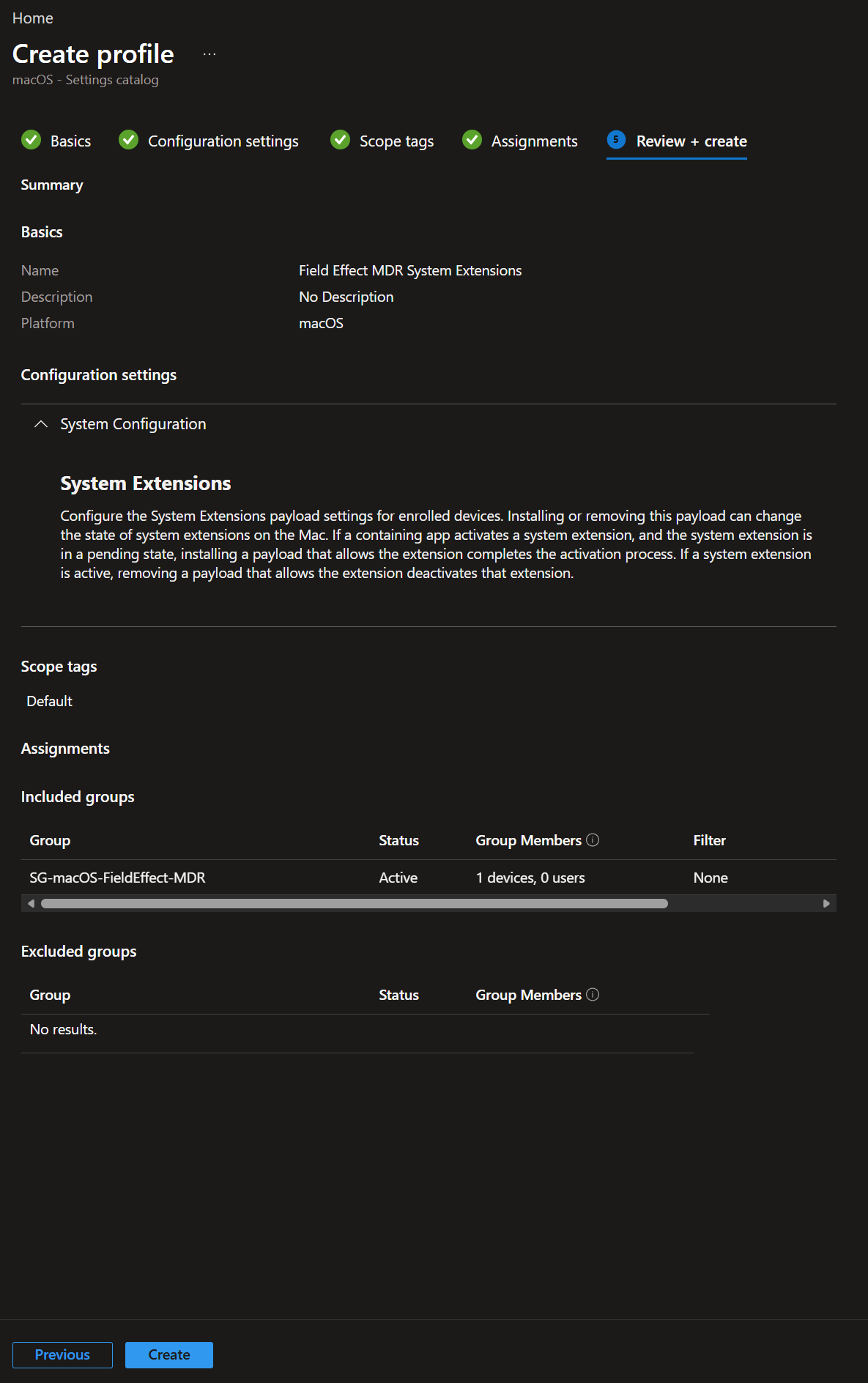
Create the Field Effect MDR Full Disk Access Profile
This profile grants Full Disk Access permissions required by the agent.
Create the Profile
Select Create profile.
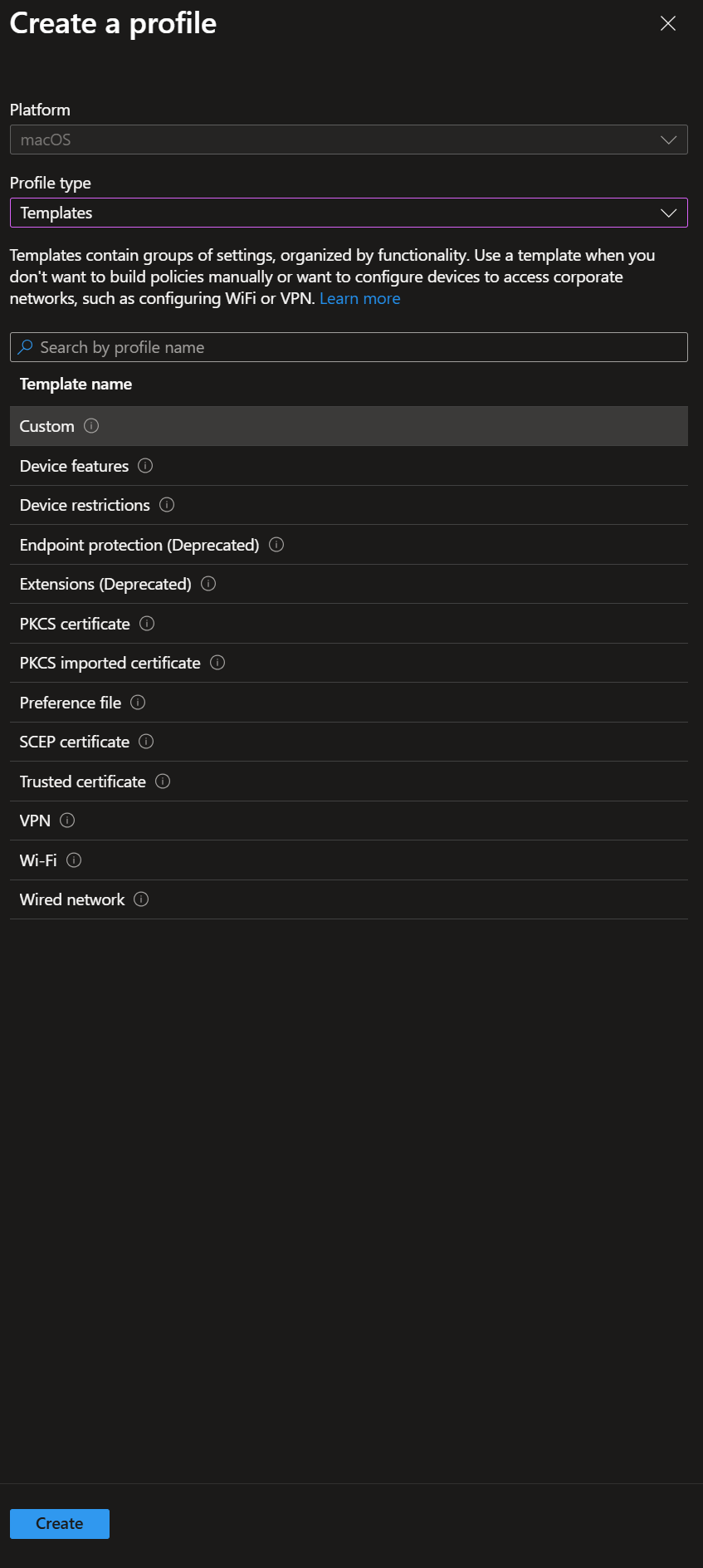
Configure the profile with the following values:
Setting | Value |
|---|---|
Platform | macOS |
Profile Type | Templates |
Template Name | Custom |
Click Create.
Configure the Profile
On the Basics page:
Enter a profile name such as Field Effect MDR Full Disk Access.
Click Next.
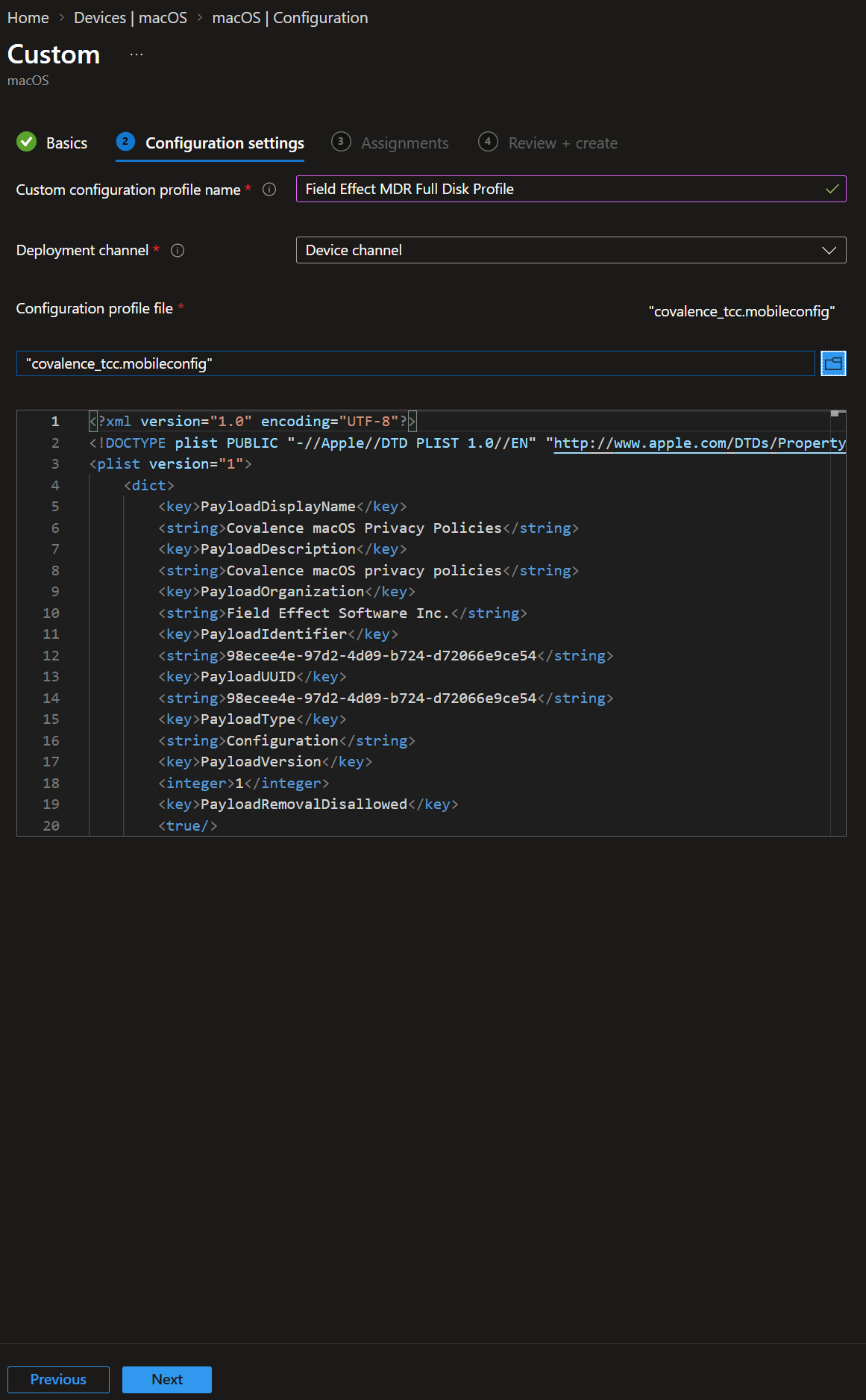
On the Configuration Settings page:
Select Device Channel.
Upload the following configuration profile:
mdm/jamf/covalence_tcc.mobileconfig
Click Next.
Assign the Profile
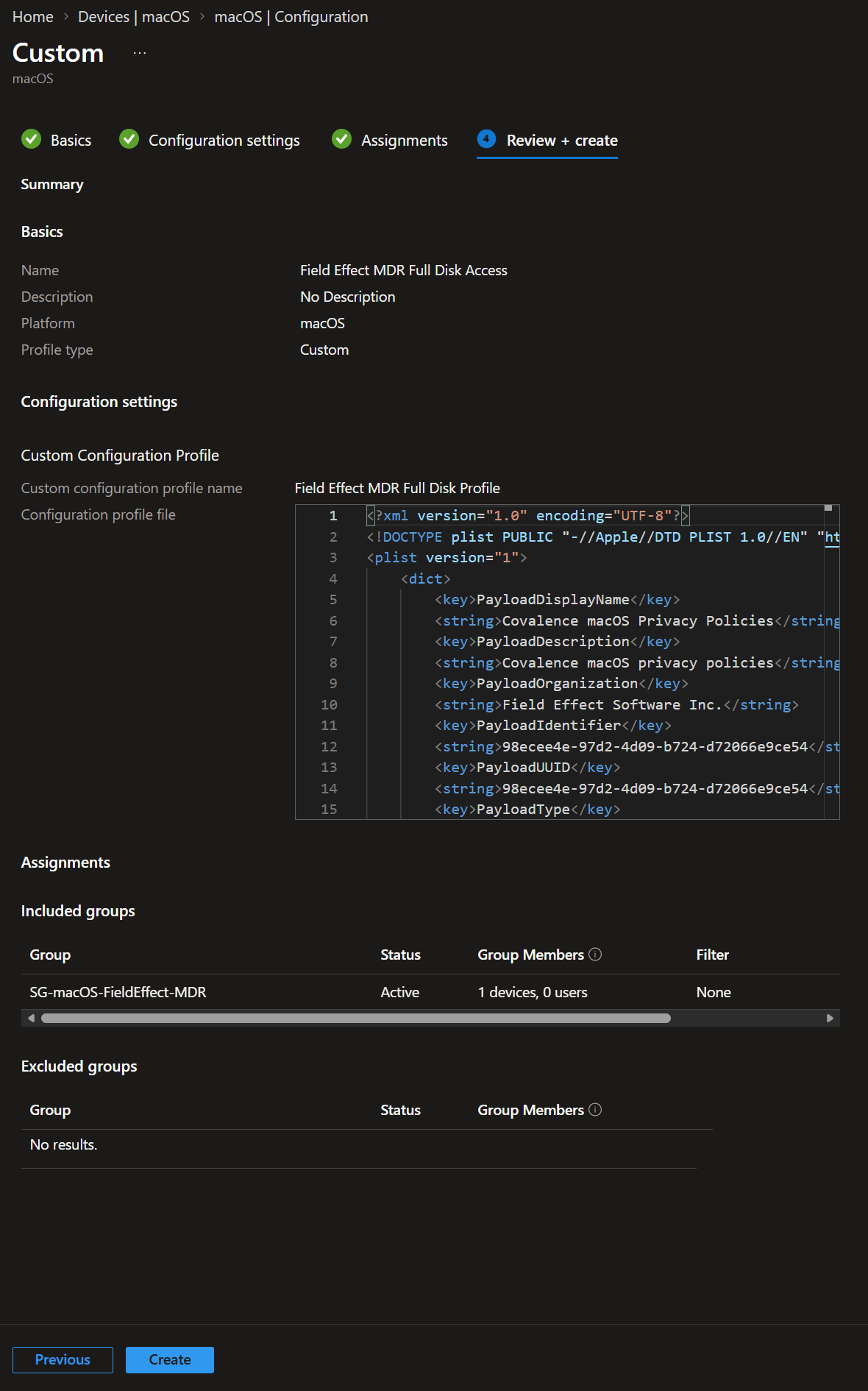
Assign the profile to the appropriate macOS device group.
Review the configuration.
Click Create.
Note: Full Disk Access permissions deployed through MDM may not appear in System Settings > Privacy & Security > Full Disk Access. This behavior is expected.
Verify Profile Deployment
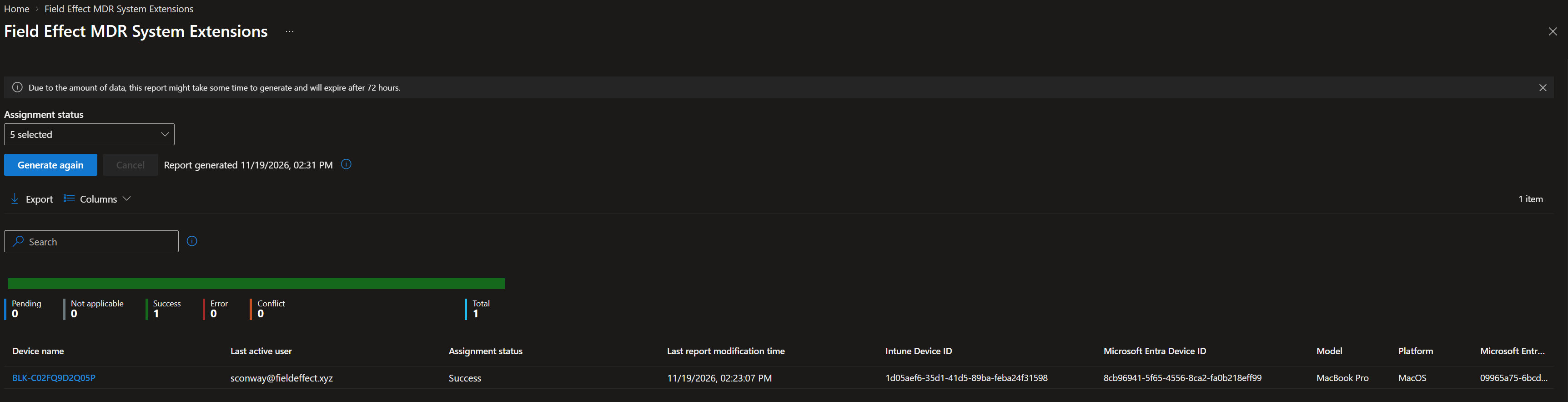
Before deploying the application, confirm that all profiles have successfully reached the target devices.
Navigate to Devices > macOS > Configuration Profiles.
Open each Field Effect MDR profile.
Review:
Device status
User status
Assignment status
Verify that all assigned devices report a successful deployment.

Deploy the Field Effect MDR Application
Once the required profiles have been assigned, deploy the Field Effect MDR macOS installer.
Navigate to:
Apps > macOS

Add the Application
Select Add.
Choose macOS Line-of-Business app.
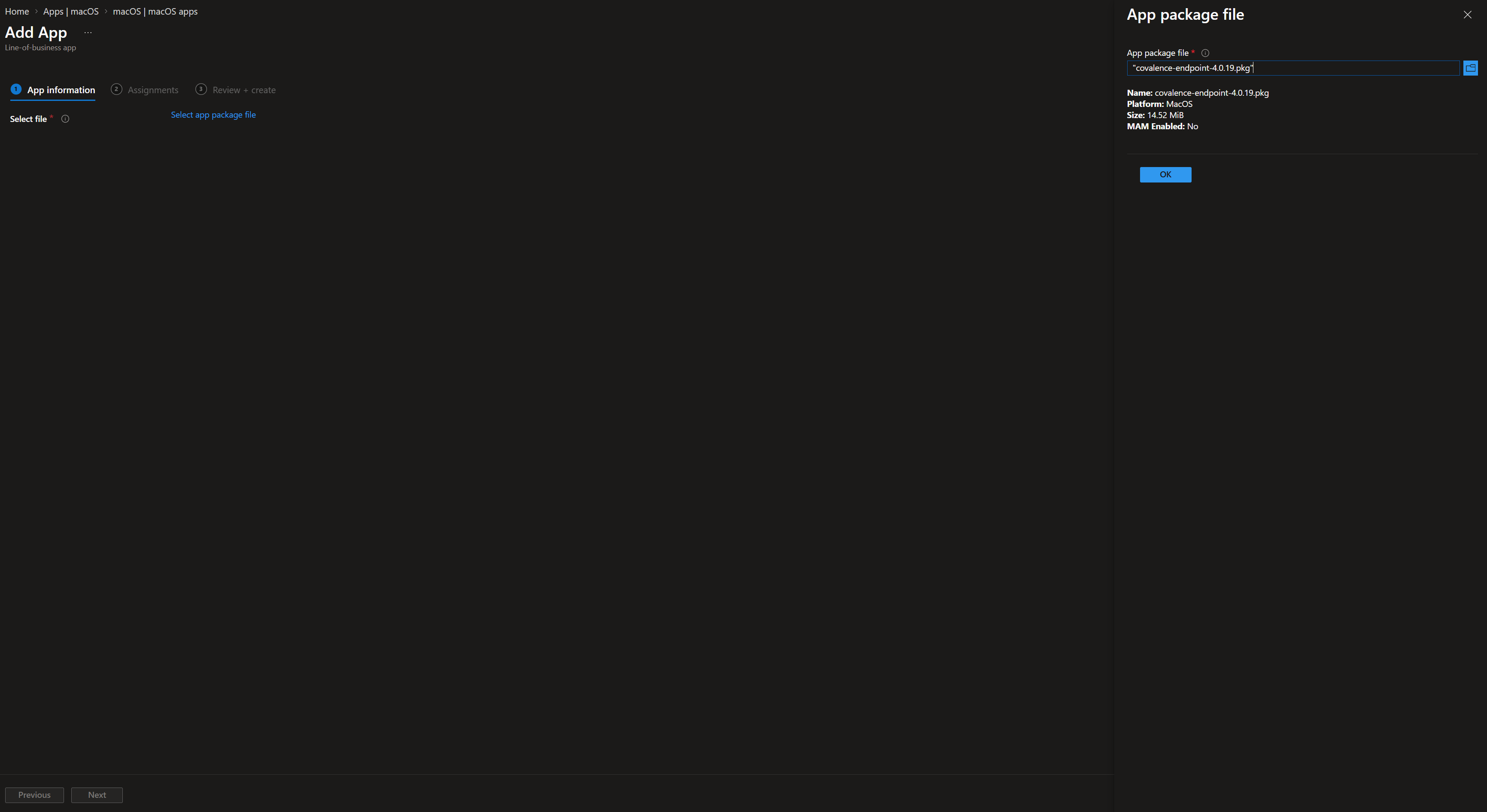
Upload the Field Effect MDR
.pkginstaller downloaded from the MDR Portal.
Configure Application Details
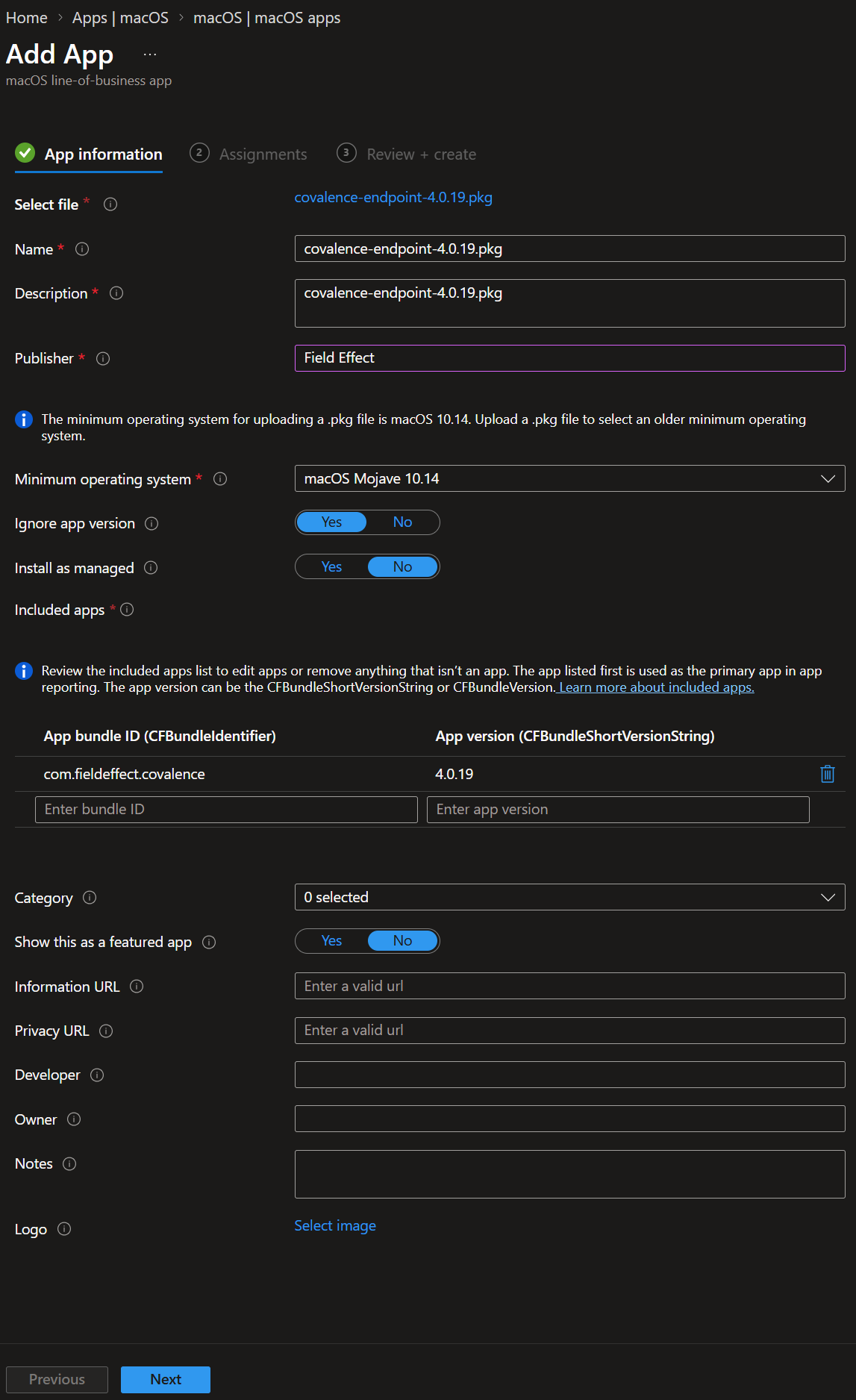
Review and configure the application settings:
Name
Publisher
Version information
Category (optional)
Click Next when finished.
Configure Assignments
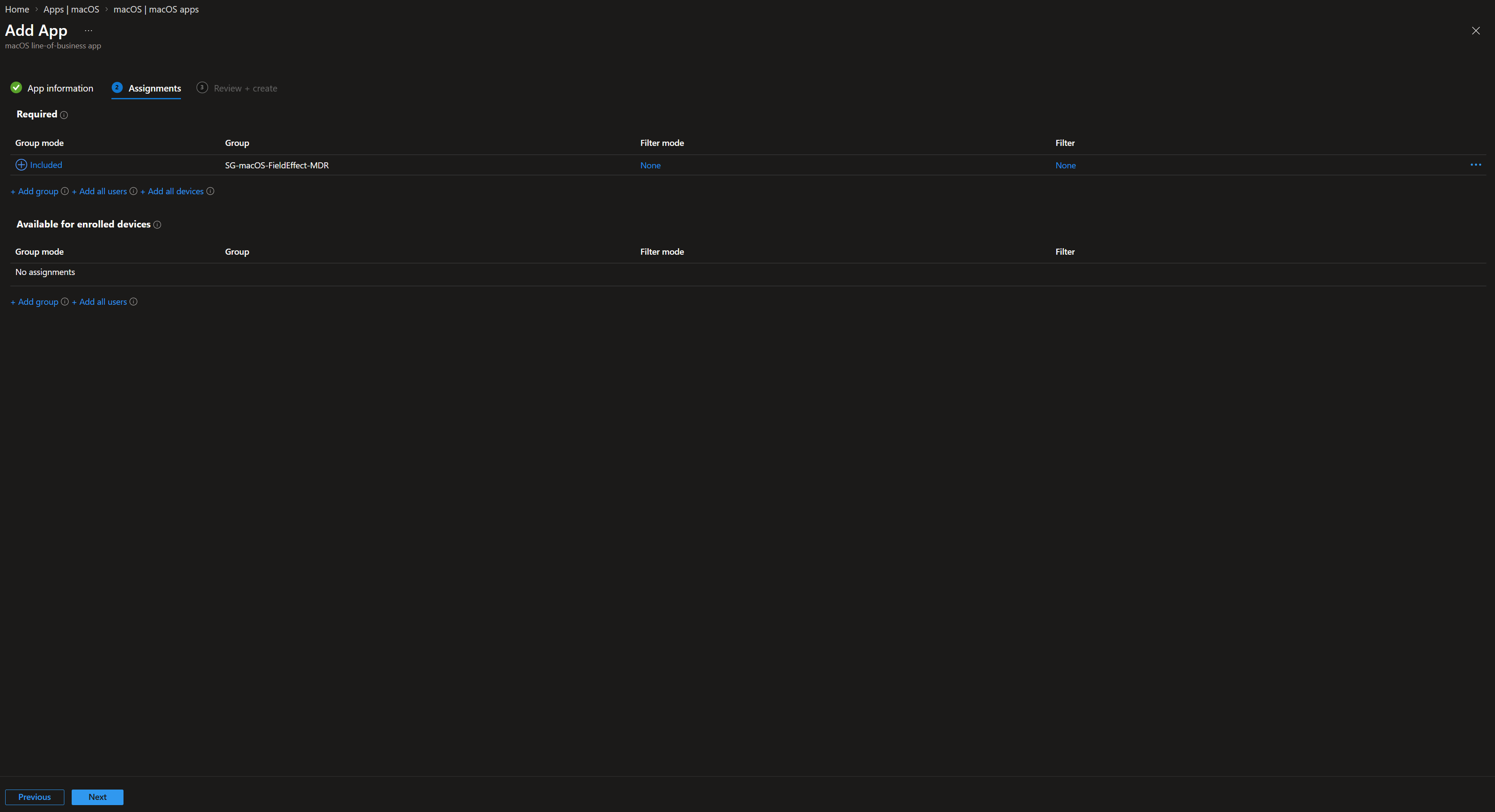
Assign the application to the required device or user groups.
Most organizations deploy the application as:
Required for managed macOS devices
After configuring assignments:
Click Next.
Review the deployment settings.
Click Create.
Verify Application Installation
After deployment, verify that the application installs successfully.
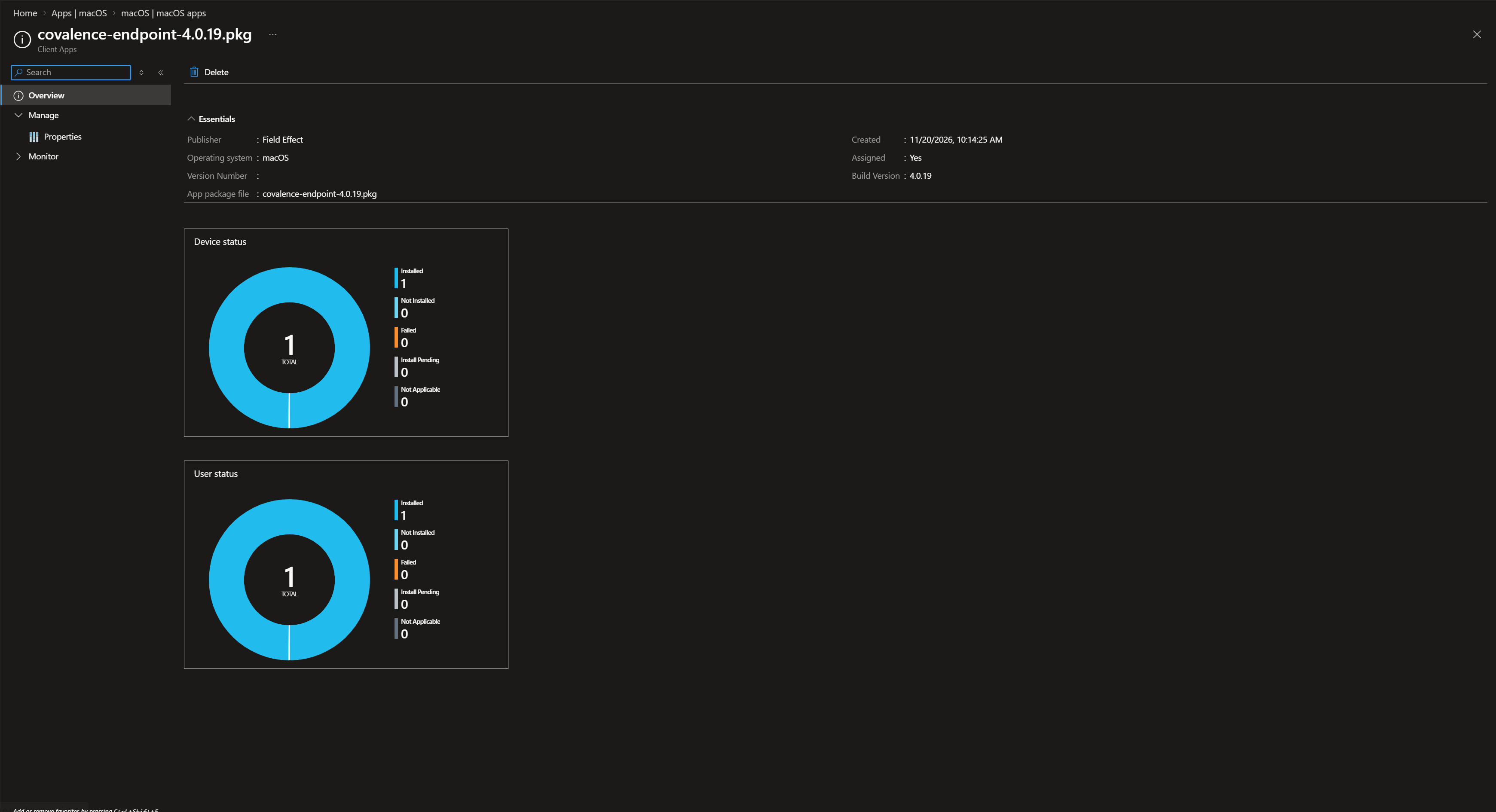
Check Intune Status
Navigate to Apps > macOS Apps.
Select the Field Effect MDR application.
Review:
Device install status
User install status
Installation failures
Check Endpoint Status
On the target macOS device:
Confirm that the Field Effect MDR application is installed.
Verify the device receives the assigned configuration profiles.
Confirm no security prompts or extension approval requests are presented to the user.
Check the MDR Portal
Verify that the endpoint appears in the MDR Portal and begins reporting status information.
You should see:
The device listed as an endpoint.
Current telemetry being received.
A healthy agent status.
Troubleshooting
If deployment does not complete successfully:
Verify all three configuration profiles were deployed successfully before the application installation.
Confirm the device is enrolled and actively communicating with Intune.
Validate that the correct installer package was uploaded.
Review Intune device and application deployment logs for errors.
Confirm the required license, system extension, and Full Disk Access configuration files were imported successfully.
If issues persist, contact Field Effect Support for assistance.
Was this article helpful?
That’s Great!
Thank you for your feedback
Sorry! We couldn't be helpful
Thank you for your feedback
Feedback sent
We appreciate your effort and will try to fix the article