Introduction
This article explains how to deploy the Field Effect MDR Windows agent using Microsoft Intune.
You will download the agent installer, create a Win32 application package, upload it to Intune, configure installation and detection settings, and deploy the application to managed Windows endpoints.
Before You Begin
Before starting, ensure that:
- Target devices are enrolled in Microsoft Intune.
- You have administrative access to Microsoft Intune.
- You have downloaded the appropriate Windows agent installer from the Field Effect MDR Portal.
- You have downloaded the Microsoft Win32 Content Prep Tool.
- Target devices meet all Field Effect MDR system requirements.
Required Files
The Windows download package includes:
- Field Effect MDR MSI installer
- license.txt
You will also need the Microsoft Win32 Content Prep Tool (IntuneWinAppUtil.exe).
Important: The license file must remain alongside the MSI installer when creating the Intune package.
Download the Field Effect MDR Agent
If you are a partner, ensure you have selected the correct client organization before downloading the installer.
- Sign in to the Field Effect MDR Portal.
- Navigate to Downloads.
- Download the appropriate Windows agent package.
- Extract the downloaded ZIP file.
You should have:
- covalence-endpoint-x64-<version>.msi
- license.txt
Prepare the Installation Package
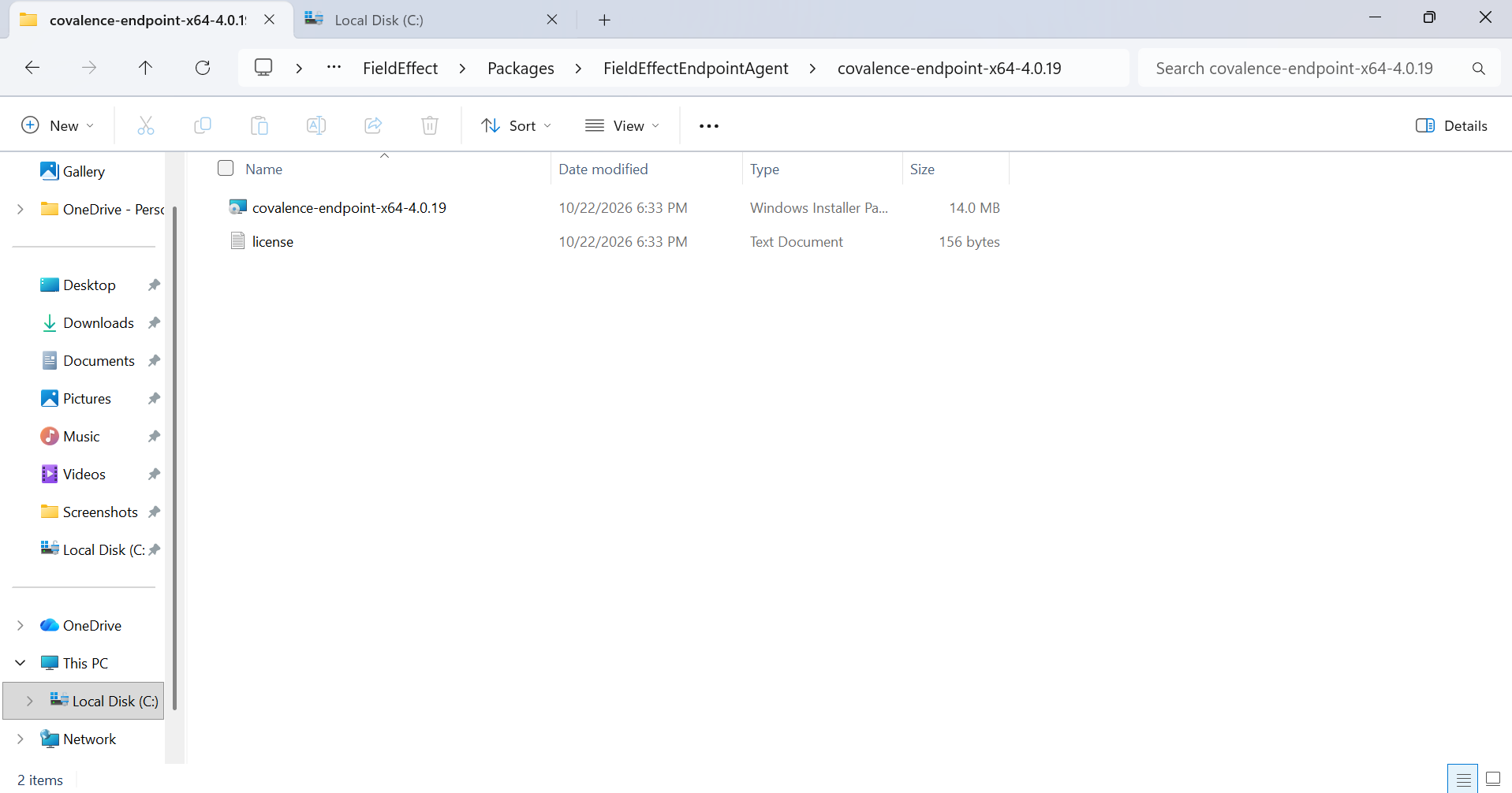
Create a working folder to store the installation files.
Example:
C:\FieldEffect\Packages\FieldEffectEndpointAgent\<version>\
Copy the following files into the version folder:
covalence-endpoint-x64-<version>.msi
license.txt
Download the Microsoft Win32 Content Prep Tool
Microsoft Intune requires Win32 applications to be packaged as .intunewin files.
- Download the Microsoft Win32 Content Prep Tool.
- Extract the downloaded ZIP file.
- Copy IntuneWinAppUtil.exe into your working folder.
Example:
C:\FieldEffect\
Create the Intune Package
Open Command Prompt and navigate to the folder containing the Content Prep Tool:
cd C:\FieldEffect
Run the following command:
IntuneWinAppUtil.exe ^ -c Packages\FieldEffectEndpointAgent\<version> ^ -s covalence-endpoint-x64-<version>.msi ^ -o Packages\FieldEffectEndpointAgent
Replace <version> with the version number of the installer being deployed.
Example:
IntuneWinAppUtil.exe ^ -c Packages\FieldEffectEndpointAgent\4.0.0 ^ -s covalence-endpoint-x64-4.0.0.msi ^ -o Packages\FieldEffectEndpointAgent
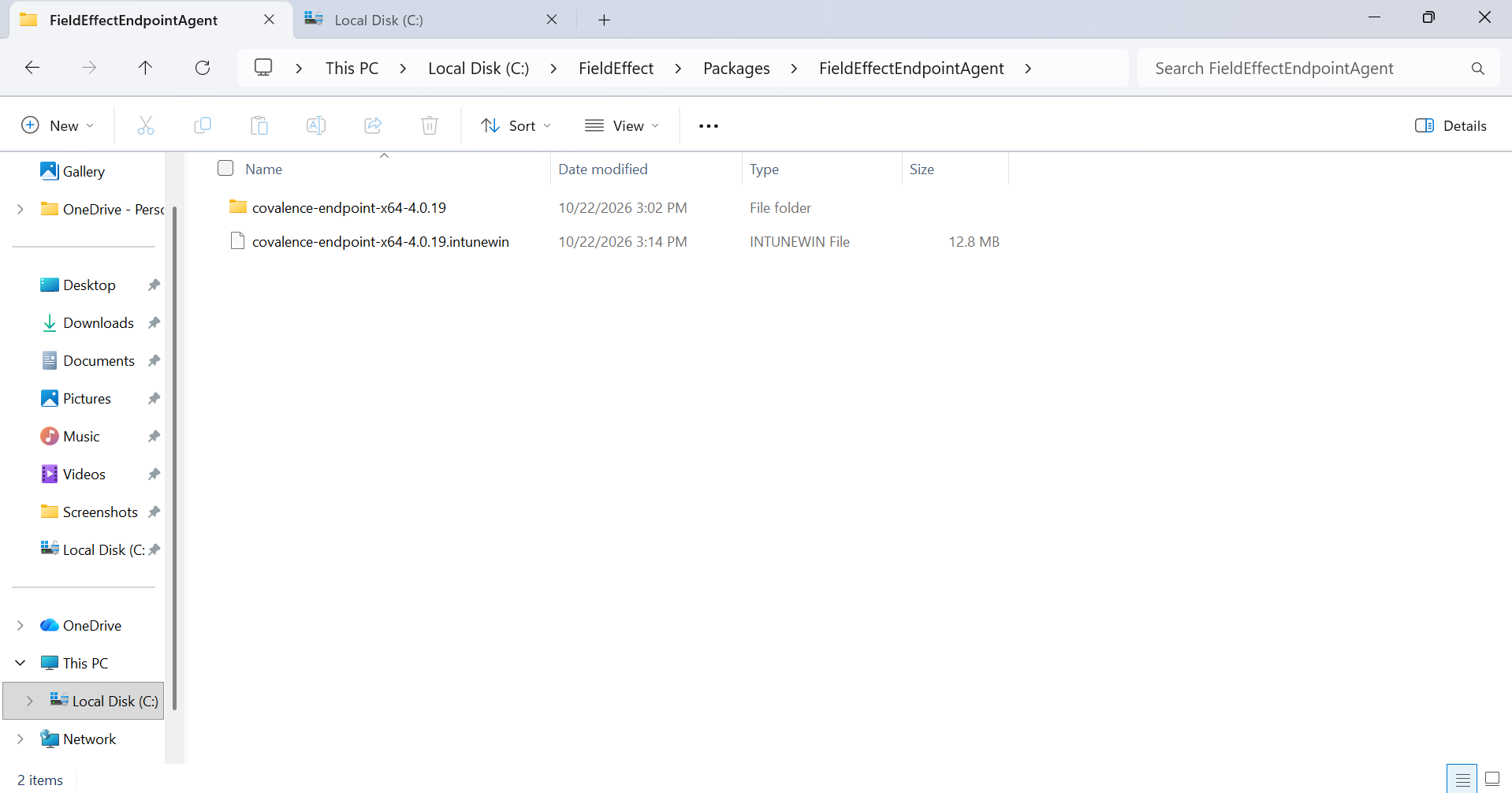
When packaging completes successfully, an .intunewin file will be created.
Create the Intune Application
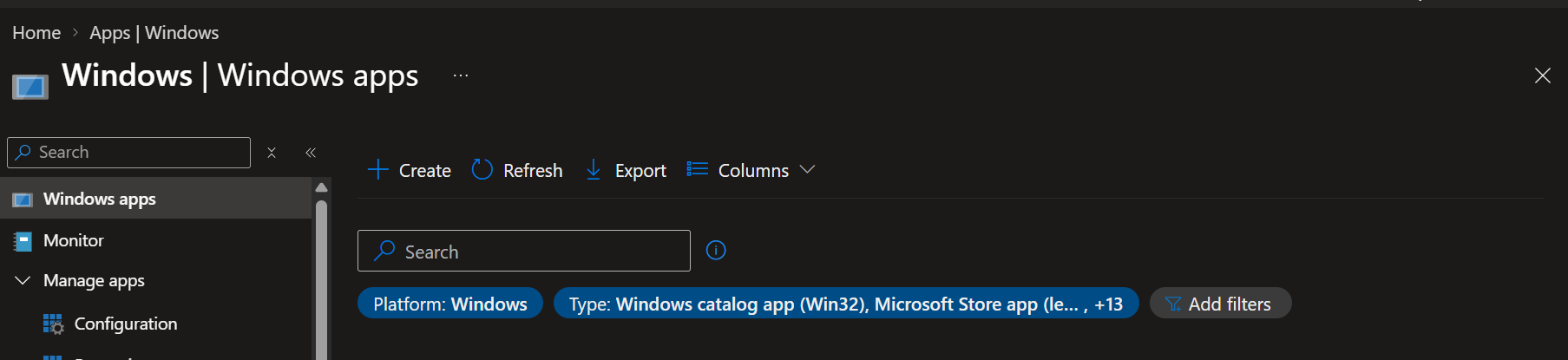
Sign in to the Microsoft Intune Admin Center.
Navigate to: Apps > Windows > Create
Select Application Type
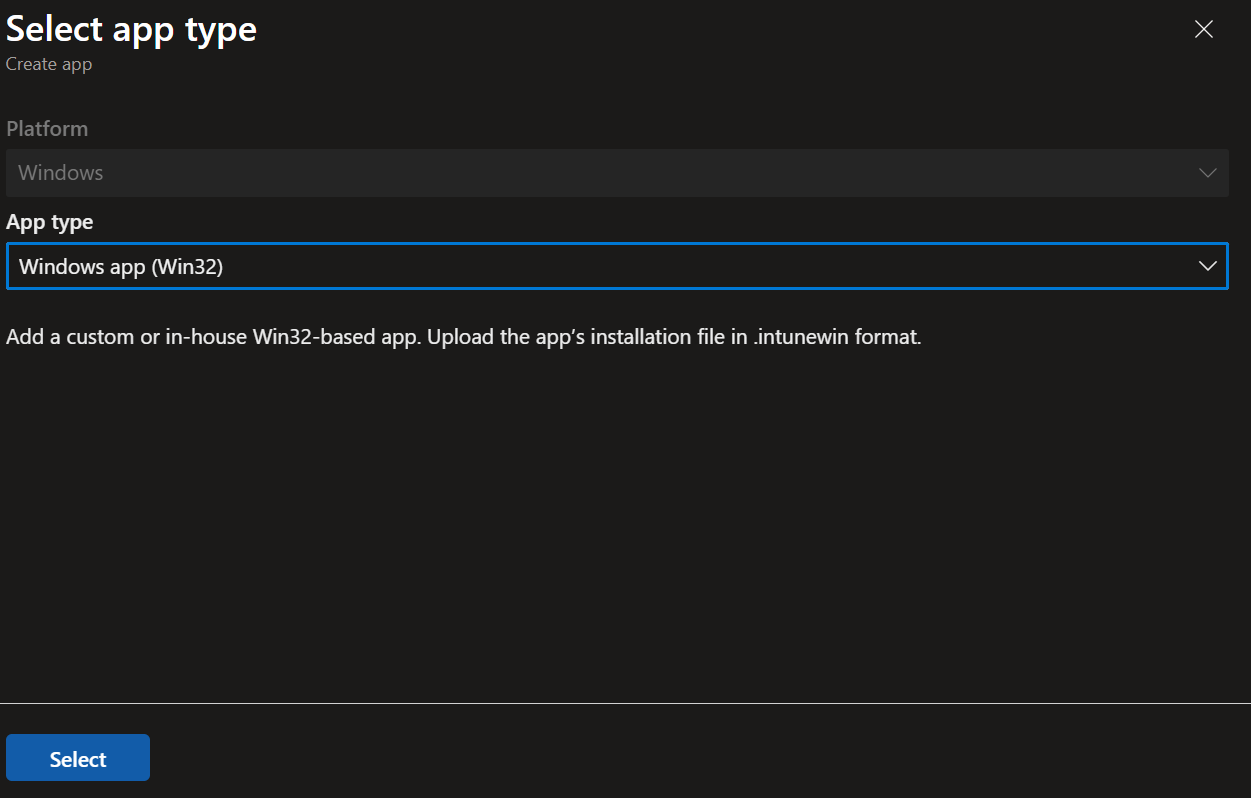
Configure the application as:
| Setting | Value |
|---|---|
| App Type | Windows app (Win32) |
Click Select.
Upload the Package
- Select App package file.
- Upload the generated .intunewin file.
- Click OK.
Configure Application Information
Verify the imported application information.
Update fields as necessary:
| Setting | Value |
|---|---|
| Publisher | Field Effect |
| Category | Optional |
| Description | Optional |
Click Next.
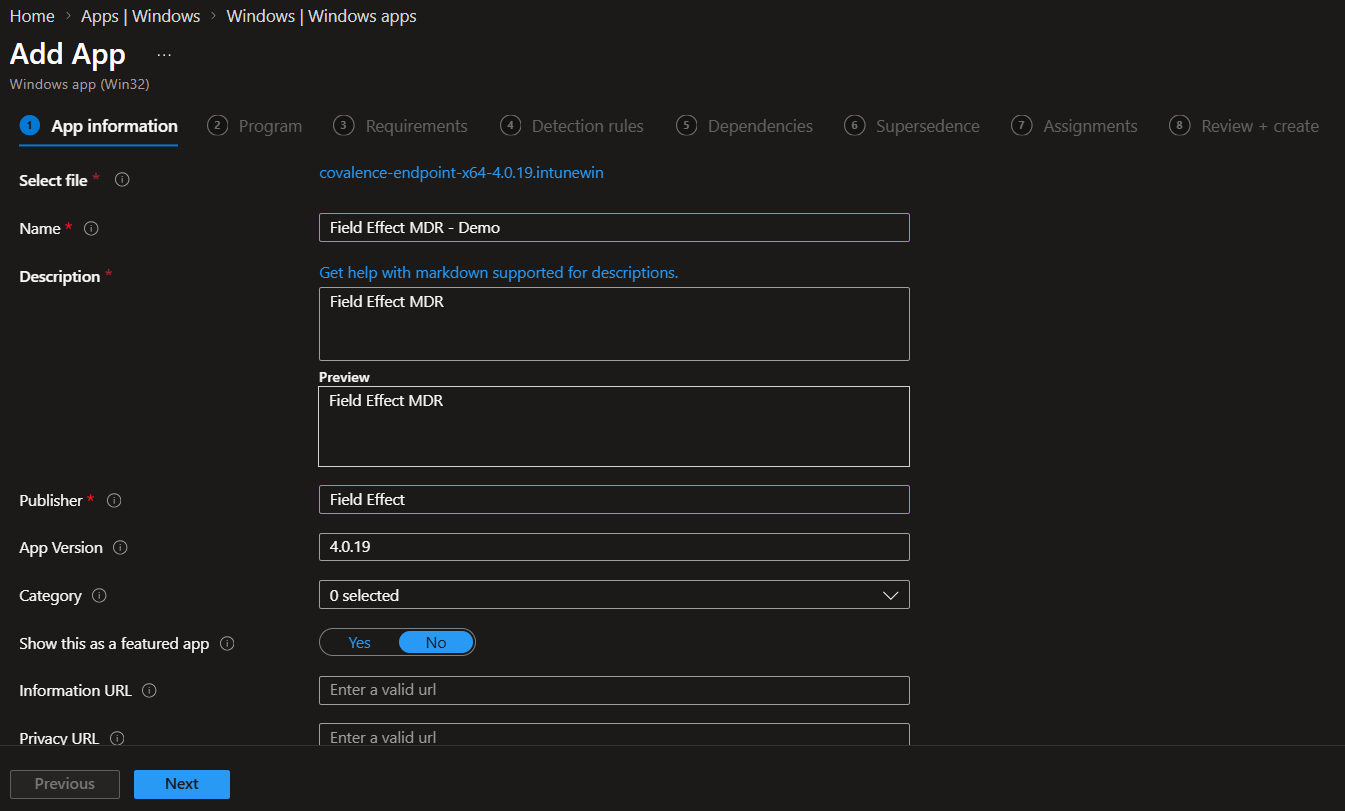
Configure Program Settings
Configure the installation command and verify the values imported from the package.
Configure restart behavior as:
| Setting | Value |
|---|---|
| Device Restart Behavior | No specific action |
Click Next.
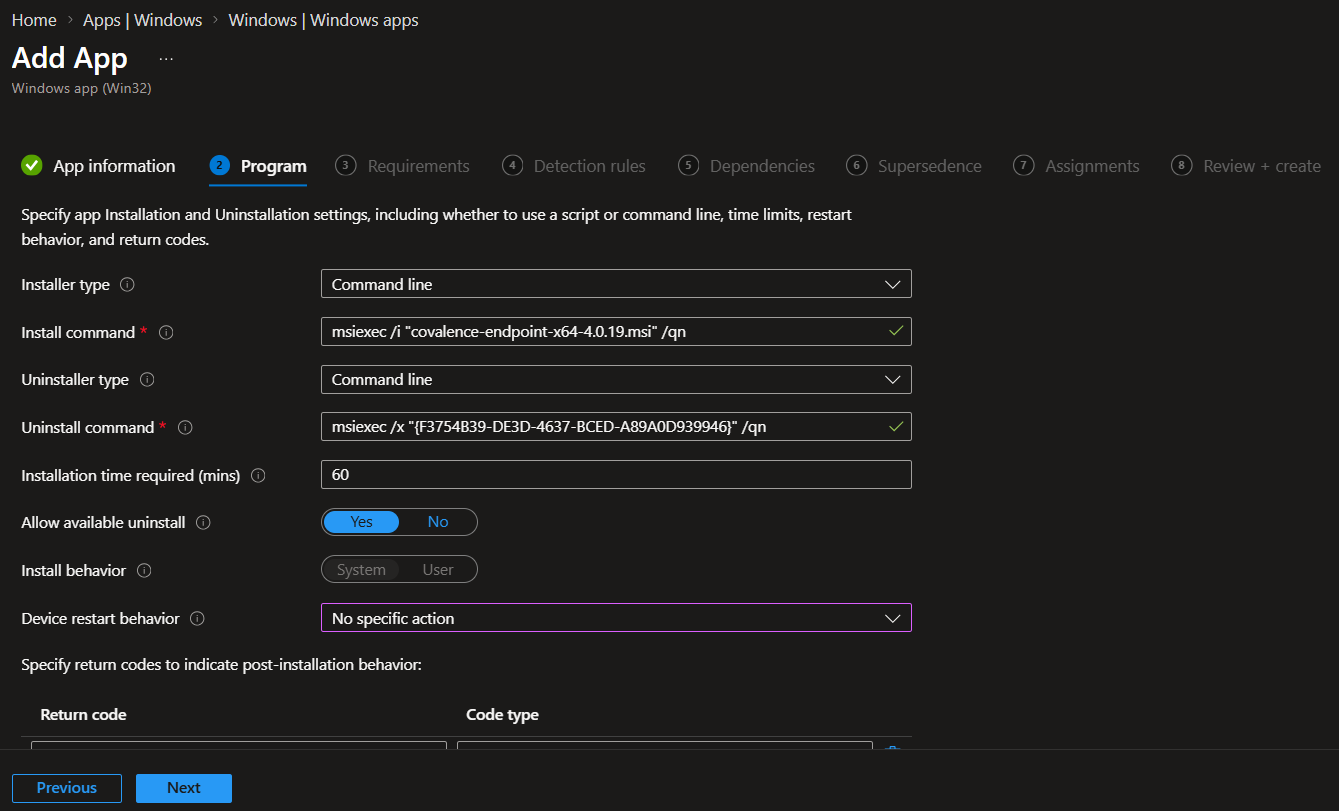
Configure Requirements
Configure application requirements.
Recommended values:
| Setting | Value |
|---|---|
| Operating System Architecture | 64-bit |
| Minimum Operating System | Windows 10 1607 or later |
Click Next.
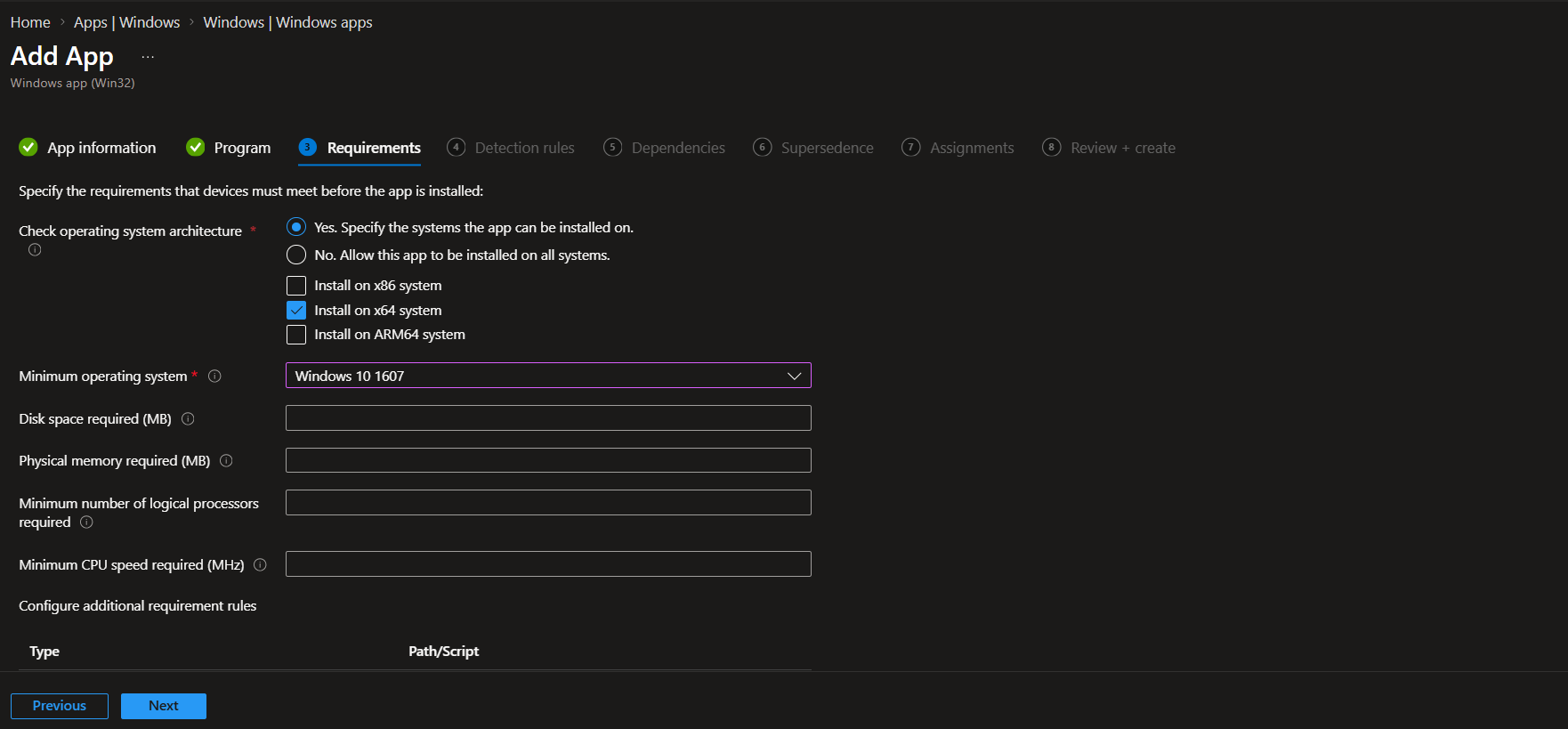
Configure Detection Rules
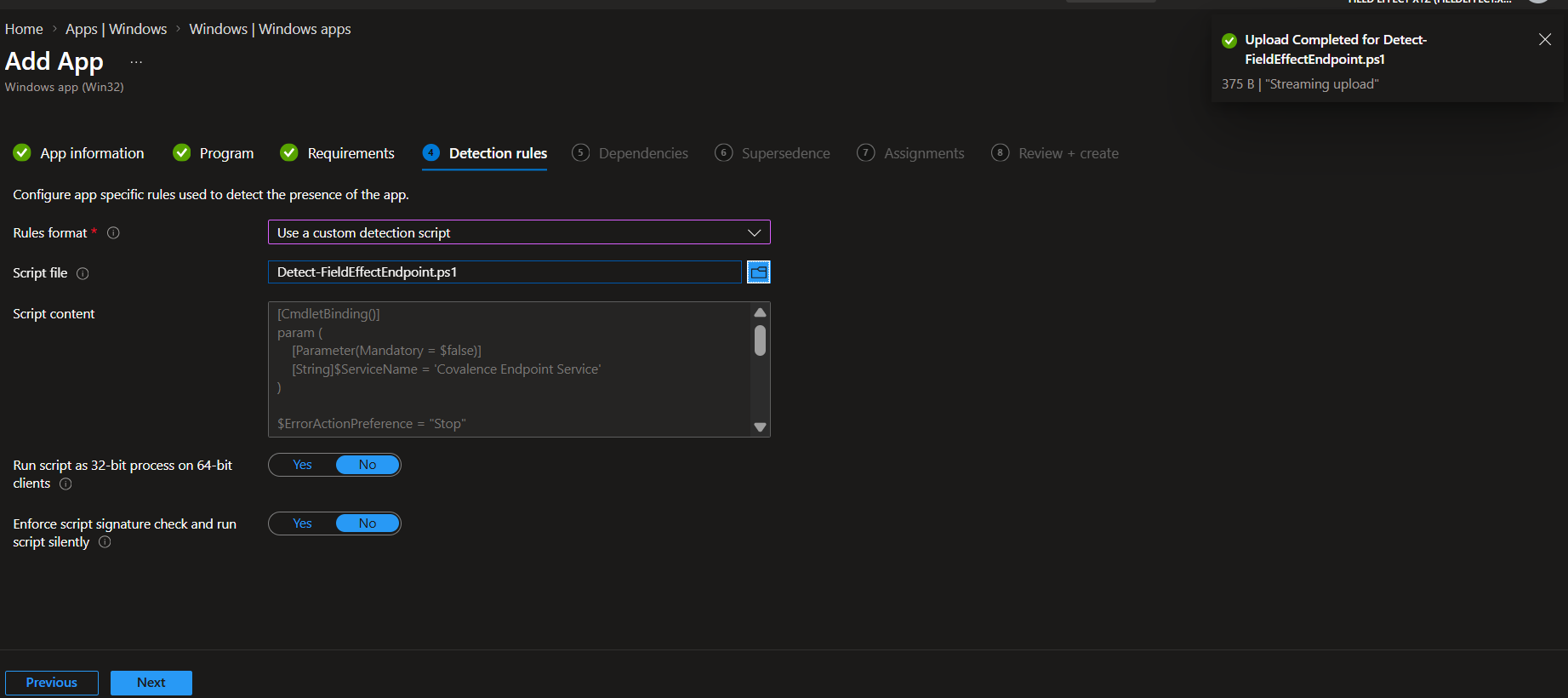
Create a PowerShell script named:
Detect-FieldEffectEndpoint.ps1
Add the following contents:


[CmdletBinding()]
param (
    [Parameter(Mandatory = $false)]
    [String]$ServiceName = 'Covalence Endpoint Service'
)


$ErrorActionPreference = "Stop"
Set-StrictMode -Version Latest


try {
    $service = Get-Service -Name $ServiceName
} catch {
    exit -1
}


if($service.Status -eq 'Running'){
    Write-Host 'Success'
    exit 0
} else {
    exit -1
}
In Intune:
- Select Use a custom detection script.
- Upload the detection script.
- Click Next.
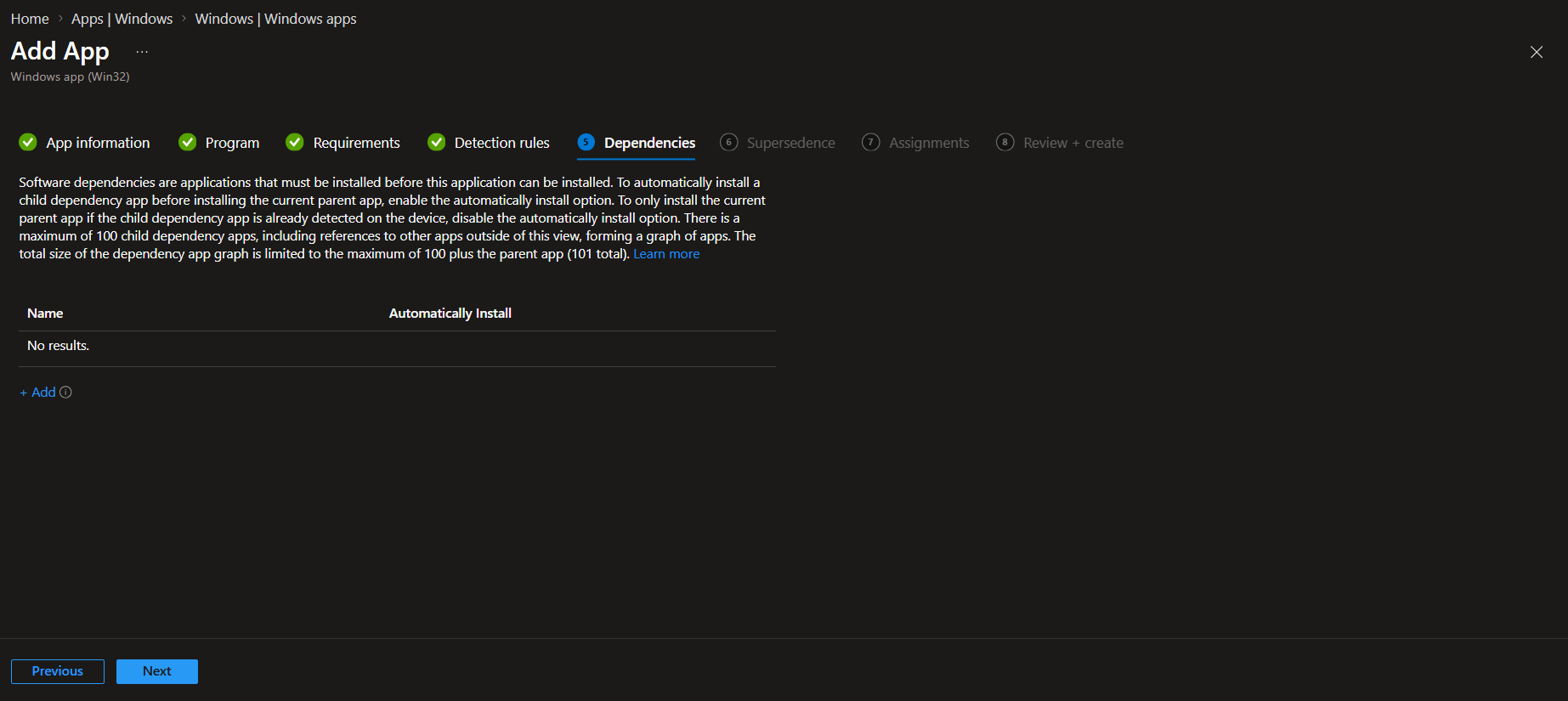
Configure Dependencies
No dependencies are required.
Click Next.
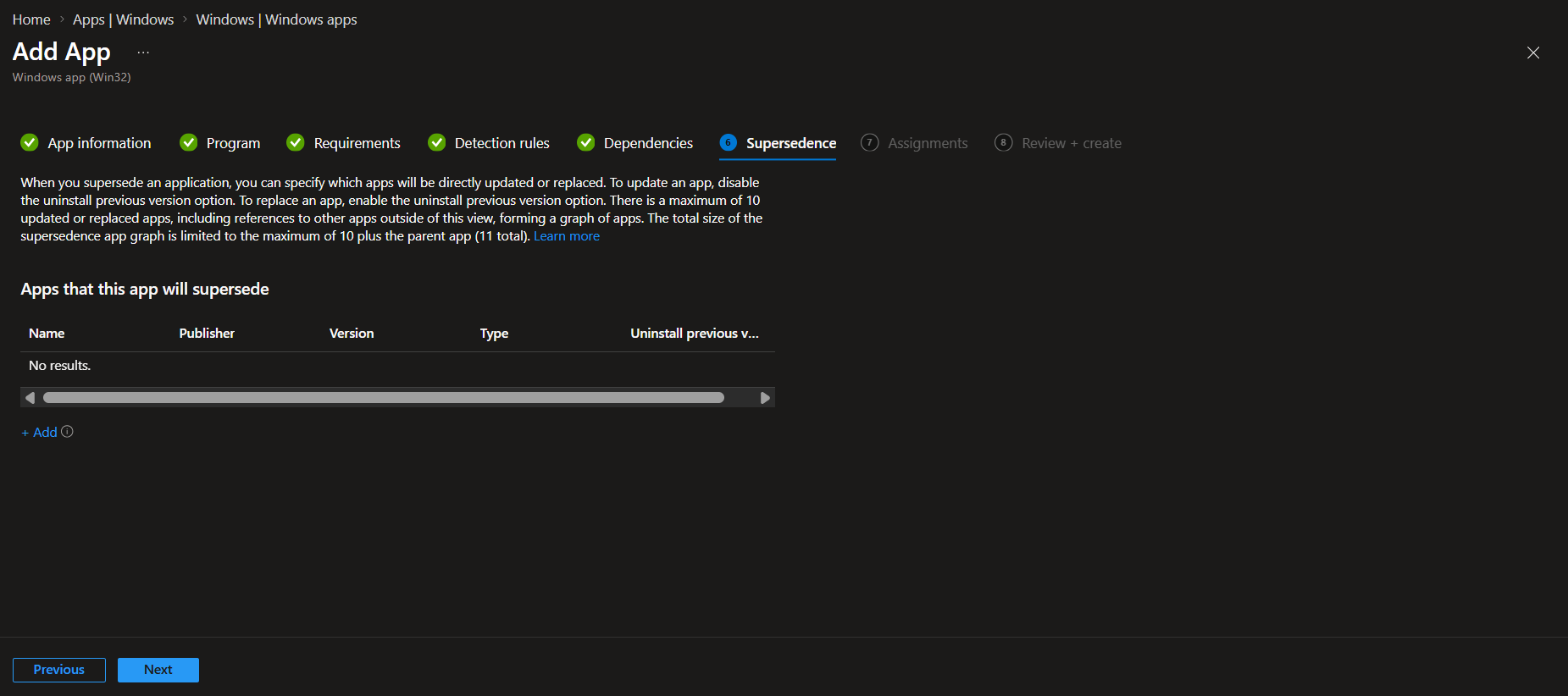
Configure Supersedence
Unless your organization uses an application replacement workflow, no supersedence configuration is required.
Click Next.
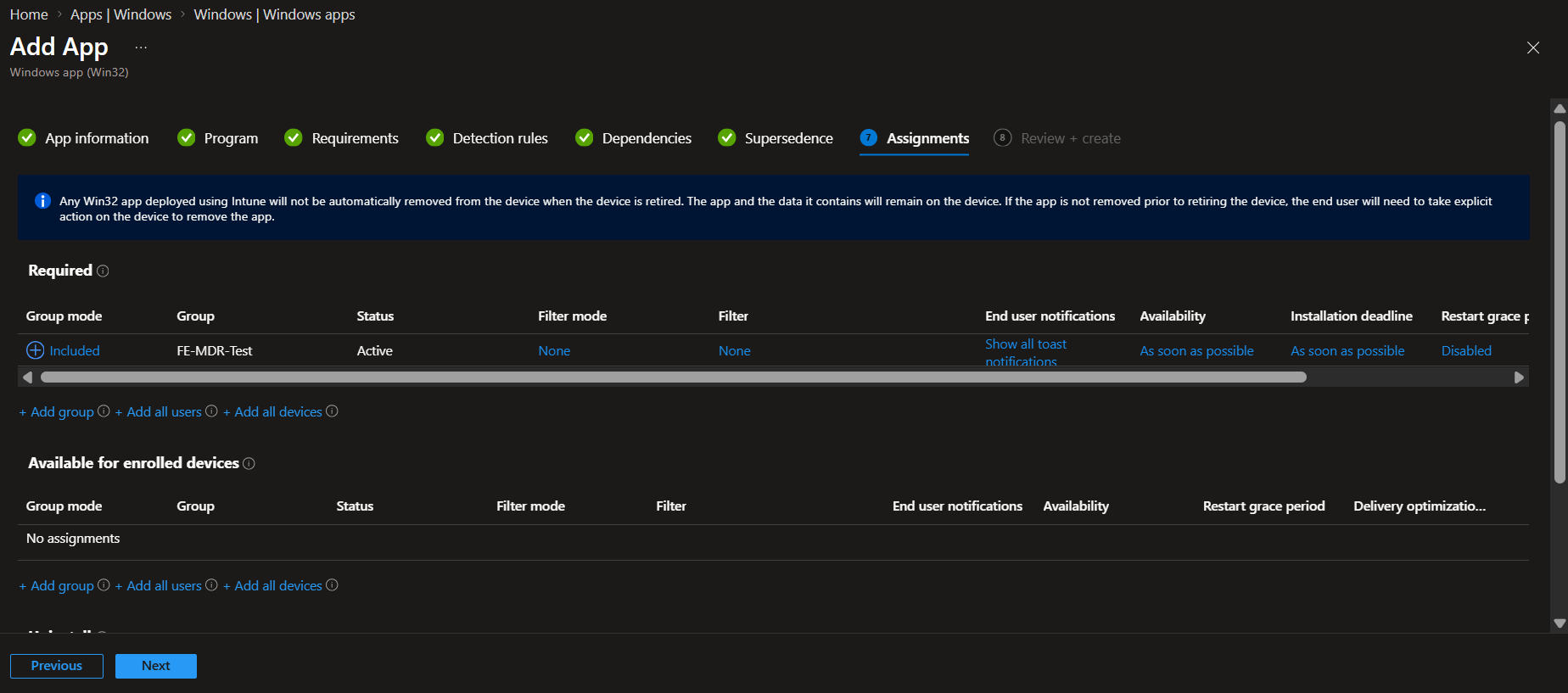
Assign the Application
Assign the application to the appropriate device or user groups.
Most organizations deploy the agent as: Required
Review the assignments and click Next.
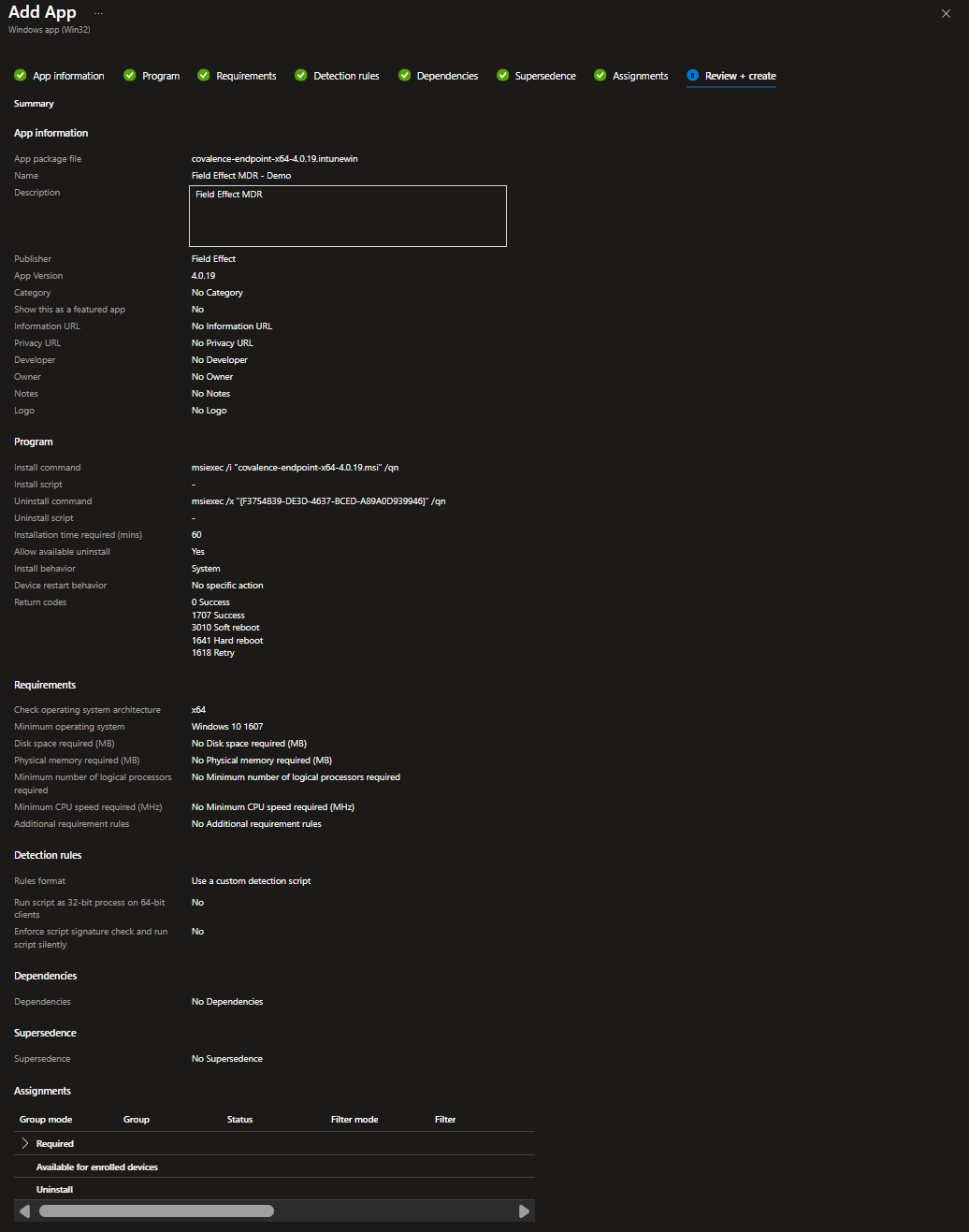
Create the Application
Review the application configuration.
When ready, click Create.
Intune will upload and process the package before deployment becomes available.
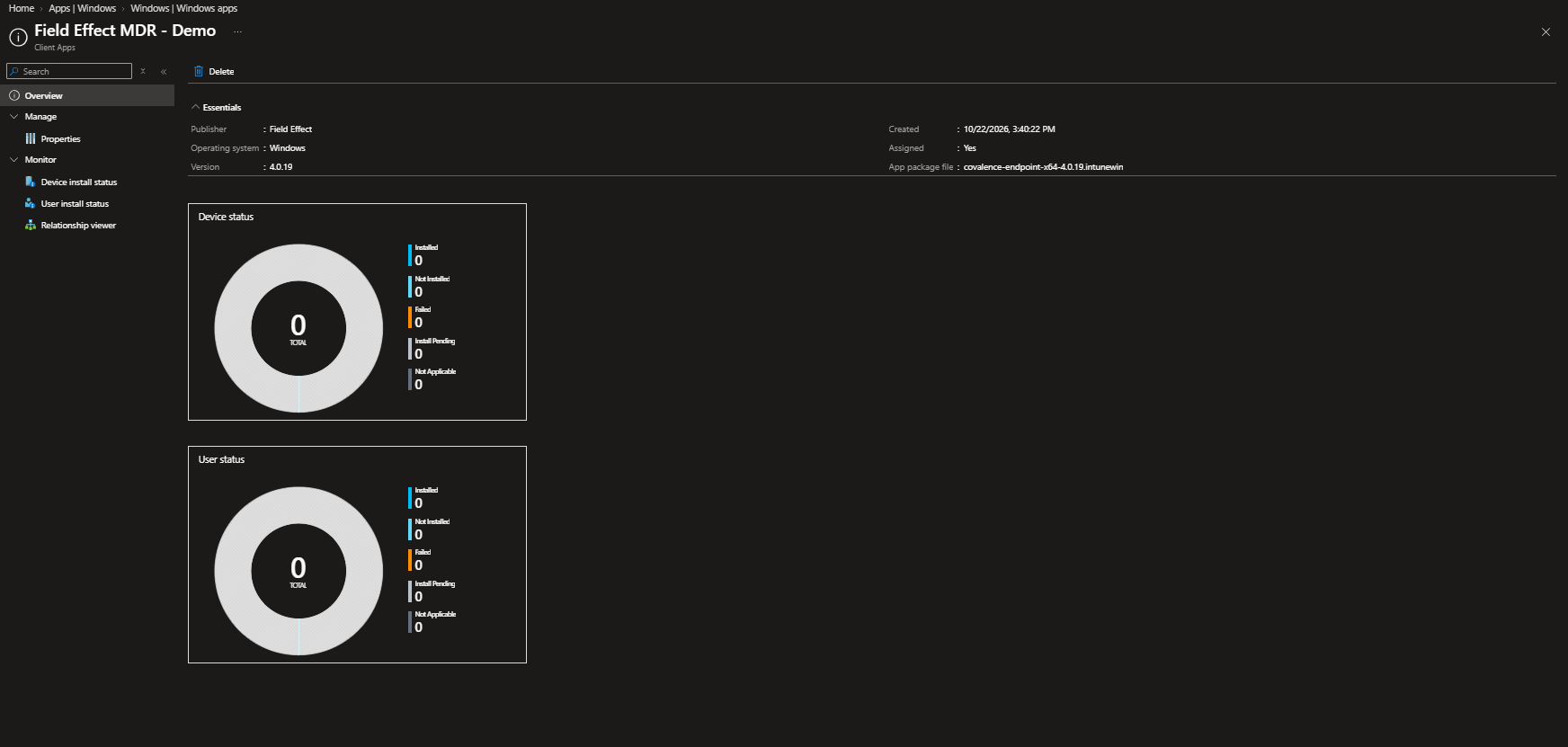
Monitor Deployment Status
After deployment, monitor installation progress.
Navigate to:
Apps > Windows Apps > Field Effect MDR
Review:
- Device install status
- User install status
- Installation failures
- Deployment progress
Verify Agent Installation
After installation completes, verify the endpoint is reporting correctly.
Verify on the Endpoint
Confirm:
- The Field Effect MDR application is installed.
- The Covalence Endpoint Service is running.
- No installation errors are reported.
Verify in the MDR Portal
Confirm the endpoint appears in the MDR Portal.
Verify:
- The endpoint is online.
- Telemetry is being received.
- The agent reports a healthy status.
Troubleshooting
If deployment fails:
- Verify that the MSI installer and license.txt file were included when the package was created.
- Confirm the generated .intunewin file was uploaded successfully.
- Verify the installation command is correct.
- Review Intune deployment status messages.
- Review client-side logs in Intune Management Extension.
- Confirm the detection script is correctly identifying the running service.
If the endpoint installs successfully but does not appear in the MDR Portal, contact Field Effect Support.
Was this article helpful?
That’s Great!
Thank you for your feedback
Sorry! We couldn't be helpful
Thank you for your feedback
Feedback sent
We appreciate your effort and will try to fix the article