Introduction
This article walks through the process of installing the endpoint agent on single macOS device using the installer file.
This article covers the following:
- Granting Exceptions for Blocked Apps
- Getting the Installer Package
- Install the Package (Single MacBook)
- Post-Installation Permissions
- Uninstalling a macOS Endpoint Agent
Granting Exceptions for Blocked Apps
If the .pkg file won’t open, it may be because Apple can’t check it for malicious software as the app was not obtained from their App store. If you encounter this, visit this Apple support article for more this protection feature and how approve exceptions for an app.
Use their drop-down list to select your version of macOS as the exception process will vary from version to version.
Getting the Installer Package
You can download the installer for macOS, and all other supported operating systems, from the MDR Portal's Downloads page. Once you have the installer package downloaded and on the machine that requires and endpoint agent, see Installing the Package on a Single MacBook below.
Partners: The downloads page is available at the per-client level, and all the files available for download are specific to each client. Ensure that the organization selector is set to the correct client view when downloading assets.
Install the Package (Single MacBook)
The following procedure outlines the process of installing the endpoint agent on to a single MacBook using the package available from the Downloads page.
Once the installer package is on the device in question, open it in Finder and click the installer package.

This will open the Field Effect MDR installer, click Continue.
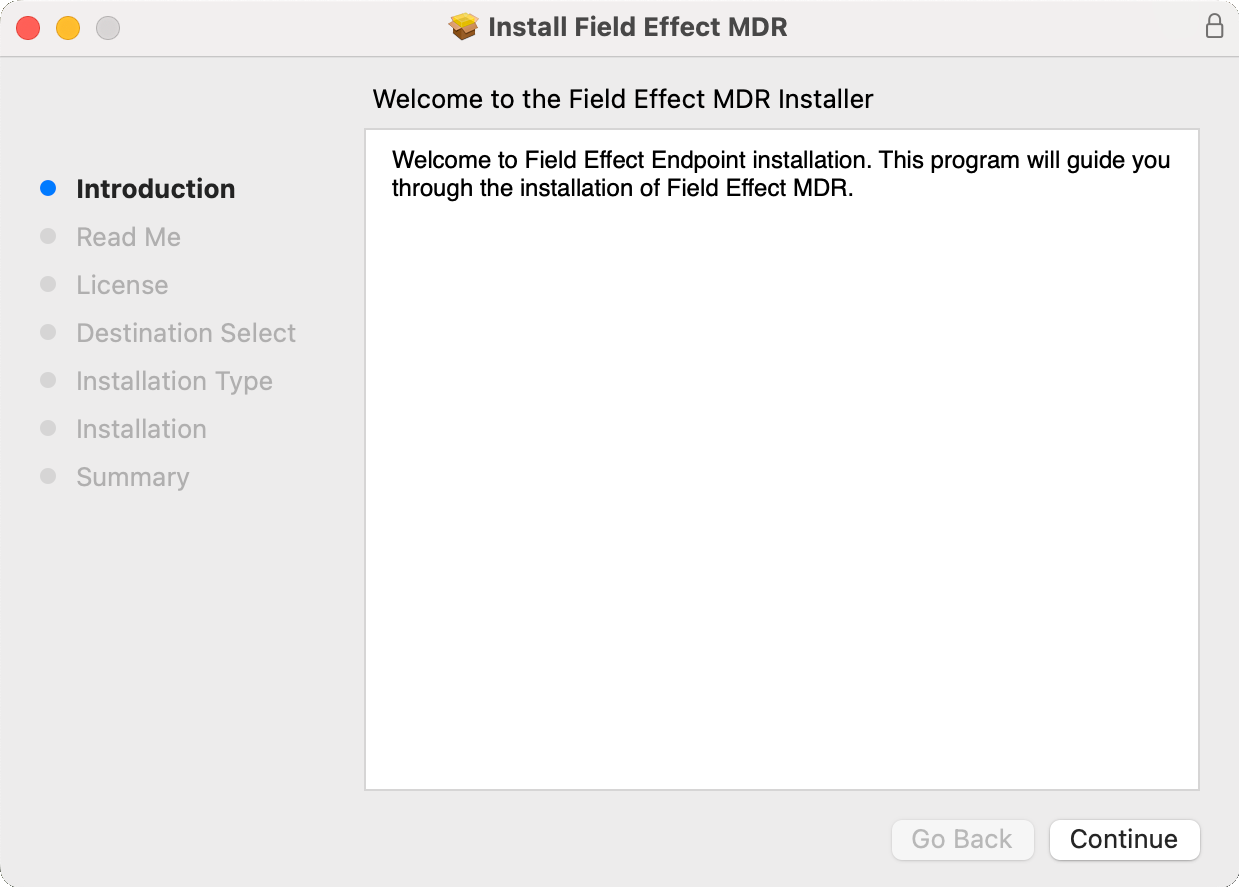
Click Continue to move past the Read Me section.
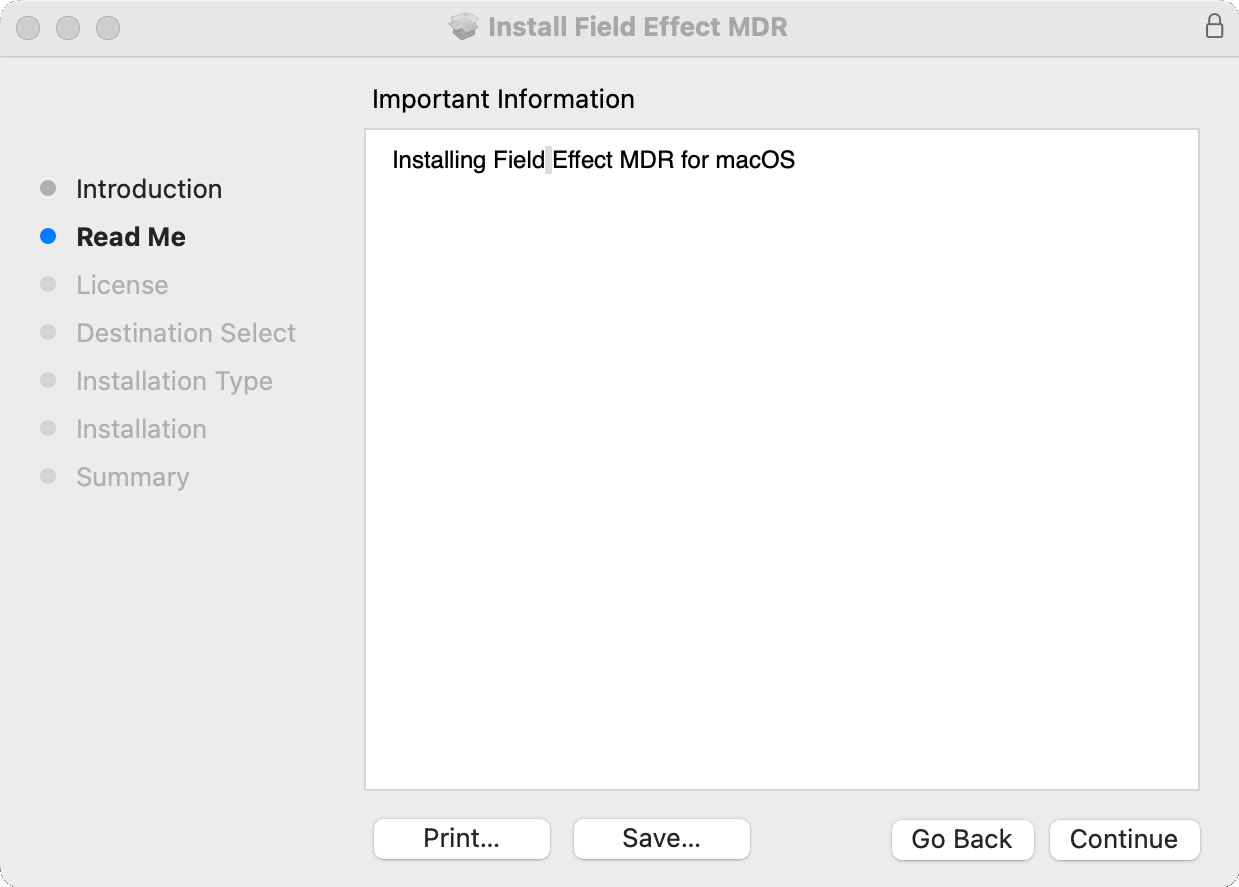
After reviewing the licensing agreement, click Continue.
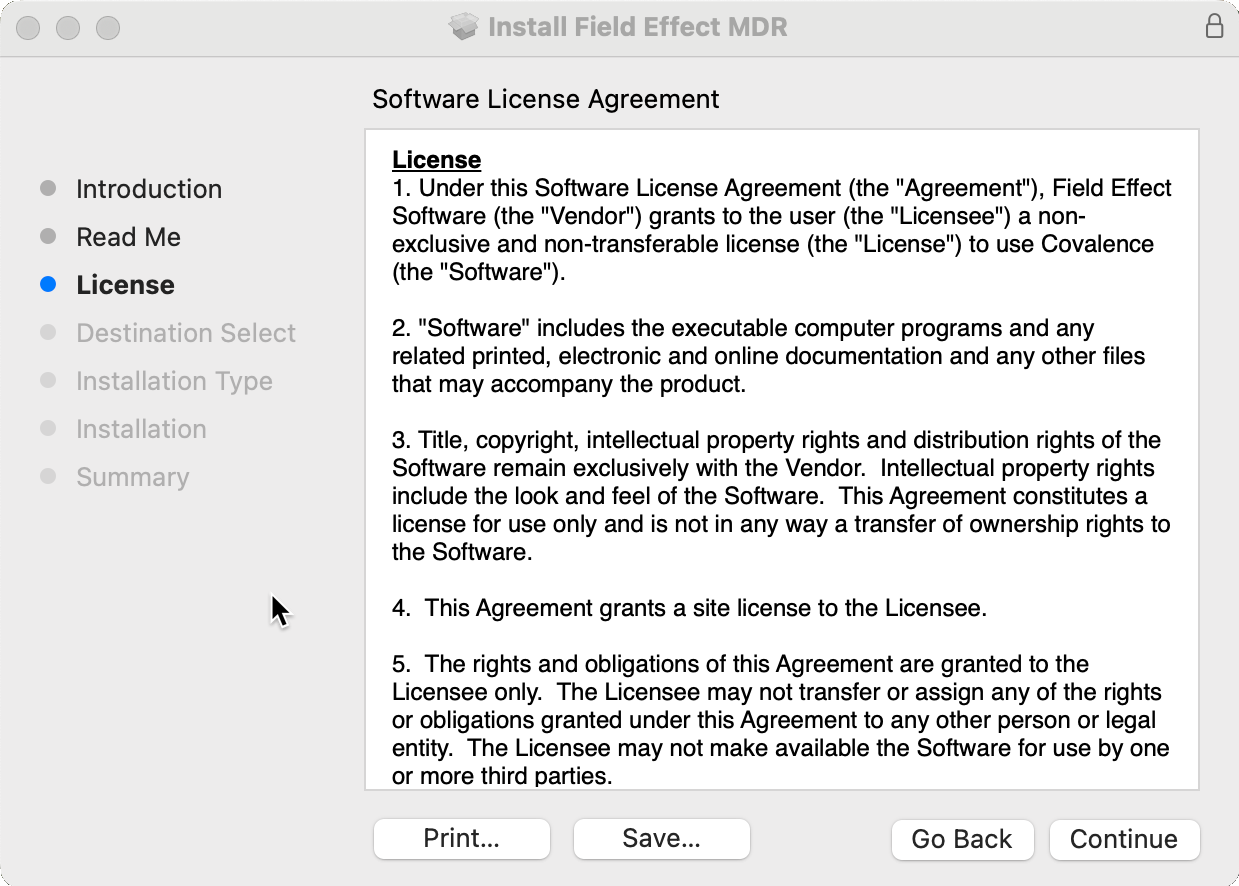
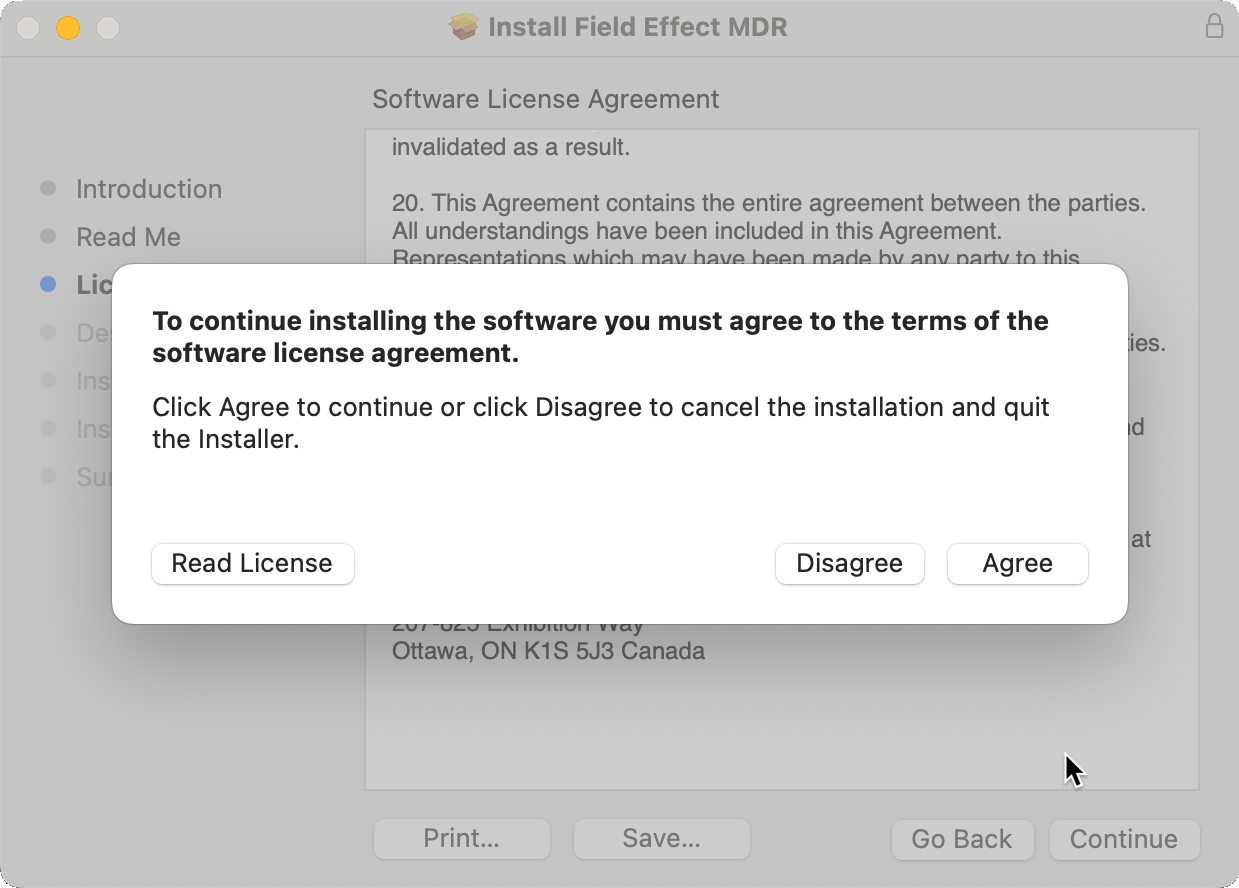
You will be asked to explicitly agree to the terms of the software. Click Agree to give your consent and continue.
You will be presented with the endpoint agent's storage requirements, and optional customization options. We recommend not customizing the installation or the storage location. Click Install to install the endpoint agent on the device.
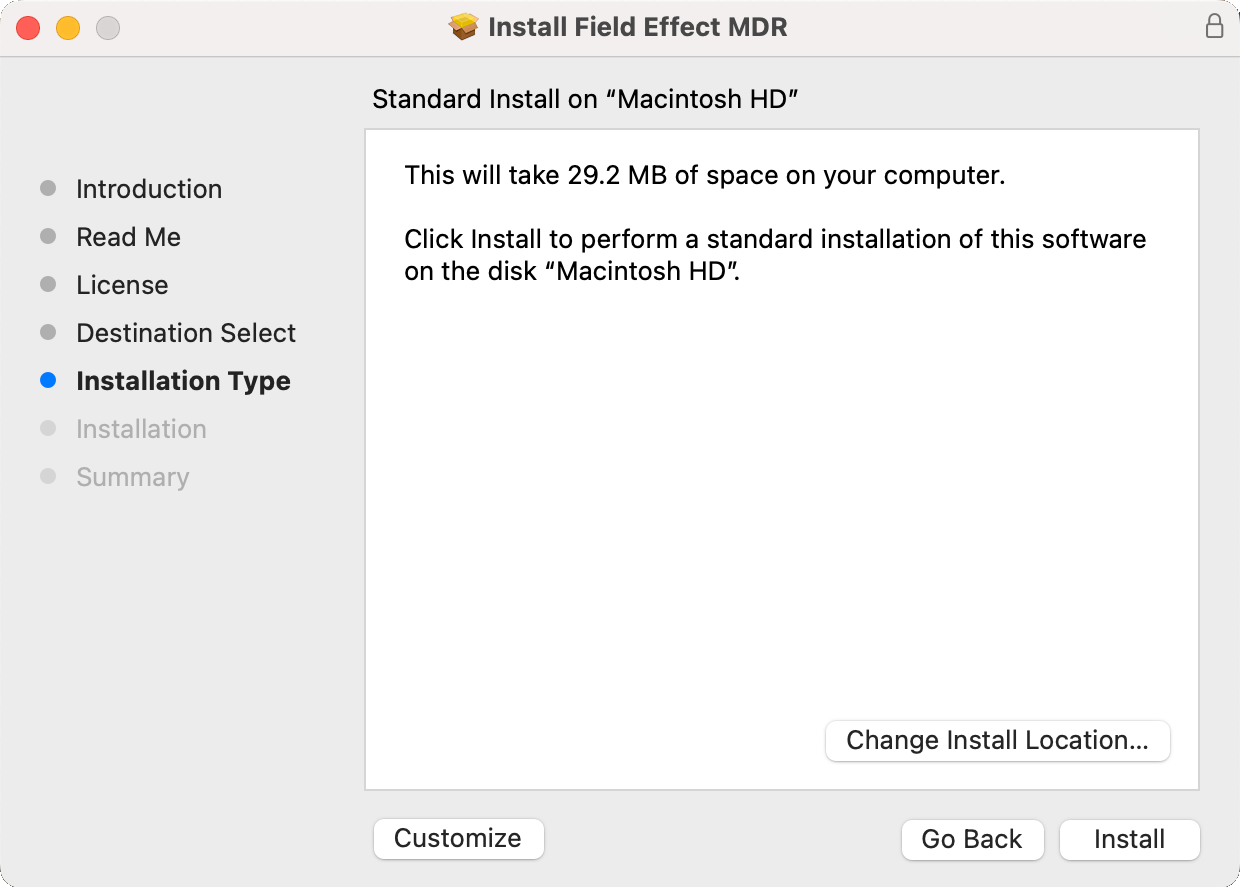
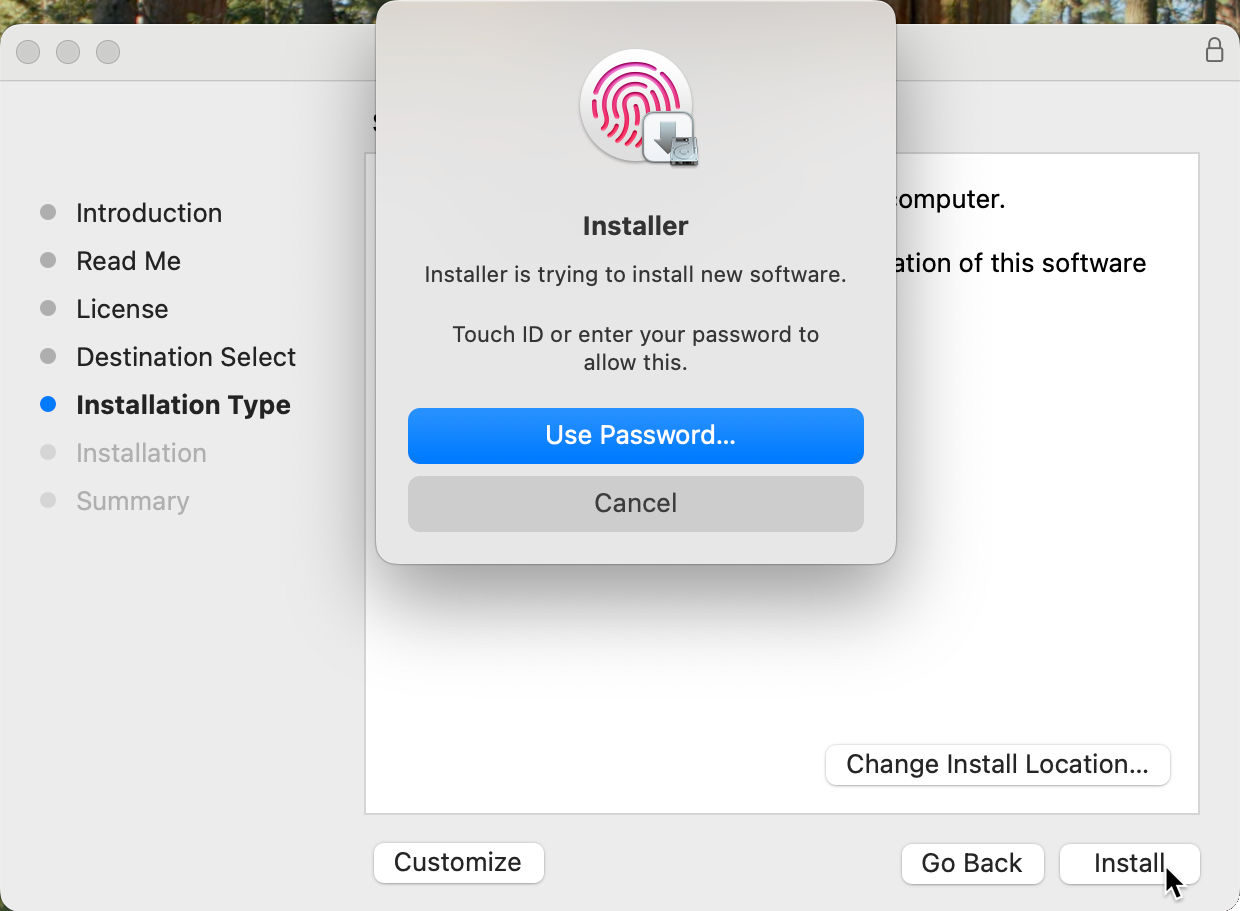
You will then need to authenticate using your password, fingerprint, or other means supported by your device (face unlock, etc.). Authenticate to continue.
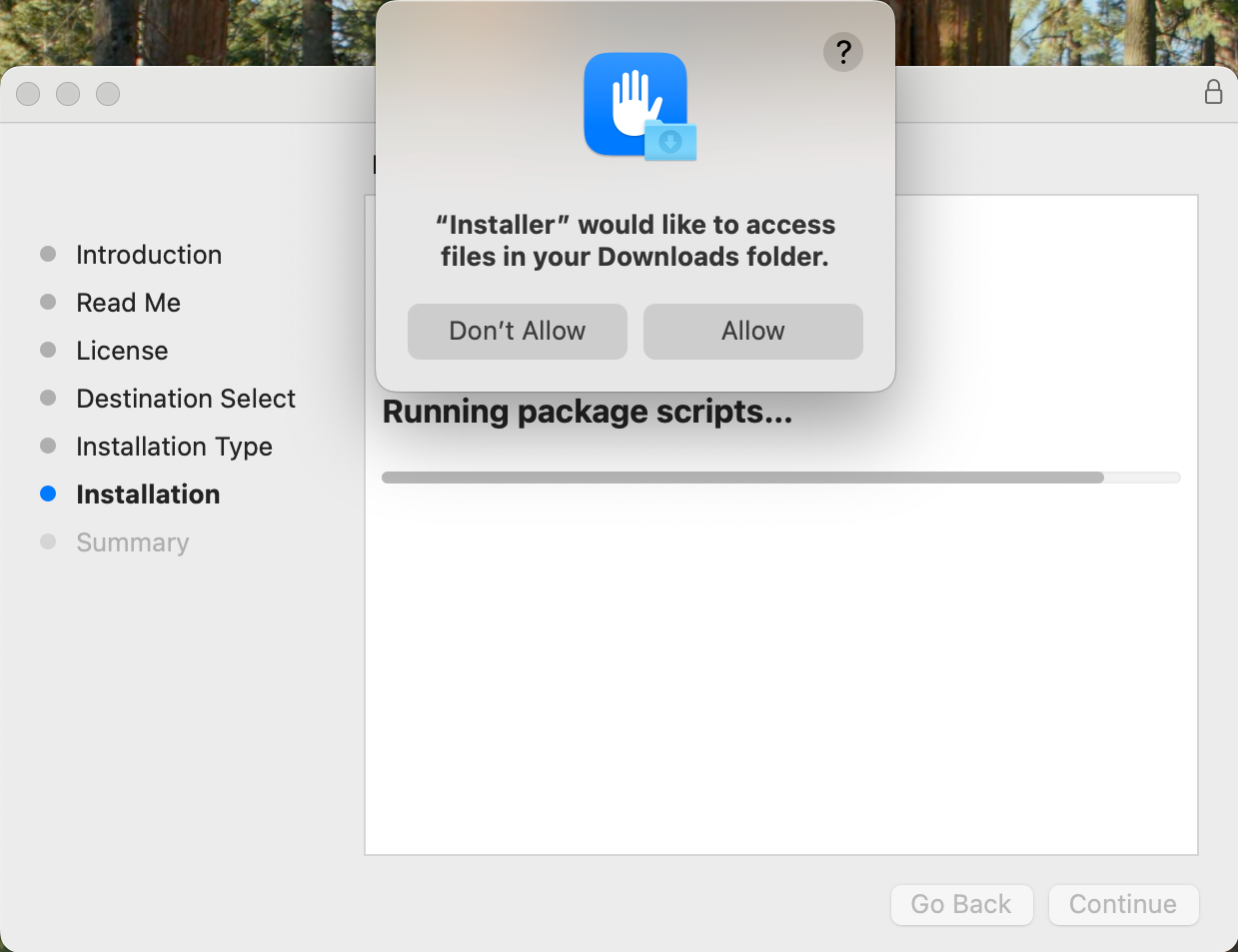
You may be asked to allow the installer to access files on your device. If this is the case, Allow access.
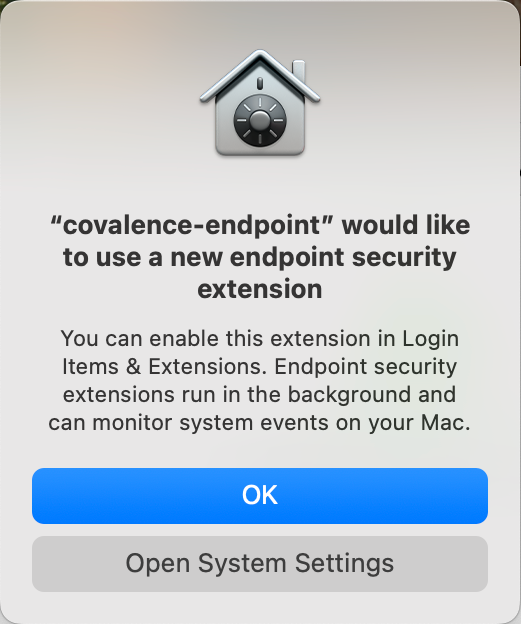
After allowing access, you will need to allow "covalence-endpoint" to act as a security extension and run in the background. Click ok allow this behavior and continue.
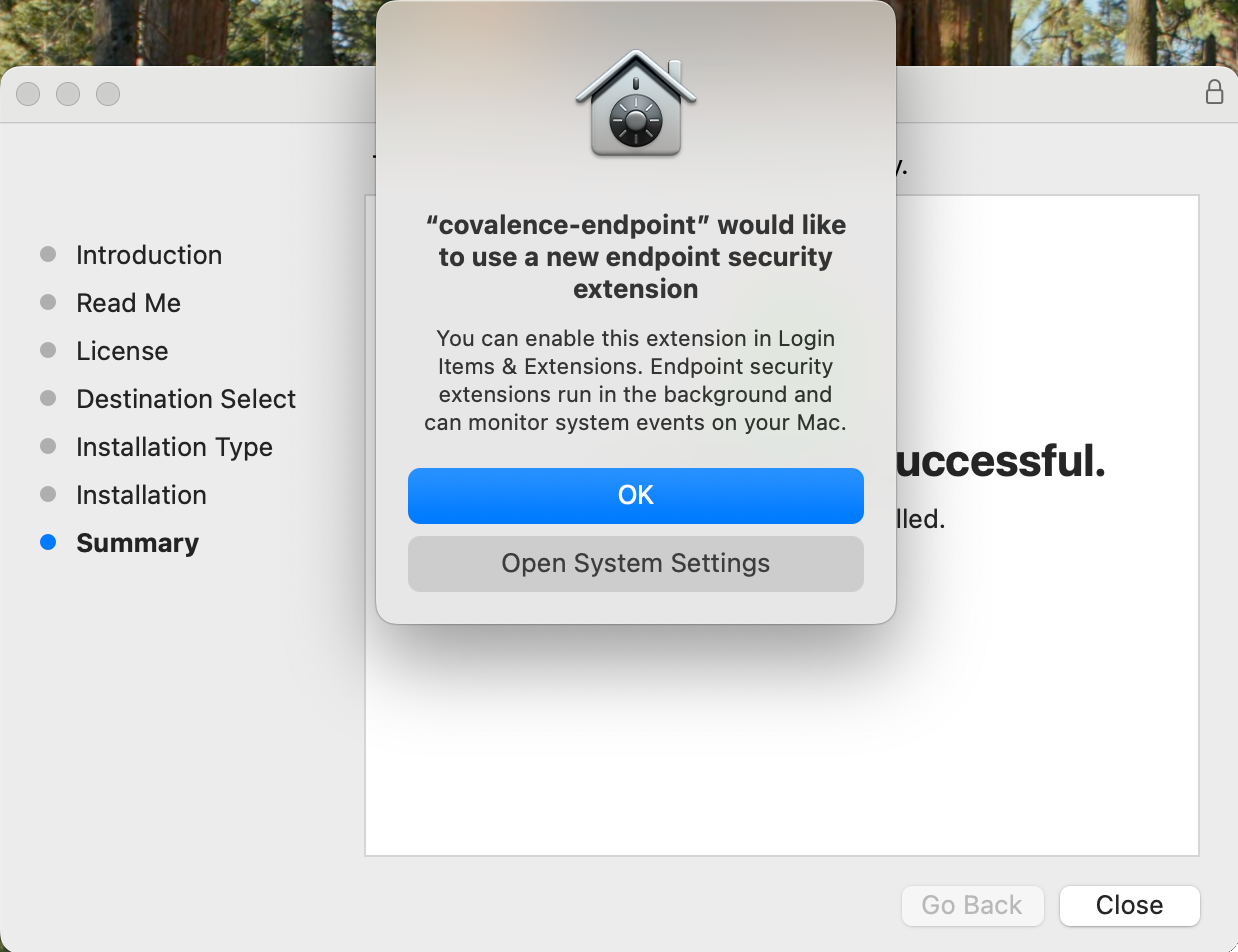
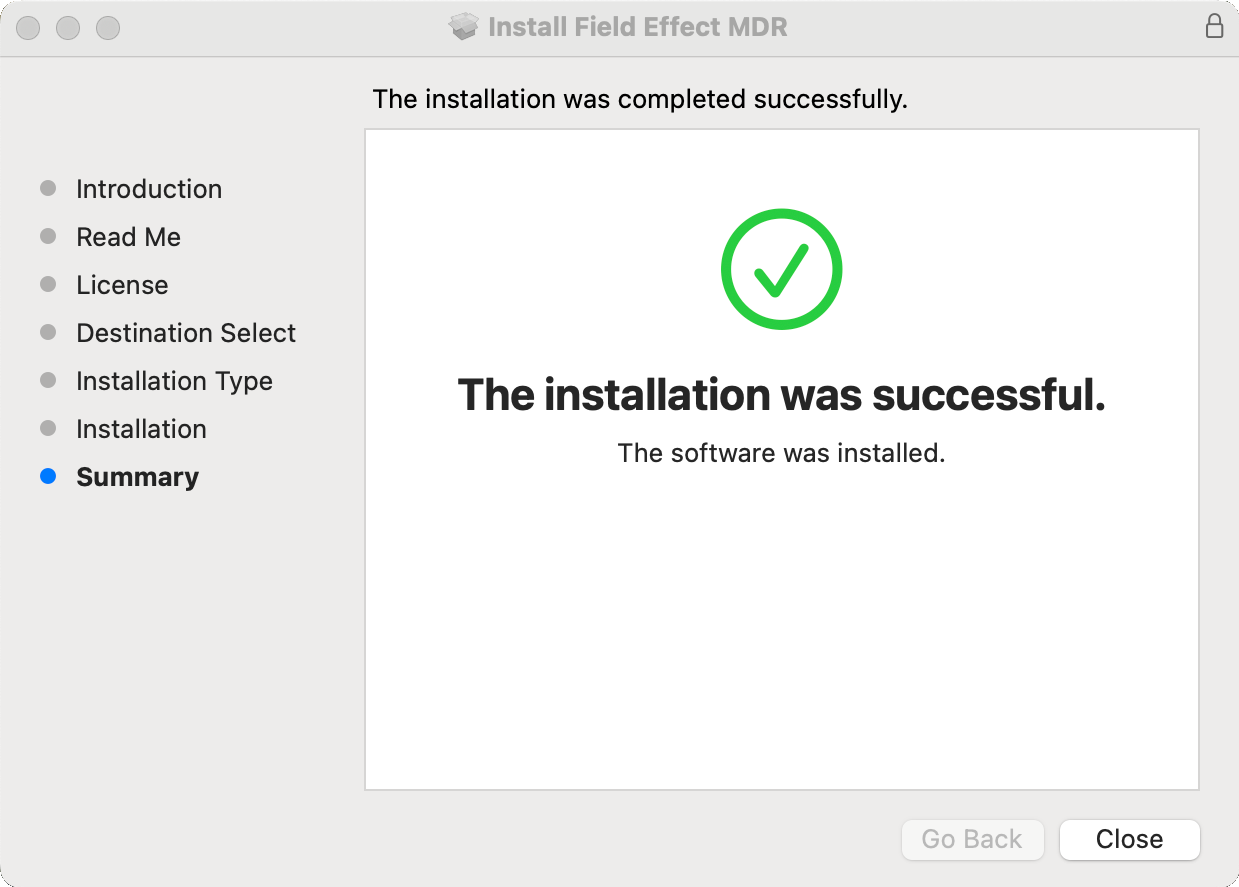
The installer will show you that it was successful, and you man click to close the installer.
Post-Installation Permissions
The following sections describe how enable all of the required permissions for the endpoint agent after it has been installed.
macOS 16 or Newer
Permissions for three items need to be granted after installing the package:
- Field Effect MDR Endpoint Security Extension: System Settings > General > Login Items & Extensions > Field Effect > Endpoint Security Extensions
- Full Disk Access for Covalence agent: System Settings > Privacy & Security > Full Disk Access
- Full Disk Access for Covalence app: System Settings > Privacy & Security > Full Disk Access
Allow Endpoint Security Extension
Navigate to System Settings > General > Login Items & Extensions. Sort the list by category and click the (i) button next to the Endpoint Security Extensions entry.
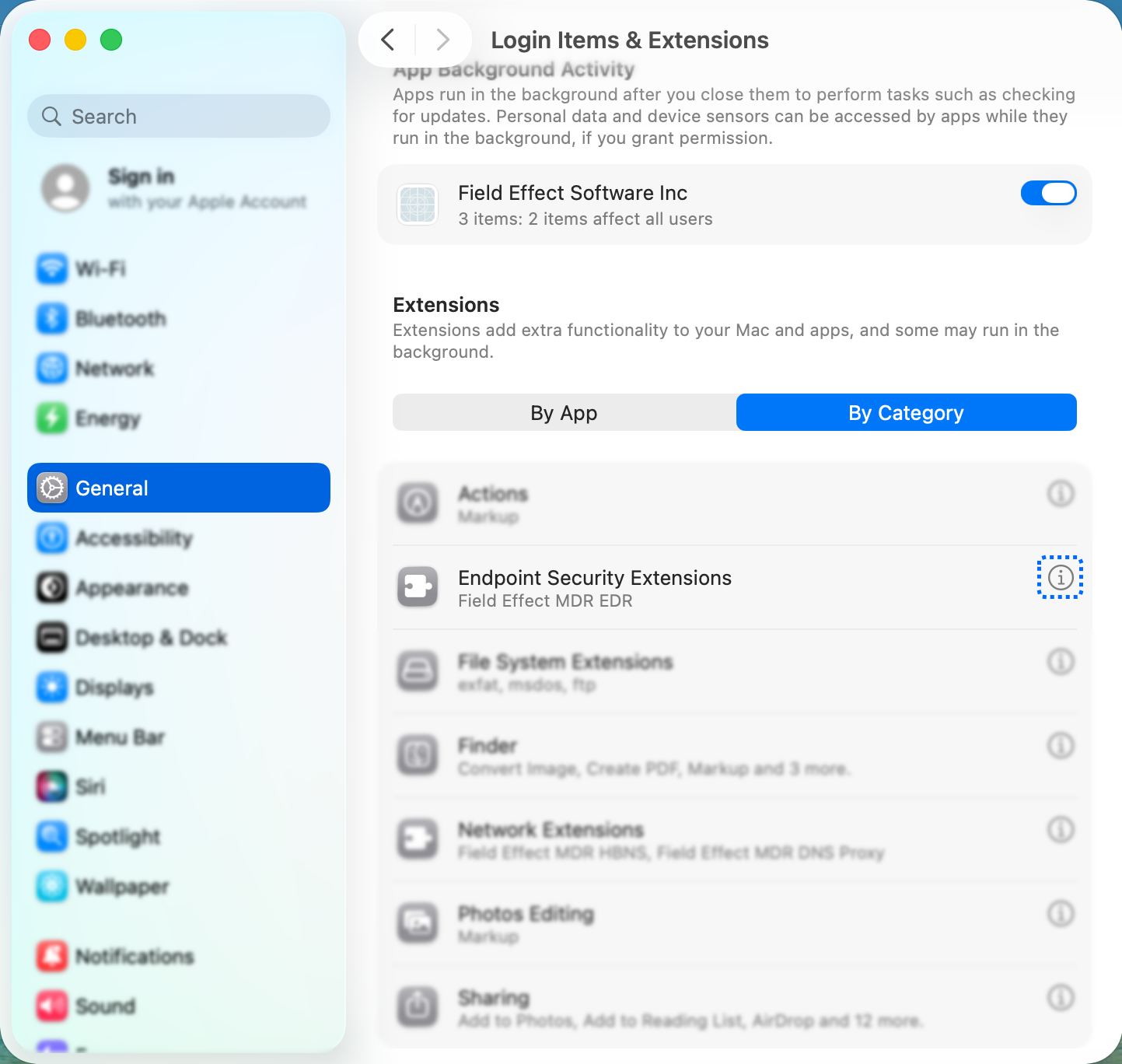
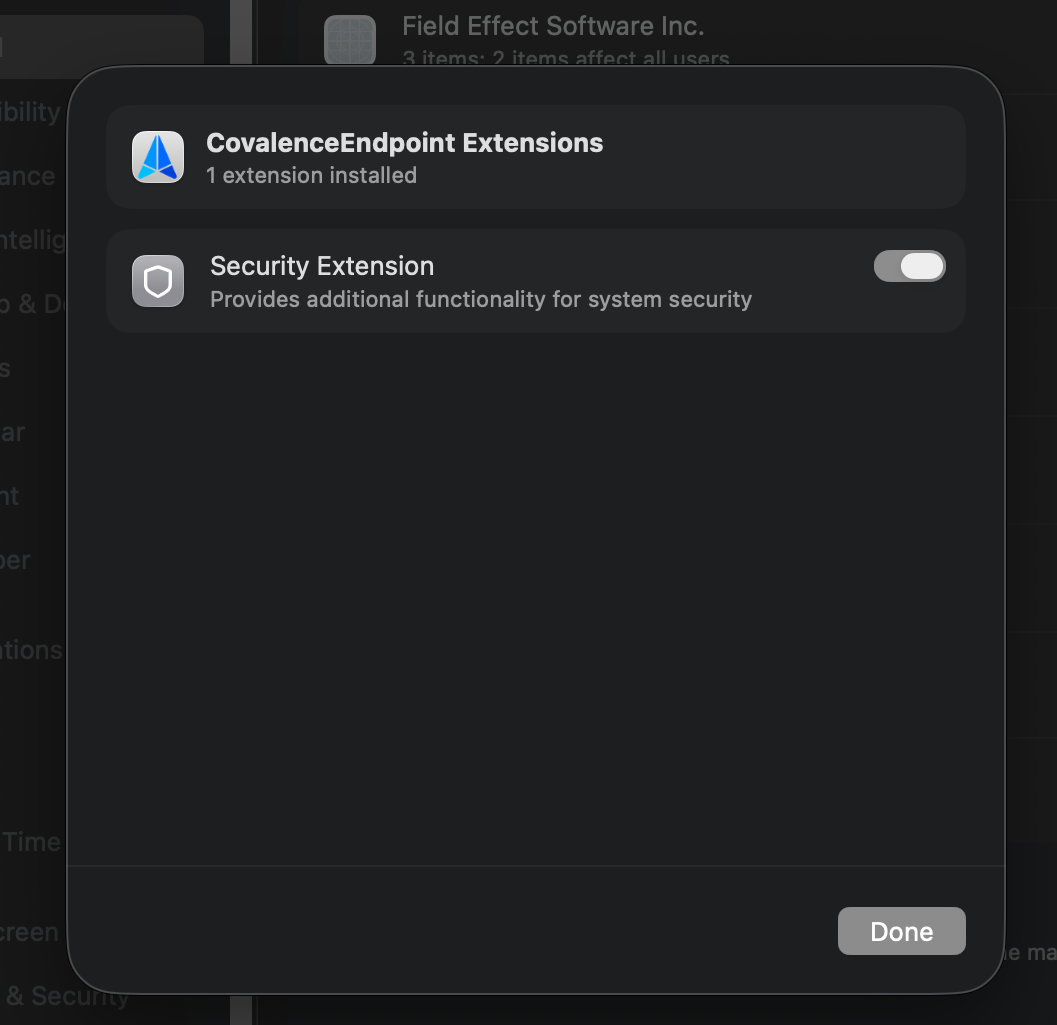
This will a new window. Ensure that the Security Extension toggle is enabled and click Done.
You may be asked to allow the extension. Click OK to grant this permission.
Allow Full Disk Access: Covalence System Extension
Navigate to System Settings > Privacy & Security > Full Disk Access.
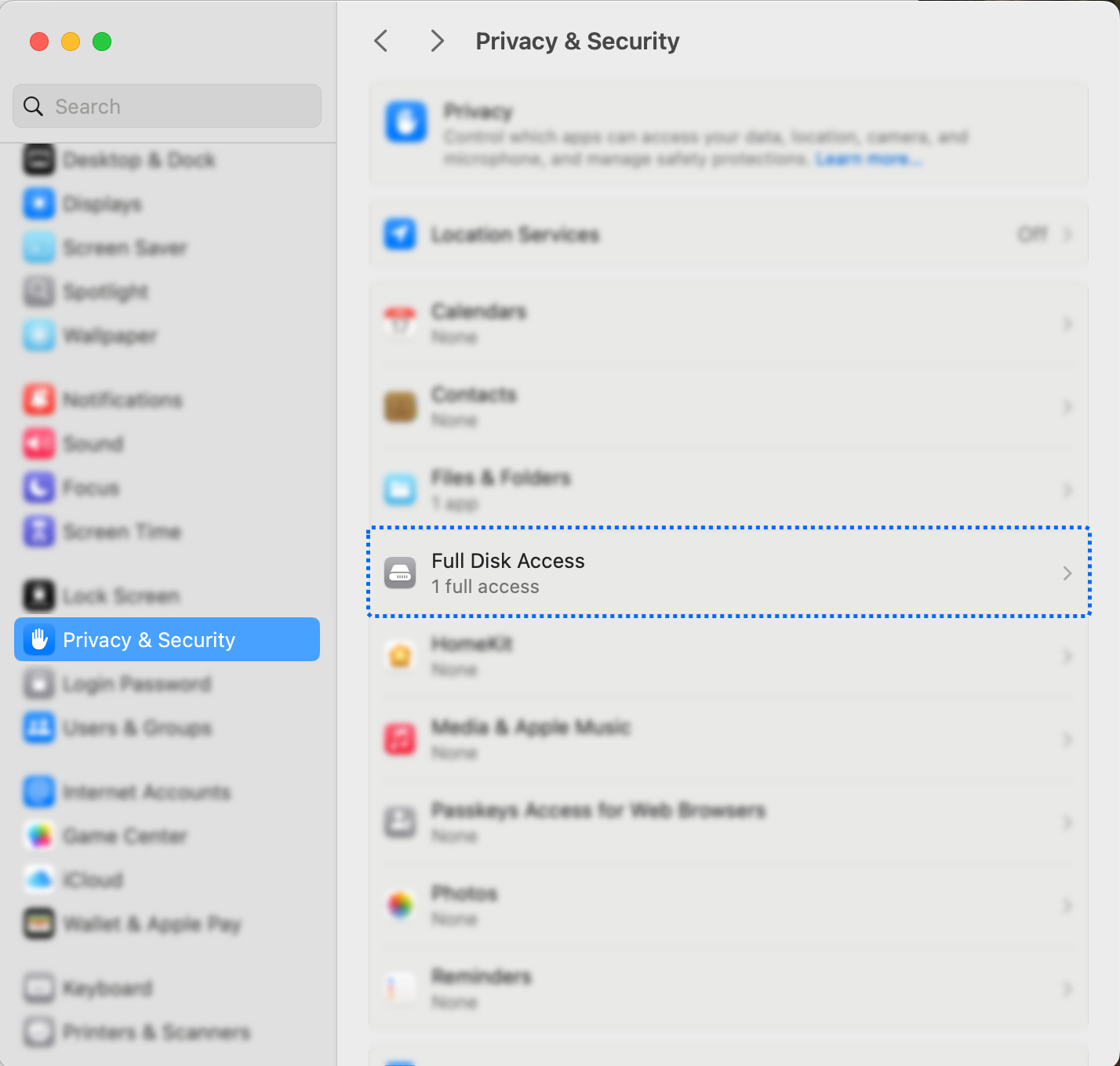
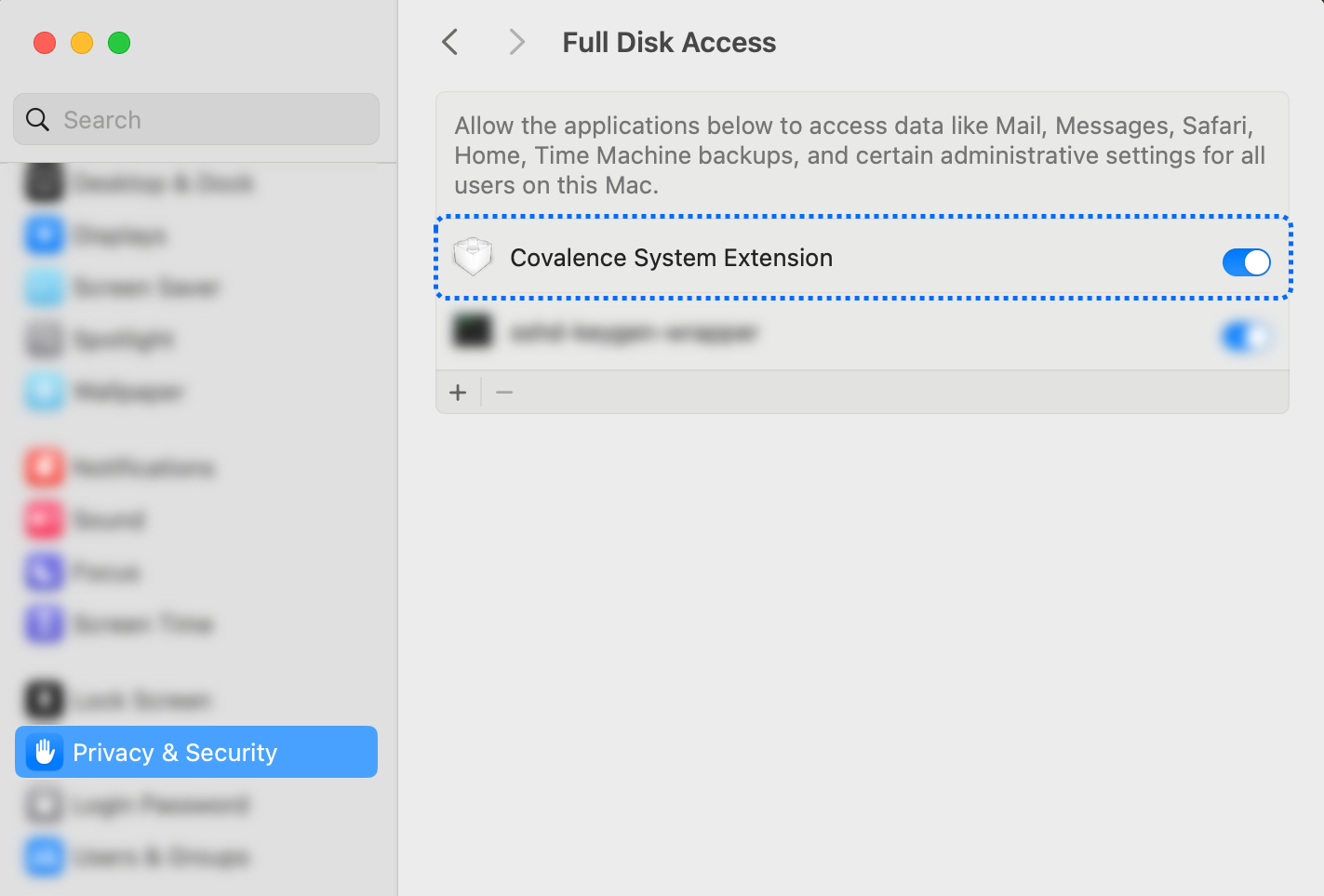
In the list of apps, enable the toggle for Covalence System Extension.
Allow Full Disk Access: Covalence App
Navigate to System Settings > Privacy & Security > Full Disk Access.
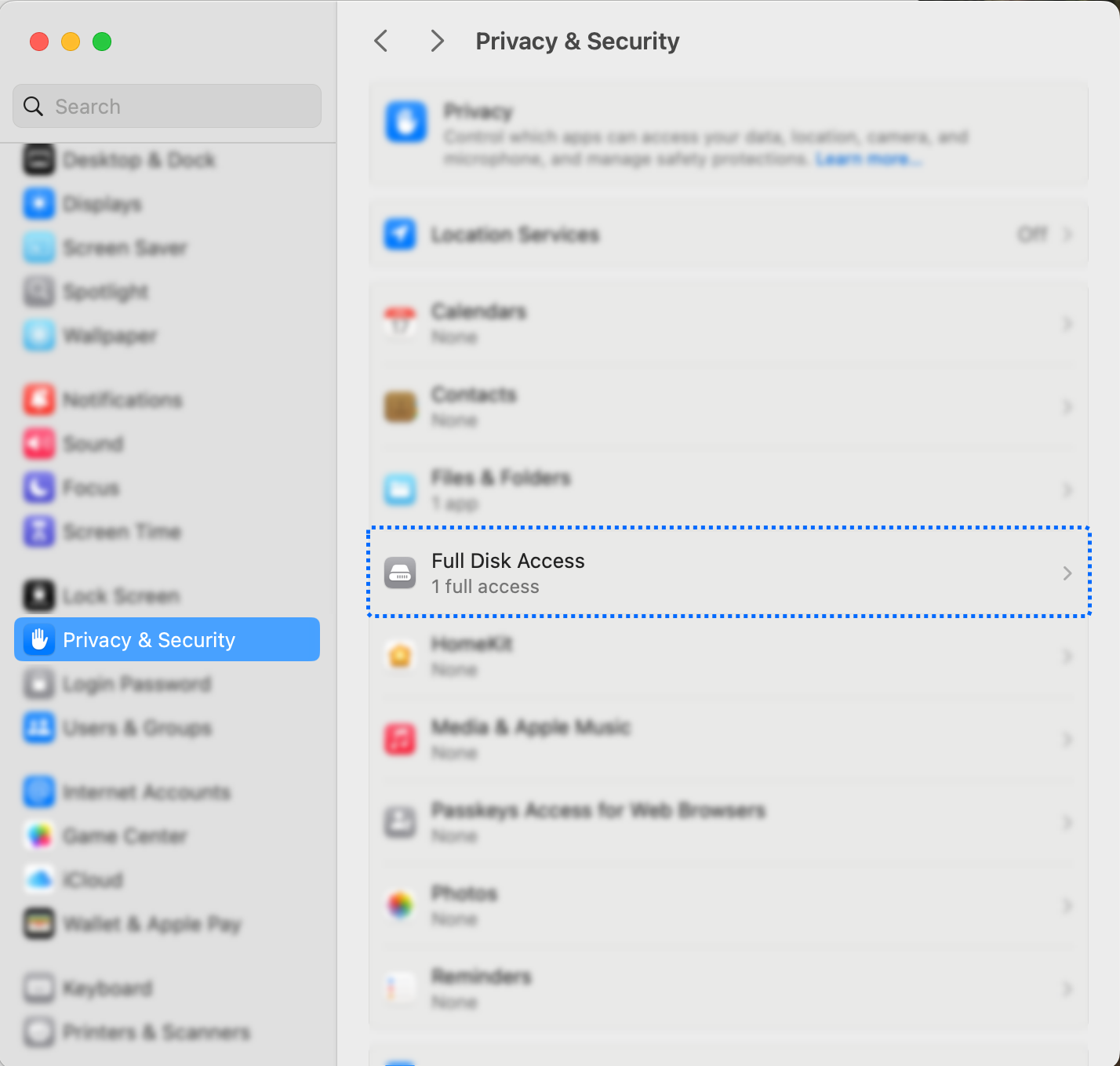
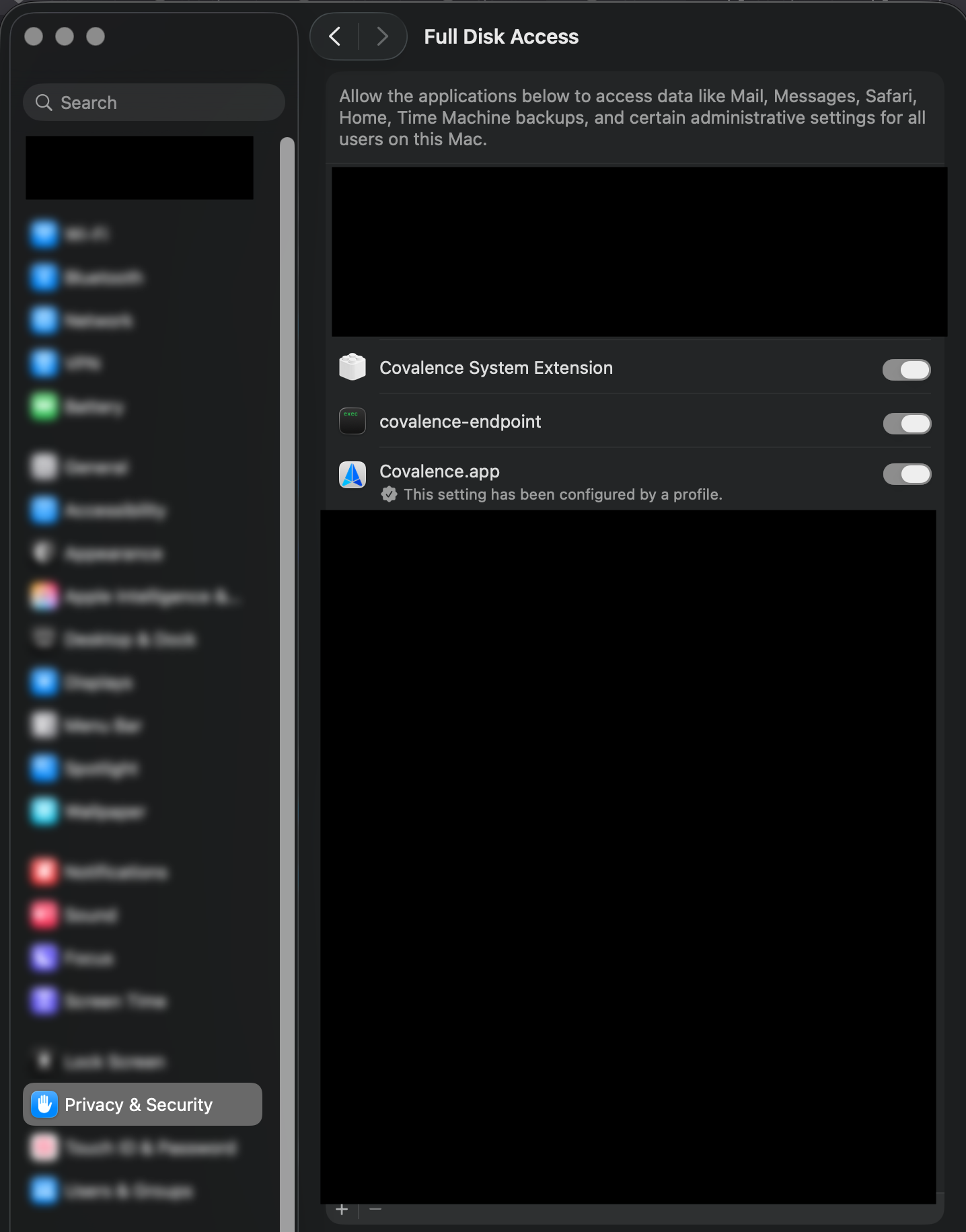
In the list of apps, enable the toggle for the Covalence.app (and any other "Covalence" extensions).
macOS 15 or Earlier
If you are using macOS version macOS 15 (Sequoia) or earlier, you will need to allow applications from identified developers.
Navigate to System Settings > Privacy & Security. Scroll down to the Security section and select App Store and identified developers.
Select Allow.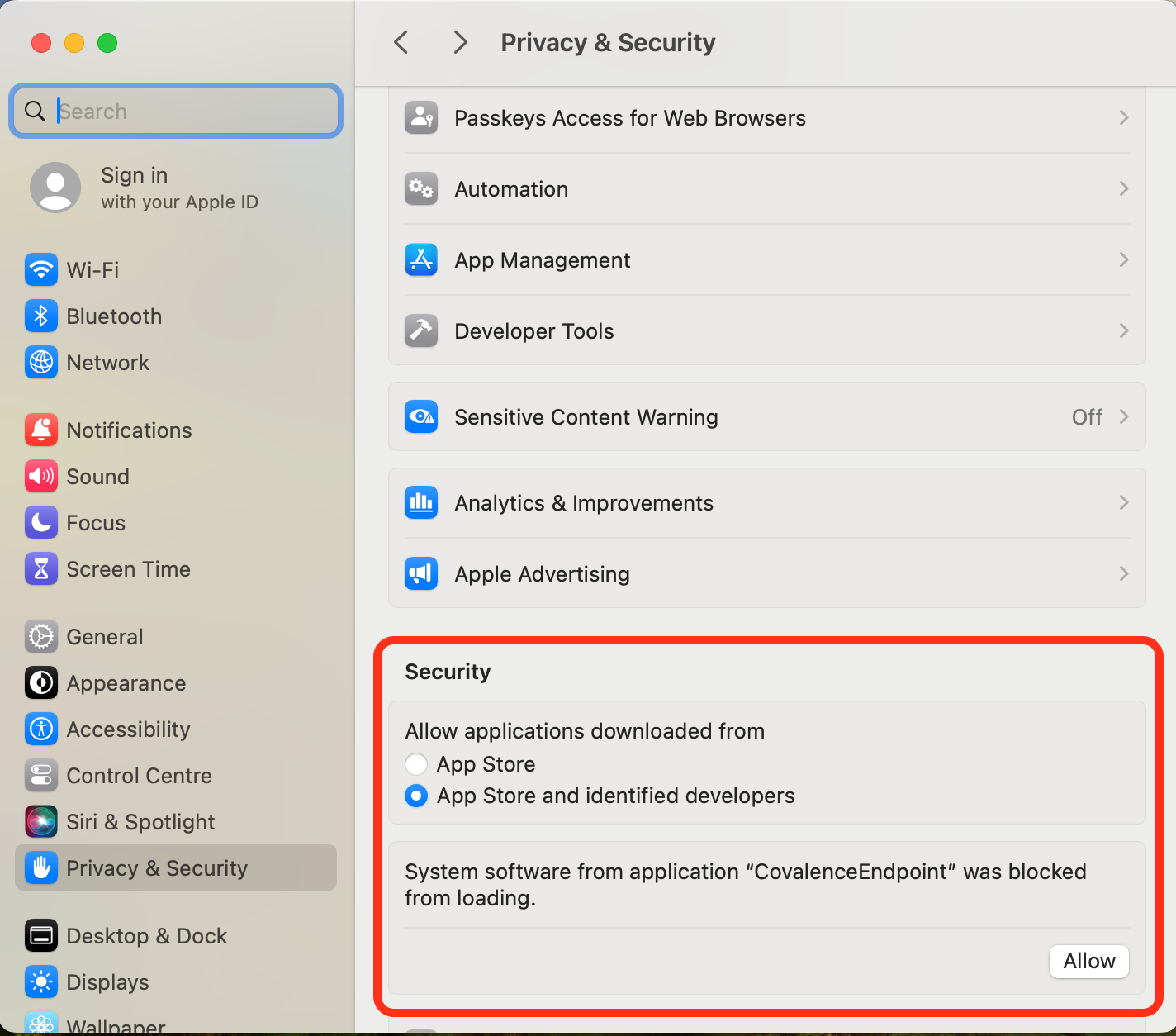
Uninstalling a macOS Endpoint Agent
Begin by using the Launchpad to open Terminal.
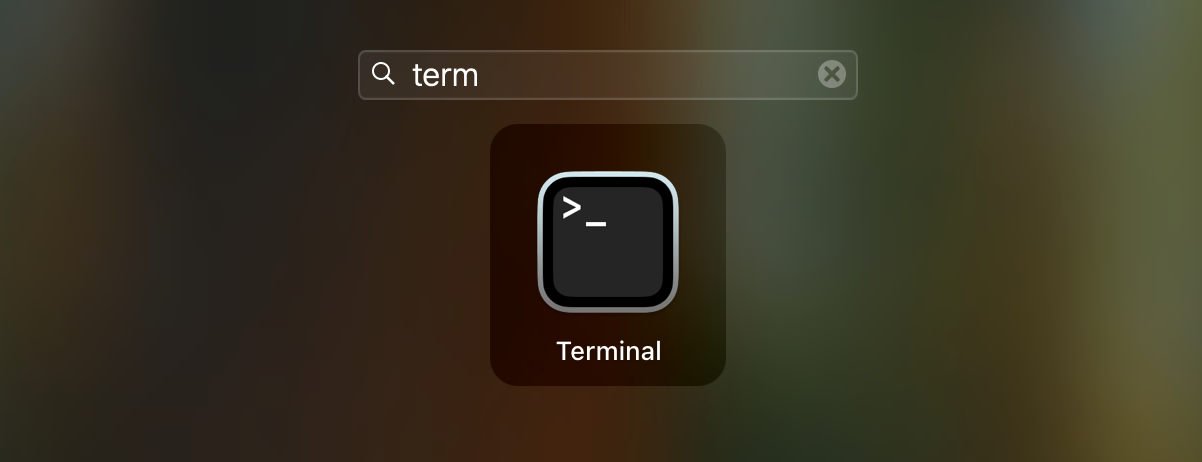
In Terminal, type in the following uninstall script and press Enter:
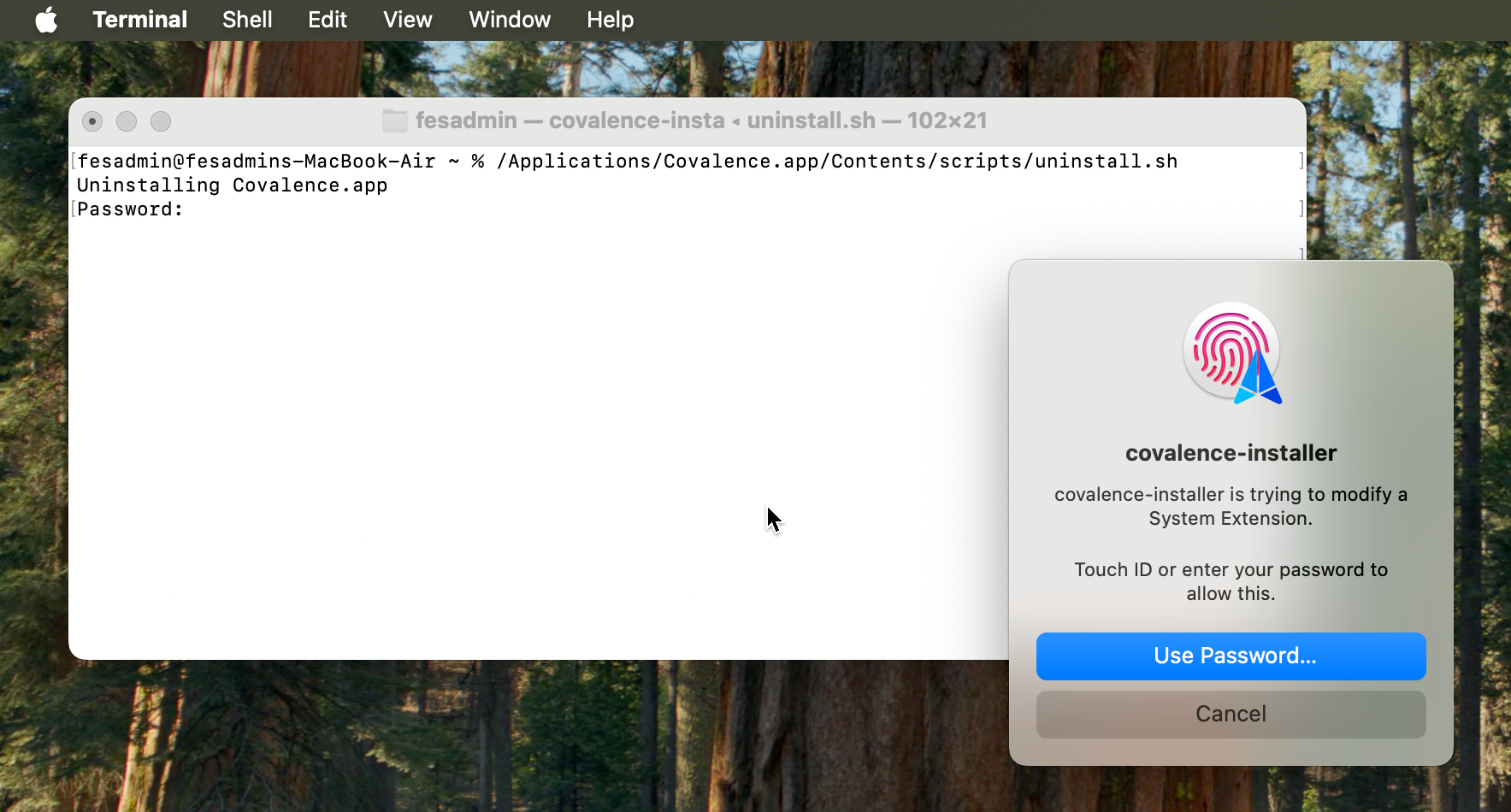
/Applications/Covalence.app/Contents/scripts/uninstall.sh
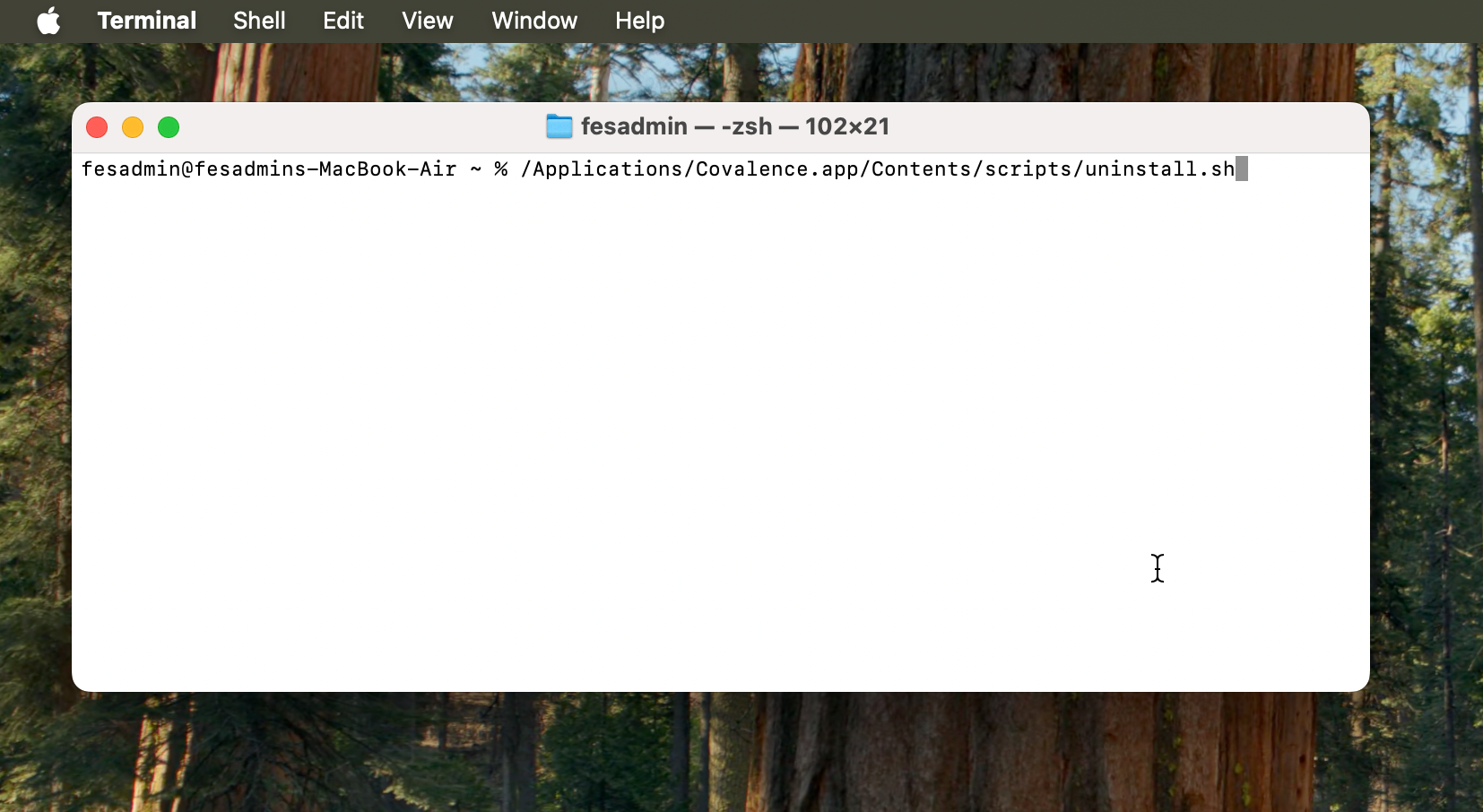
After running the command above, you need to give the Terminal permission to run the script. To allow, provide your administrator password.
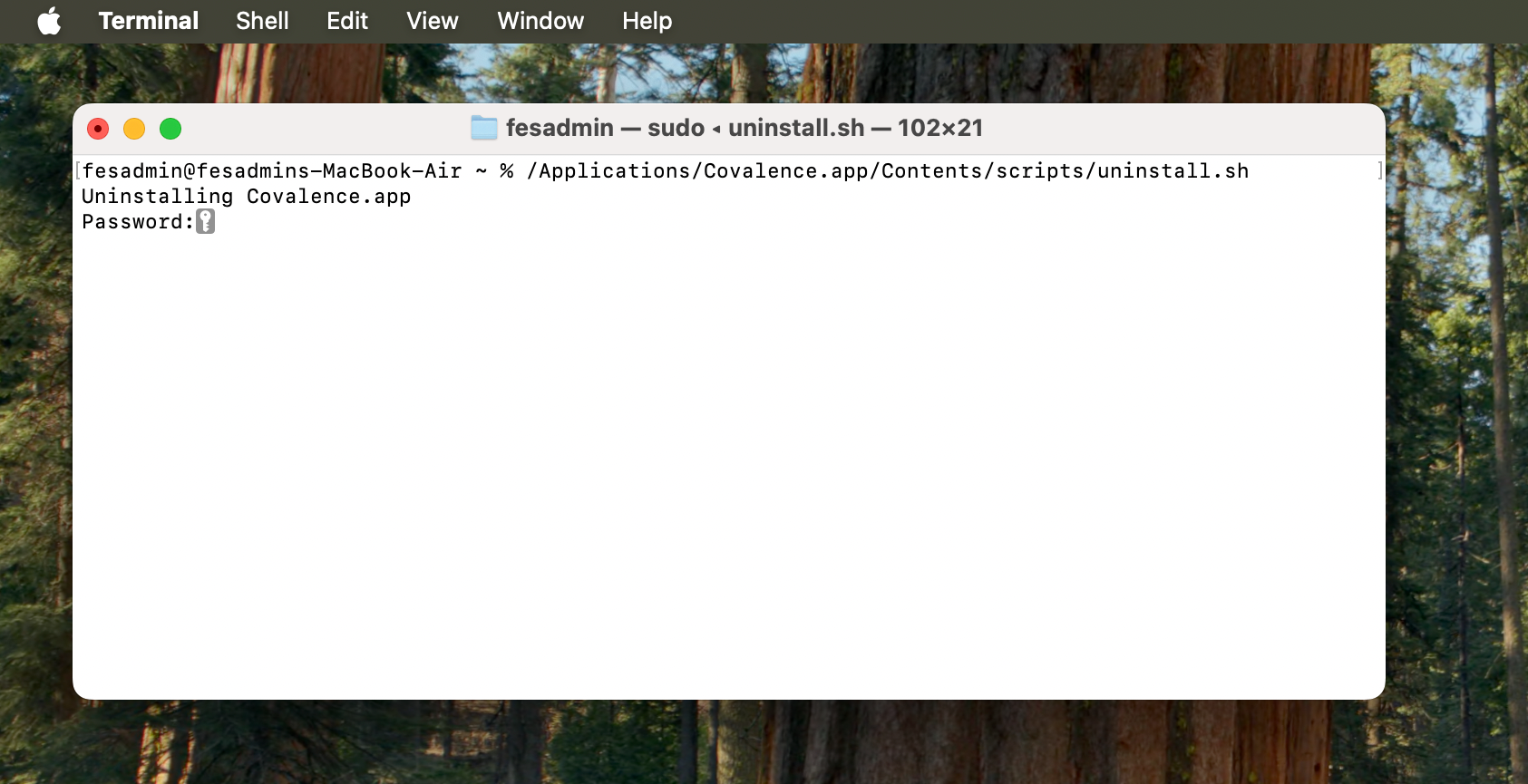
You will next be presented with a dialogue to enter your administrator password a second time, which is required to remove the Covalence System Extension.
Enter your administrator password or use a biological authentication method supported by your device, to continue.
Once the script has completed, you will be returned to the command prompt, and the endpoint agent will be uninstalled. You may close the Terminal at this point.
Was this article helpful?
That’s Great!
Thank you for your feedback
Sorry! We couldn't be helpful
Thank you for your feedback
Feedback sent
We appreciate your effort and will try to fix the article