Introduction
Partners: this page is only accessible when the Organization Selector is set to a specific client view.
This page won’t be shown until the DNS Firewall is enabled.
The DNS Firewall page (Insights section) is a dashboard providing detailed information about the users, their domain requests, and any resulting blocks to occur in your network.
All users with access to your organization in the MDR Portal can view this information, but only administrators can adjust the DNS Firewall's settings; edit the custom Allow and Block lists or change the active categories.
This article covers the following topics:
Sections of the DNS Firewall Page
The DNS Firewall page is made up of the following interactive sections:
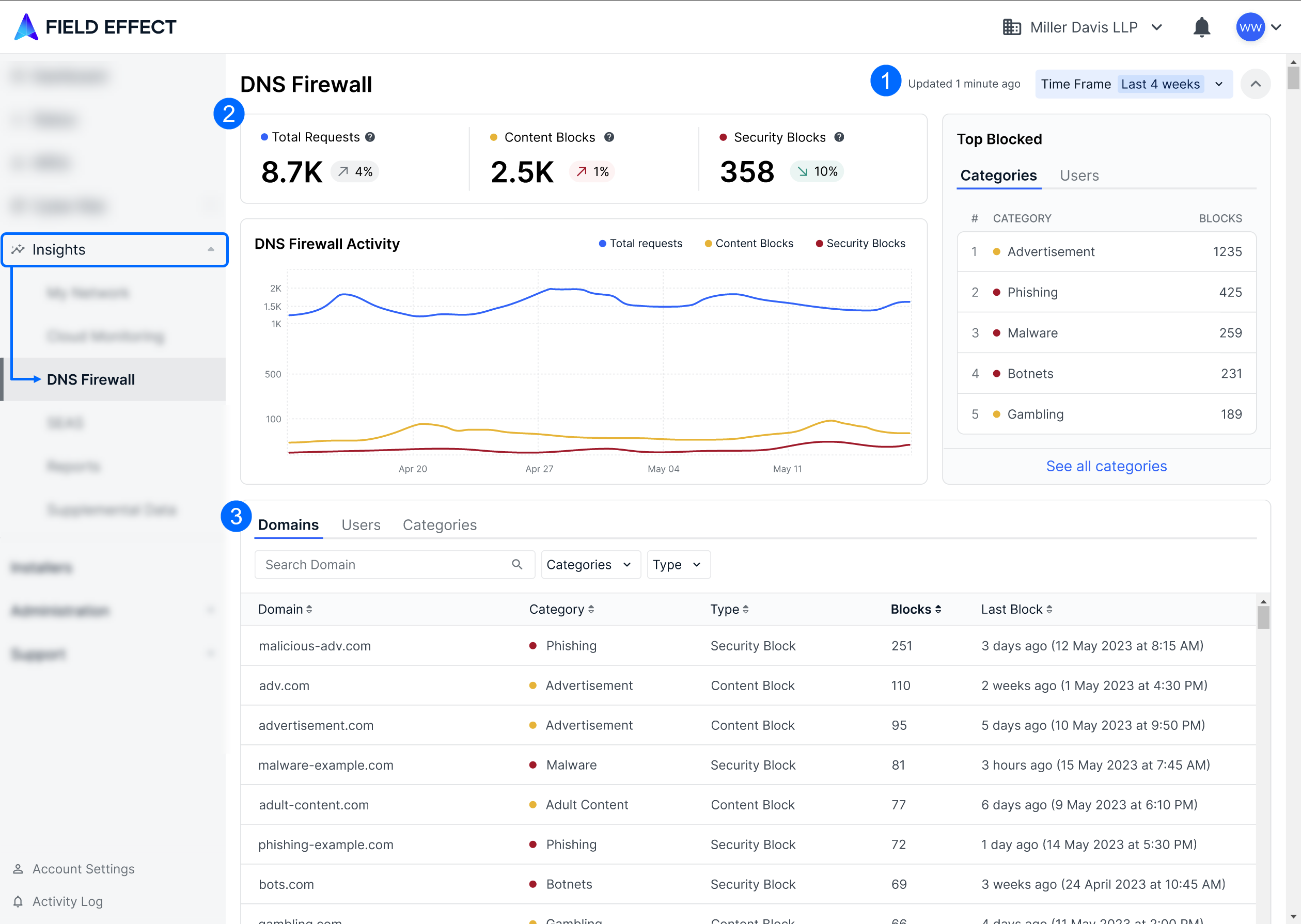
Time Frame: adjust the dashboard's reporting scope. 24 hour, 7-day, 30-day, and 90-day timeframes are available.
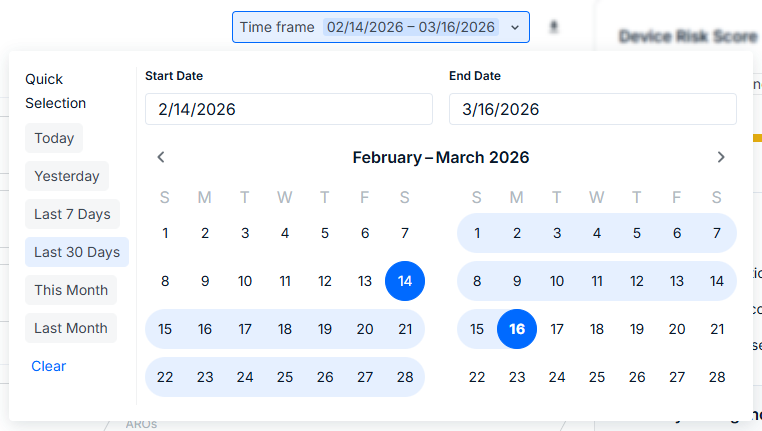
Central Dashboard: the dashboard's main statistics and graphs.
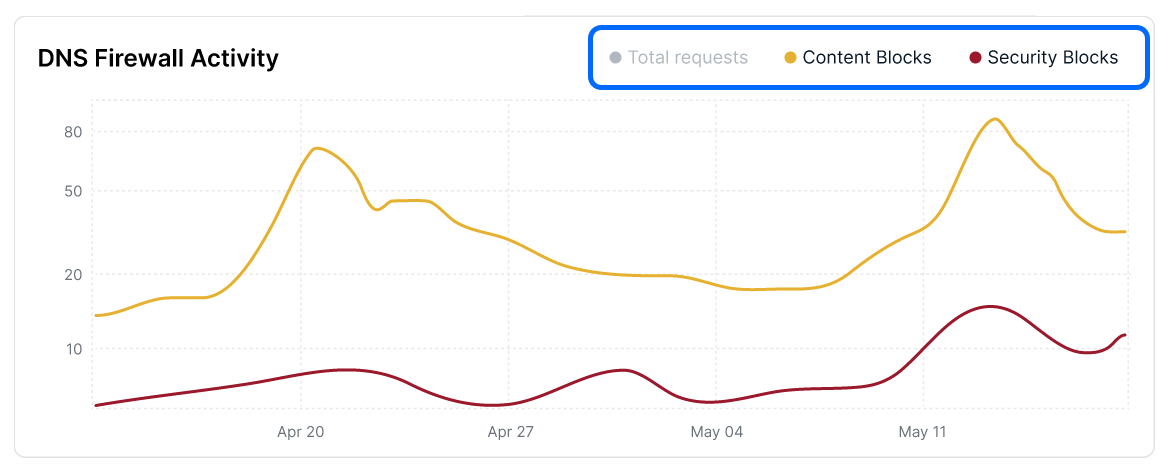
Activity Table: a more detailed table containing all DNS activity within the selected time frame.
This table has three tabs: Domains, Users, and Categories.
Time Frame
Click on the Time Frame (1) tool at the upper right of the page and select a range. Use the calendar to set a specific time frame or chose a quick selection. After making a selection, the central area and activity table will show only data from your chosen period.
Central Dashboard
From here you can quickly see your organization's essential DNS metrics. Totals are listed on the top, and color coded to correspond with the chart below. Hover over a point in the graph to see details about a particular day. The Top Blocked pane on the right has two tabs listing either the top five most blocked categories or top five users to make requests that resulted in a block.
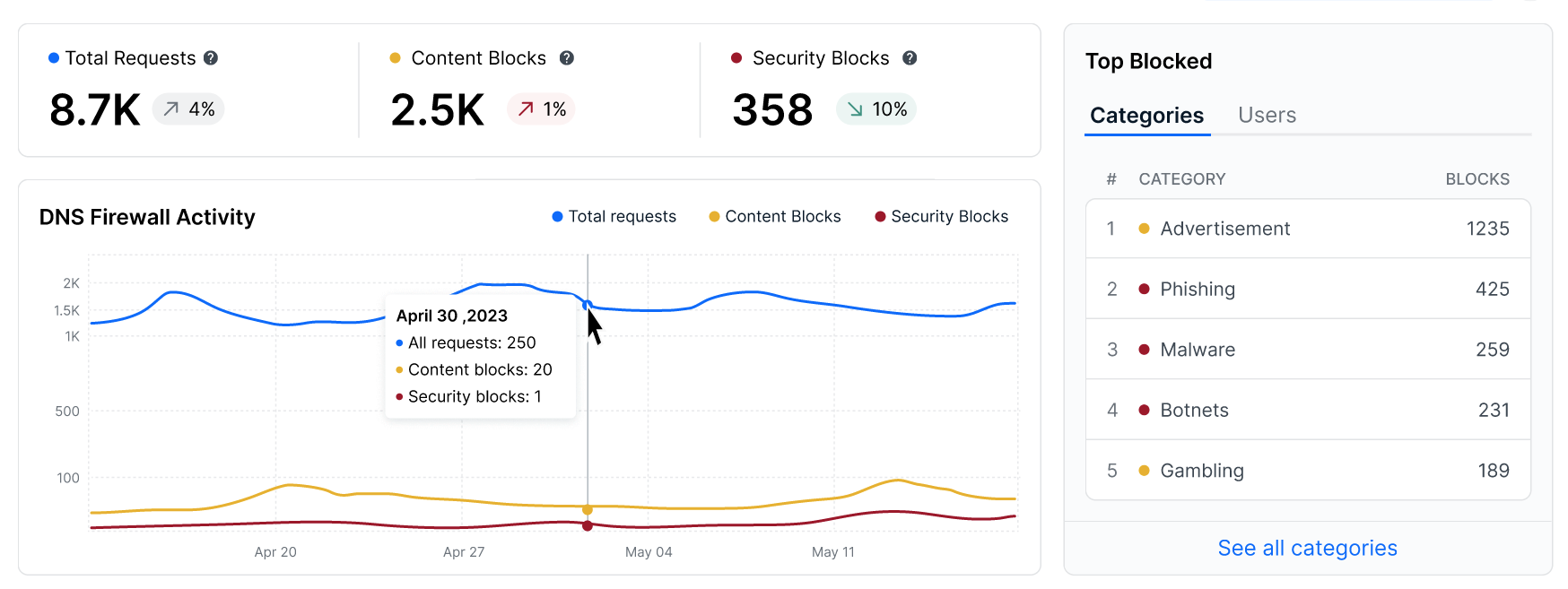
Click on the legend's entry items to show/hide them from the graph.
Activity Table
The activity table includes three tabs that allow for more granular visibility into the individual domains, user blocks, and category blocks within the given time frame. Each tab has their own columns and details panes, which the following sections outline.
Domains
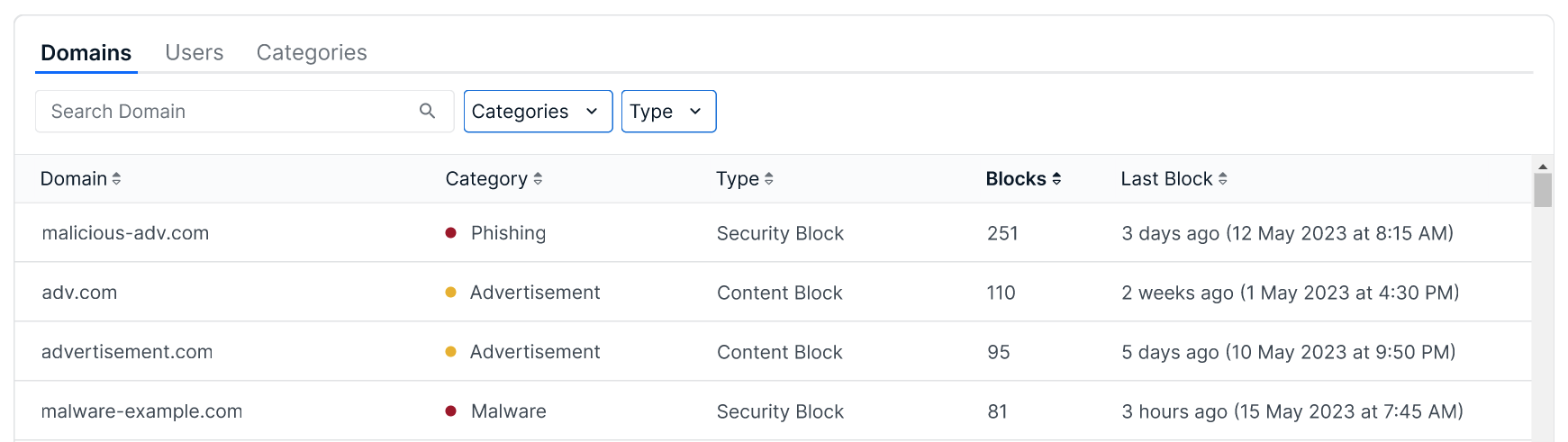
This tab shows every domain intercepted by the DNS Firewall. It can be filtered by either category or type, and you can click on a column header to toggle between ascending and descending sort. You can also perform keyword searches against the domain column.
The following columns are available for this tab:
Domain: the blocked domain name that was requested.
Category: the category assigned to the domain.
Type: the type of block that was made; security or content.
Blocks: the number of blocks made for this domain request, within the page's selected timeframe.
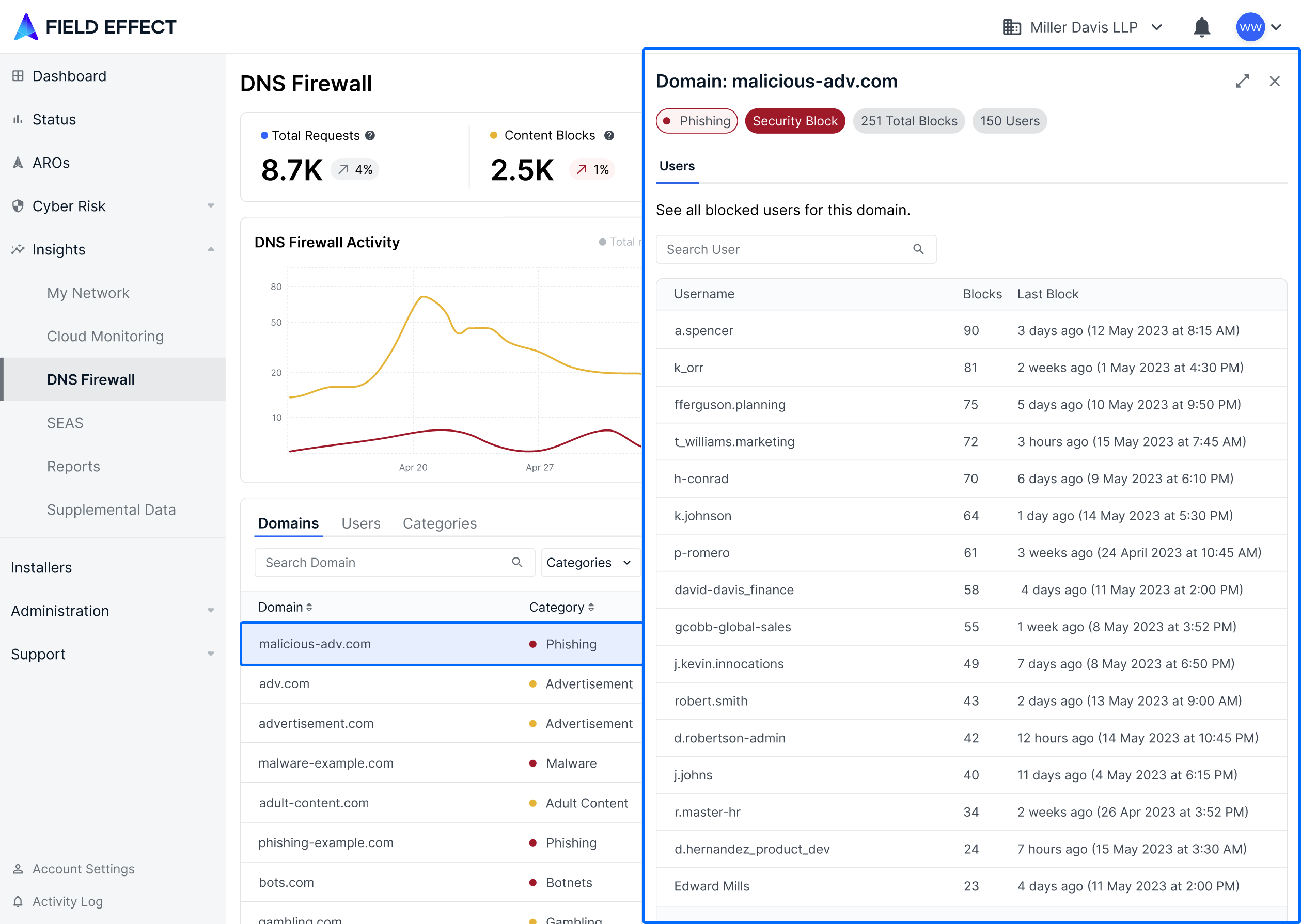
Click on an entry to open a details pane showing every user to make a request to this domain, along with the number of times they were blocked and the last time it was blocked. Use the search bar to search against usernames.
Users
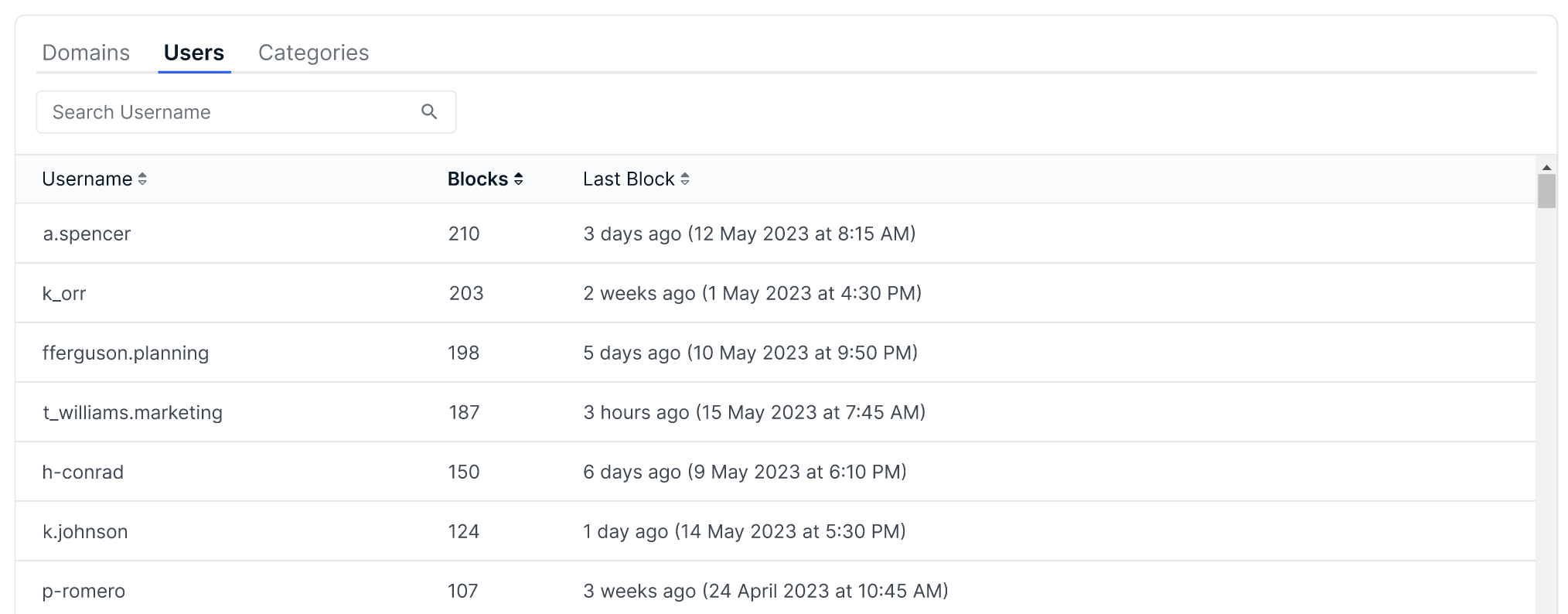
This tab shows every user that generated a DNS Firewall block within the dashboard's selected time frame. Click on a column header to toggle between ascending or descending sort order. You can also perform keyword searches against the username column.
The following columns are available for this tab:
Username: the username for the account.
Blocks: the number of blocks the user generated.
Last Block: the last time the user generated a block.
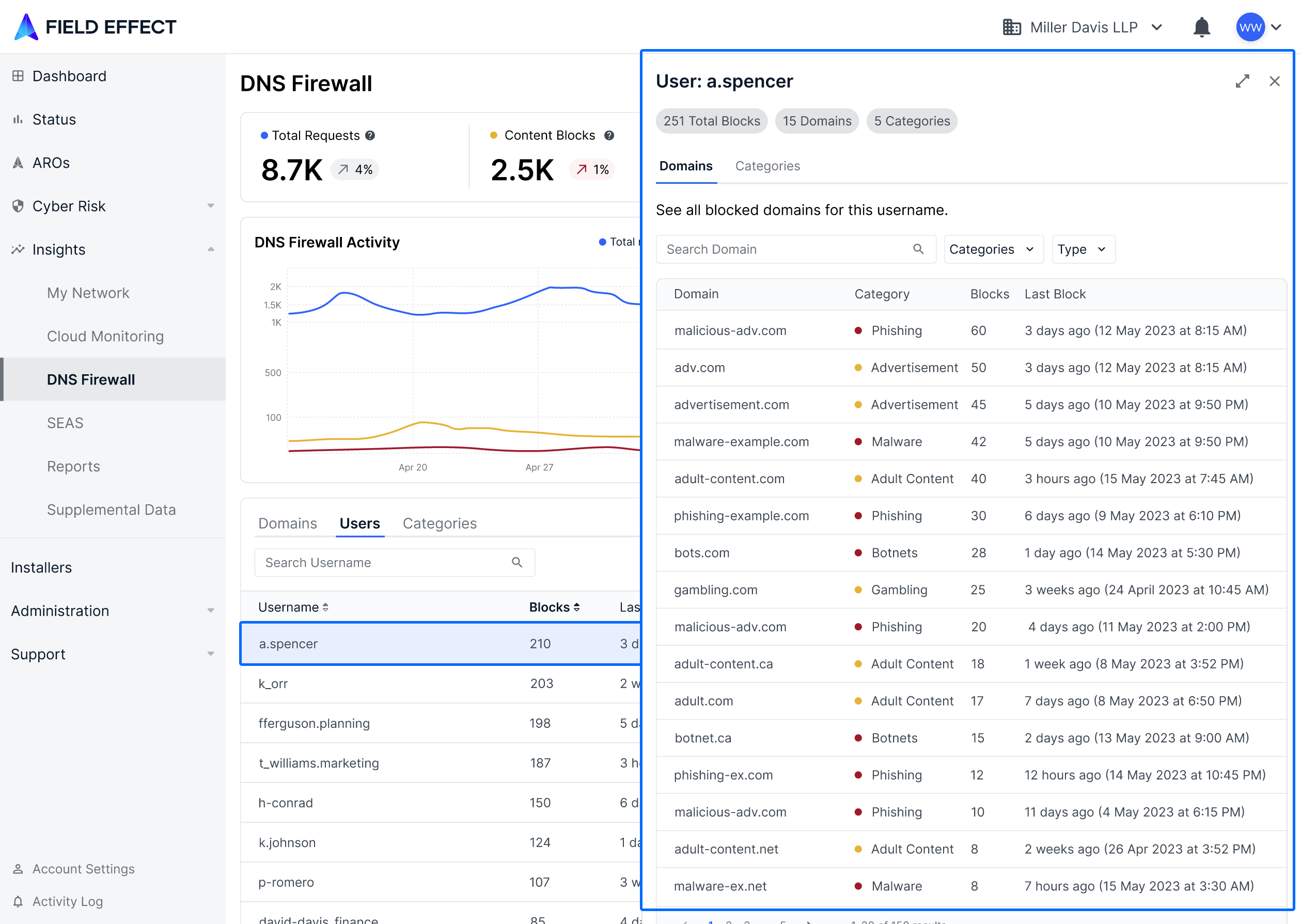
Click on an entry to open a details pane showing every block that the user generated. This details pane includes two of its own tabs: a Domains tab showing every blocked domain the user requested and a Categories tab showing block categories associated to the user. Use the search bar to search against domain names.
Categories
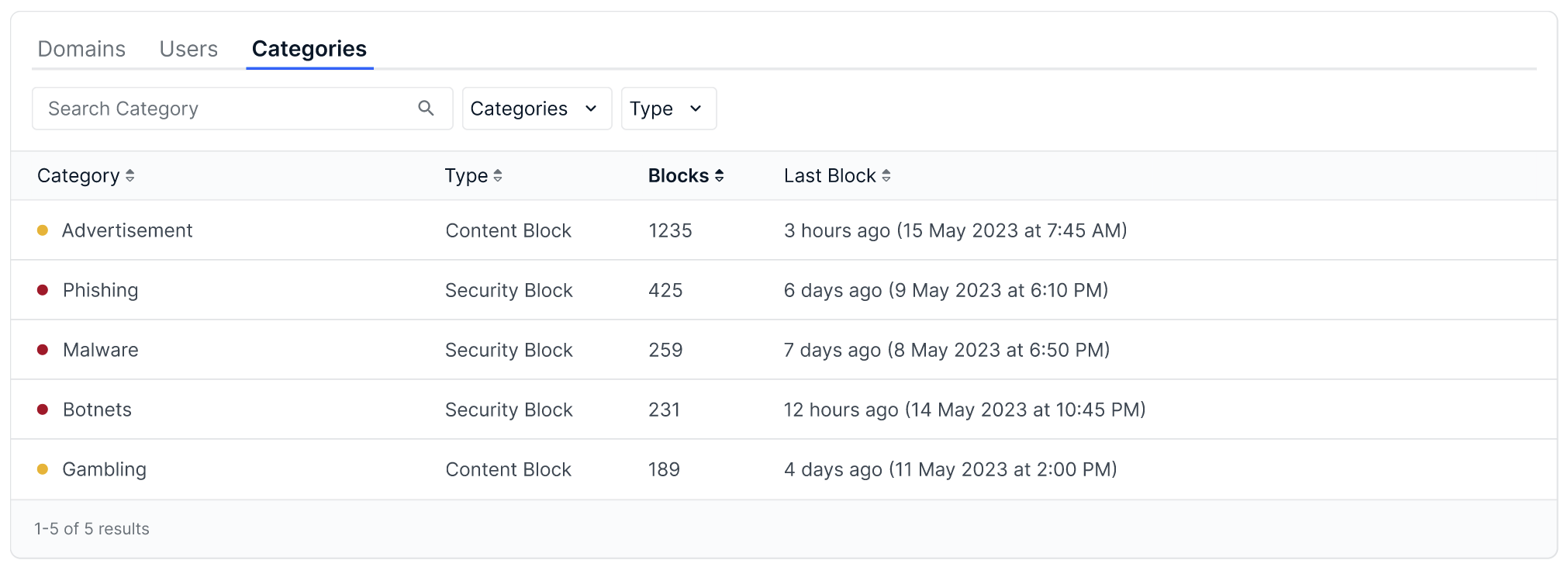
This table lists categories associated with a DNS block within the dashboard's selected time frame. Click on a column header to toggle between an ascending or descending sort order. You can also perform keyword searches against the Category column.
The following columns are available for this tab:
Category: the name of the category.
Type: the type of block associated with the category.
Blocks: the number of blocks generated for this category, within the page's selected timeframe.
Last Block: the last time a block was made for this category.
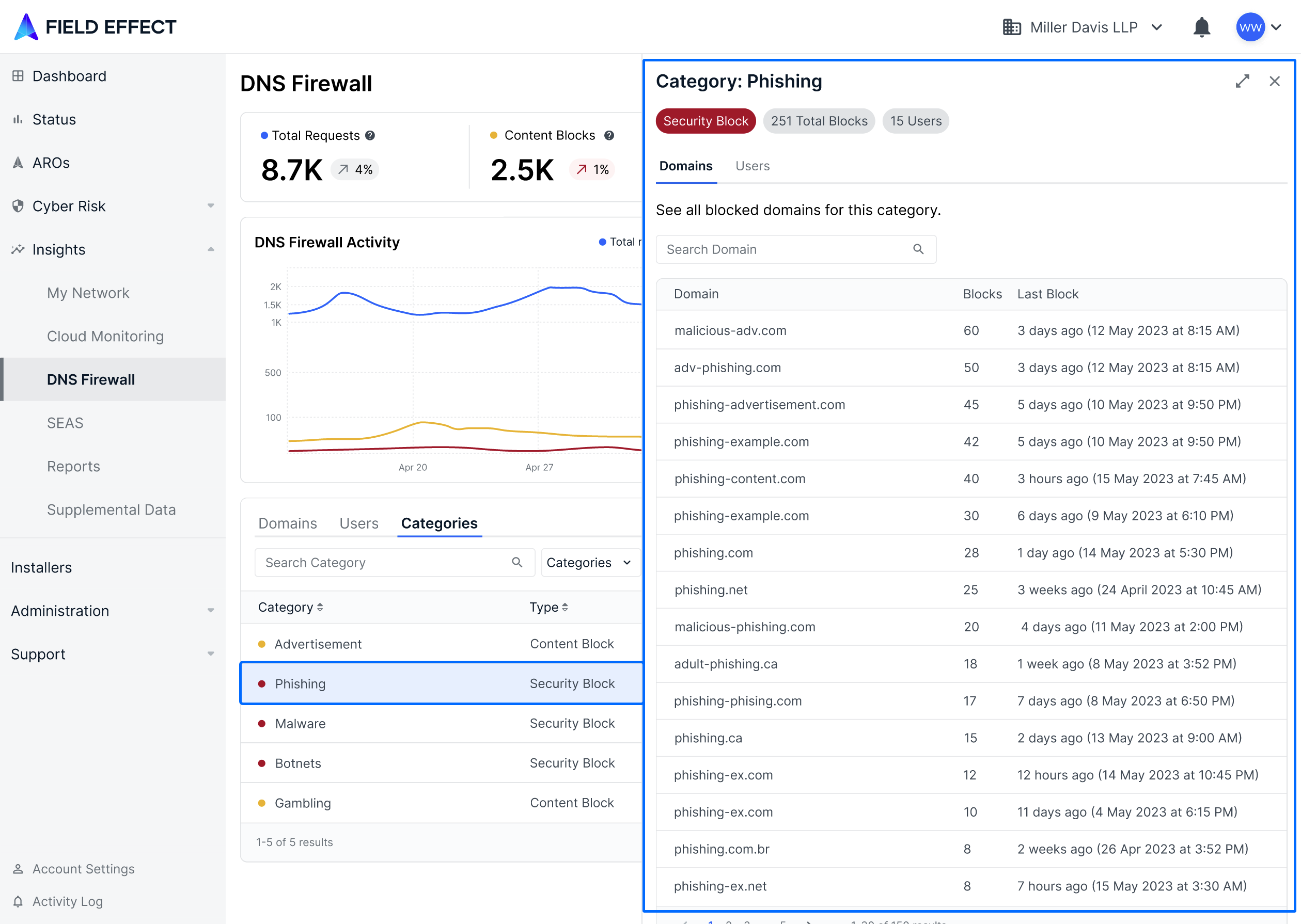
Click on an entry to open a details pane showing every domain and user to associated to the category. This details pane includes two of its own tabs: a Domains tab listing blocked domains associated to the category and a Users tab listing users who generated blocks associated to the category. Use the search bar to search against domain names.
Was this article helpful?
That’s Great!
Thank you for your feedback
Sorry! We couldn't be helpful
Thank you for your feedback
Feedback sent
We appreciate your effort and will try to fix the article